
October Release 2025
Feature Release: Patient Waitlist
Release Date: October 2025
Environment: Production (All Regions)
Release Type: Major Feature Update
Module: Calendar | Appointment Profile | Patient Portal
Overview
We’re excited to introduce the Patient Waitlist — a powerful new scheduling enhancement in Vozo EHR designed to help practices manage fully booked calendars, reduce appointment gaps, and improve patient satisfaction.
Calendar Enhancements
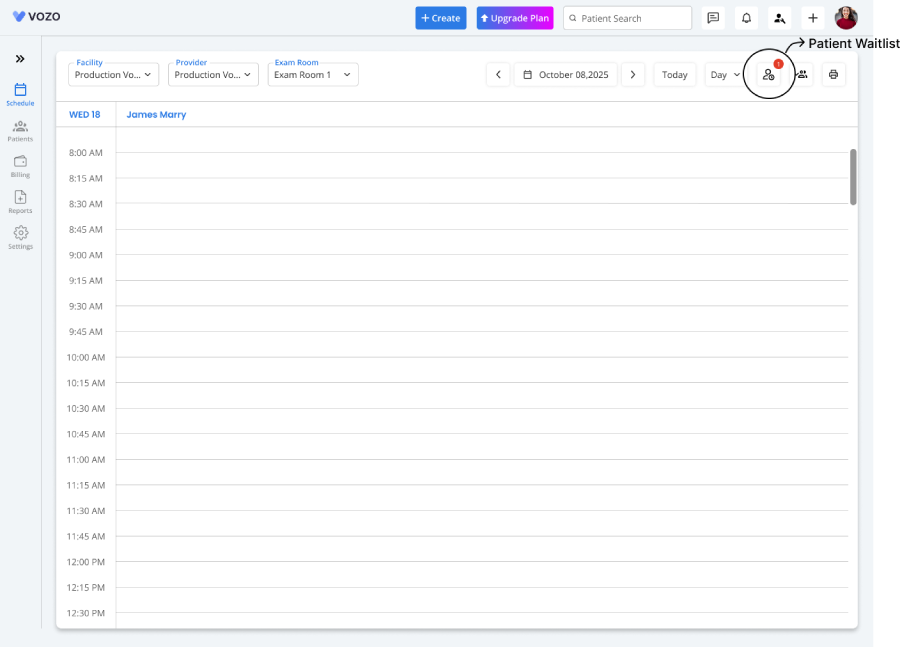
New Waitlist Button
The Waitlist List View provides a comprehensive dashboard with:
- Filter Options: Quickly sort and view patients by provider, facility, date, priority, and more.
- Waitlist Table Columns: Patient | Facility | Provider | Date | Time | Priority | Action
- Check Availability: A button at the top allows staff to instantly check open slots.
- Add Waitlist: A new button at the top-right corner opens a pop-up to add new waitlist entries.
Add Waitlist Pop-Up
Users can enter or edit patient details through an intuitive pop-up interface:
Fields:
- Patient Name (required)
- Appointment Profile
- Appointment Type
- Facility (required)
- Provider Name (required)
- Specialty
- Date (future dates only) (required)
- From / To Time (future times only) (required)
- Priority Level (required)
- Reason for Waitlist
Users can Save or Cancel entries. All saved data appears instantly in the table with options to Edit, Delete, or Transfer.
Smart Transfer Logic
The system continuously checks for open time slots in real-time.
- When a slot becomes available that matches a waitlisted patient’s preferences, a Transfer button appears for that specific patient.
- Clicking Transfer opens the appointment pop-up in the Calendar, automatically pre-filling all relevant details from the Waitlist for quick confirmation.
Over-Date Tracking
If a waitlisted request date has passed (e.g., fully booked provider on 07/10/25), that record is automatically marked with an “Over-Date” tag — making it easy for staff to identify and follow up.
Real-Time Notification
When an opening occurs, a notification badge appears beside the Waitlist icon on the Calendar page, alerting staff immediately.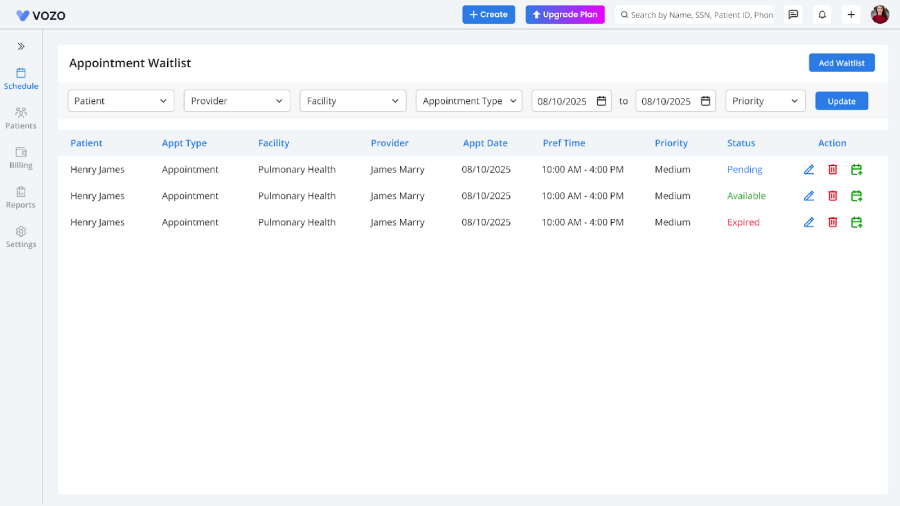
Appointment Profile Enhancements
A new “Waitlist Appointment” button has been added next to Telehealth Appointment.
When selected, the interface updates with the following columns:
Patient | Provider | Office | Appointment Type | Date | Time | Priority | Reason | Action
Actions available:
- View: Opens the existing Waitlist pop-up.
- Transfer: Opens the Calendar pop-up to confirm scheduling.
Enhanced filter options are also available for easier navigation.
Patient Portal Enhancements
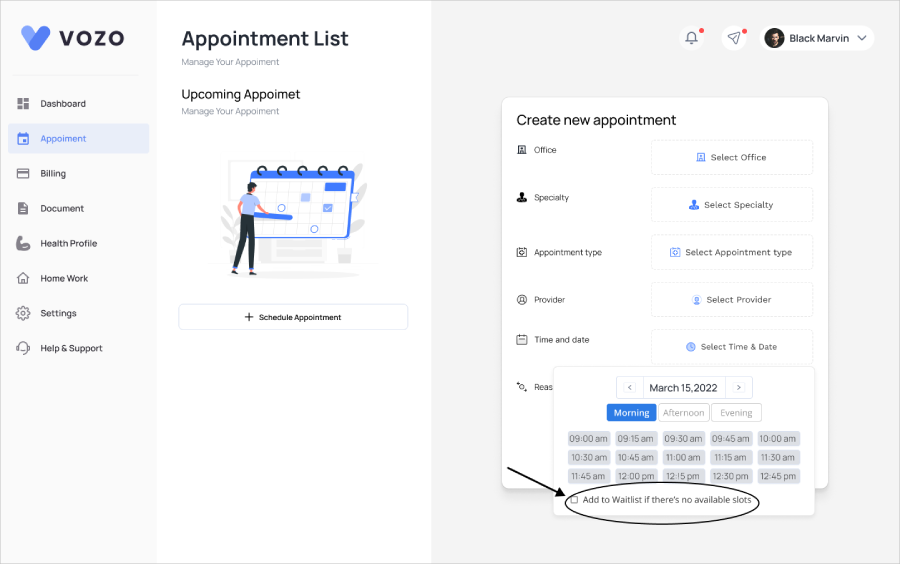
Patients now have the ability to join a waitlist directly from their appointment booking flow.
When a desired time slot is unavailable:
- A “Join Waitlist” button appears
- Patients can select preferred date, time, and priority level (future only)
- Upon saving, the appointment appears in the left panel with a highlighted Waitlist tag
- The record remains in waitlist status until confirmed
Provider Notification & Workflow
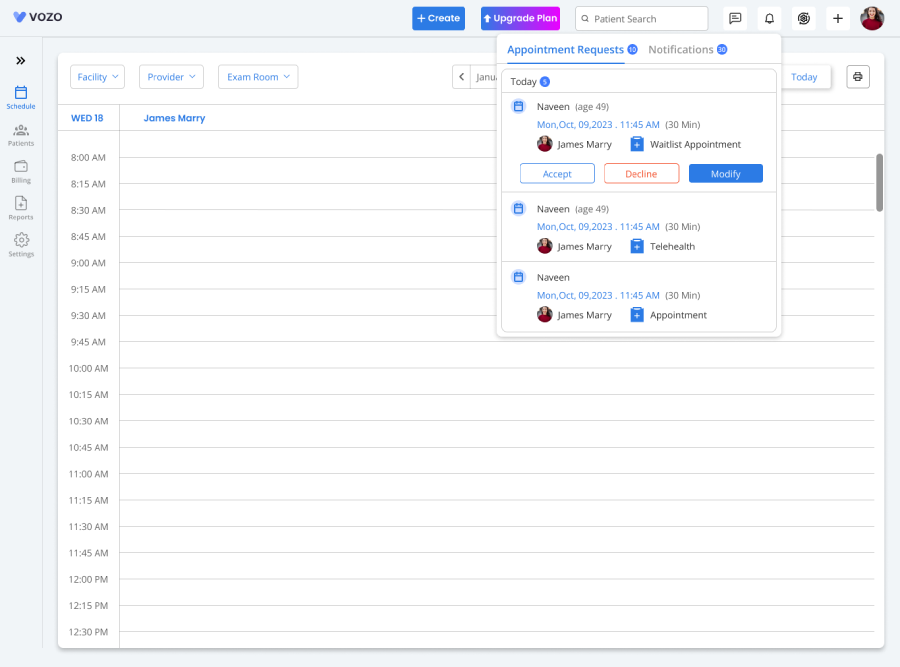
- Providers receive notifications for new patient waitlist requests
- Providers and staff can Accept, Modify, or Reject the waitlist request
- Accept: Adds the entry to the Waitlist List View
- Modify: Opens the Waitlist pop-up for editing
- Reject: Cancels the request as per normal workflow
Role-Based Access & Permissions
- Providers: Can view and manage only their assigned waitlisted patients (CRED access: Create, Read, Edit, Delete)
- Admin/Staff (Full Calendar Access): Can view all patient records and perform all CRED actions across the Waitlist.
Key Benefits
- Reduce unfilled appointment slots due to last-minute cancellations
- Improve provider utilization and calendar efficiency
- Enhance patient satisfaction with flexible scheduling options
- Streamline front-office workflows and reduce manual coordination
- Enable patients to self-manage appointment preferences
How to Access
You can access the new Patient Waitlist feature from:
- Calendar → Waitlist Button
- Appointment Profile → Waitlist Appointment
- Patient Portal → Join Waitlist
External Calendar One-Way Appointment Sync
Providers can now connect their Google Calendar, Outlook Calendar, or Apple Calendar to Vozo EHR. Every appointment created, updated, rescheduled, or cancelled in Vozo will automatically appear in the connected calendar — so providers can see their full schedule in one place without opening the EHR.
How to Connect a Calendar
Vozo Appointment Actions and Calendar Sync
| Vozo action | What happens in external calendar |
|---|---|
| New appointment created | A matching event is added automatically to all connected calendars within moments of saving. |
| Appointment updated (time, date, location) |
The corresponding event is updated in all connected calendars to match the latest details. |
| Appointment rescheduled | The event date/time is updated — the old slot is replaced, not duplicated. |
| Appointment cancelled / deleted | The event is removed from all connected calendars. |
What the Calendar Event Shows
🔒 Shows
- Appointment date
- Start and end time
- Provider name
- Location
- Appointment title
🚫 Does Not Sync
- Clinical notes
- Diagnosis
- Billing data
- Patient contact details
Task Management Revamp
The Task Management module has been redesigned to reduce unnecessary navigation, add a new List View alongside the existing Board View, and make categories and statuses configurable directly from the main screen.
What Has Changed
- Task Template button: No longer available in the header.
- Show Unarchived button: No longer available in the header.
- Add New Task button: Unchanged and still creates a new task.
- Board / List view toggle: Added to the top right of the screen.
- Quick Create shortcut: The top navigation “+” button now includes “Create a Task”.
Board View — Kanban
| Task card shows | Details |
|---|---|
| Category tag | Colour-coded badge showing the task category. |
| Priority tag | High / Medium / Low / Urgent. |
| Task title | The main task name. |
| Patient name | The patient linked to this task. |
| Assignee | Who the task is assigned to. |
| Due date | When the task is due. |
| Overdue indicator | Red badge with warning icon if the task is past due. |
| Actions | Edit and Delete icons. |
List View — New
| List column | What it shows |
|---|---|
| Checkbox | Tick to select one or more tasks for bulk actions. |
| Title | Task name. |
| Patient | Linked patient name. |
| Category | Category badge. |
| Status | Editable dropdown — change status inline without opening the task. Saves instantly on selection. |
| Priority | High / Medium / Low / Urgent badge. |
| Assignee | Who the task belongs to. |
| Due Date | Date the task is due. |
| Actions | Edit and Delete icons. |
Inline Category and Status Management
Patient Portal Activation at Patient Registration
This release note is written for front-desk staff and clinical coordinators. No technical background is needed. By the end you will know how to activate the Patient Portal and send intake forms to a patient at the exact moment you register them in Vozo — in a single flow.
The Problem This Solves
Vozo already supports sending intake and assessment forms to patients through the Patient Portal. However, forms can only reach the patient if their Patient Portal has been activated first. The activation step lived in a completely separate part of the system — meaning a new patient could be registered, their forms could be assigned, but those forms would silently fail to arrive because the portal was never turned on.
This created a gap that was easy to miss: a front-desk staff member adds a new patient, assigns intake forms, but never activates the portal — and the patient never receives anything. The practice only discovers the problem when the patient arrives for their appointment without having filled in their forms.
This release closes that gap by bringing the Patient Portal activation directly into the Create Patient popup — the same screen where the patient is first registered. Now the entire new patient onboarding workflow — registration, portal activation, and form delivery — can be completed in one uninterrupted sequence.
What Is New in the Create Patient Popup
A new toggle or checkbox has been added to the Create Patient popup, labelled “Enable Patient Portal Access.” It sits alongside the other patient details fields and includes a short message explaining that enabling it will allow the patient to receive and complete their intake and assessment forms.
| New element | Details |
|---|---|
| Enable Patient Portal Access toggle / checkbox | Optional — not mandatory. Staff can leave it unticked if the patient should not have portal access yet. |
| Helper message next to the toggle | A brief note explaining that enabling the portal means the patient will receive their forms to complete digitally. |
| What happens when you tick it and click Save | Instead of saving directly, a “Send Templates” popup appears before saving completes, so you can choose and confirm which forms to send. |
Step-by-Step: Adding a Patient with Portal Activation
Send or Skip — What Each Button Does
✅ Click “Send”
- Selected forms are delivered to the patient’s portal immediately
- Patient receives an email with a link to log in and complete the forms
- Patient record is saved in Vozo
- Patient Portal is activated
- Form status shows as Pending until the patient submits
⏭️ Click “Skip for now”
- No forms are sent at this time
- Patient receives an email with the Patient Portal link only
- Patient record is saved in Vozo
- Patient Portal is still activated
- Forms can be sent later via Documents → Send Intake Forms
The Send Templates Popup — All Options Explained
| Popup element | What it does |
|---|---|
| Pre-selected templates list | Shows the forms already configured as “Shareable Templates” in your practice settings. These are ticked by default — ready to send as-is. |
| Deselect a form | Untick any pre-selected form to remove it from this send. It will not be sent to this patient. |
| Search field | Search for additional forms from the Template Library. Select a form to add it to the send list for this patient. |
| “Require Patient to Sign” checkbox | When ticked, the patient is required to add their signature before they can submit each form. This is useful for consent forms, intake agreements, and any document that needs a formal sign-off. |
| “Send” button | Sends all selected forms to the patient’s portal and completes the patient registration. |
| “Skip for now” button | Completes the patient registration and activates the portal WITHOUT sending any forms. A portal activation email is still sent to the patient. |
How This Fits With the Existing Intake Form Workflows
This new flow is an additional entry point — it does not replace or remove any existing ways of sending forms. Here is how all three methods relate:
| Method | When to use it | Where it is |
|---|---|---|
| 🆕 Portal activation at registration (this feature) |
For new patients being registered for the first time. One combined step: register + activate + send forms. | Create Patient popup → Enable Patient Portal Access toggle |
| Automated send on portal activation (existing) |
When the portal is activated separately after the patient record already exists. System automatically sends Shareable Templates. | Patient record → Enable Patient Portal Access button |
| Manual send at any time (existing) |
For re-sends, additional forms, or forms for existing patients who have not yet received them. | Patient profile → Documents menu → Send Intake Forms |
Quick Reference — The New Patient Onboarding Flow
- Open Create Patient popup
- Fill in patient details (including a valid email address)
- Tick “Enable Patient Portal Access”
- Click Save
- Review forms in Send Templates popup
- Optionally tick “Require Patient to Sign”
- Click Send → forms go to portal immediately, patient record created
Common Questions
Third-Party Integrations Module
A new centralised Integrations page is now available in Settings. Administrators can connect, configure, enable, disable, and monitor all third-party service integrations from one screen — without hunting through different settings areas.
Integration Categories and Initial Integrations
| Integration | Category | What it connects |
|---|---|---|
| Email Notifications | Notifications | Sends email alerts to patients and staff. |
| SMS Notifications | Notifications | Sends text message alerts. |
| Voice Notifications | Notifications | Automated voice call reminders. |
| Stripe Payments | Payments | Card payment processing. |
| H2H Clearinghouse | Clearinghouse | Electronic insurance claims submission. |
| Availity | Eligibility | Insurance eligibility verification. |
Each Integration Card Shows
| Card element | What it means |
|---|---|
| Status badge | Connected (green), Disconnected (grey), or Error (red). |
| Toggle switch | Turns the integration ON or OFF. Turning ON without API credentials configured opens the configuration form automatically. |
| Last Sync timestamp | Shows when the integration last successfully communicated with the external service. |
| Edit button | Opens the configuration form to update API key or other credentials. |
Connection States Explained
Connected
Disconnected
Error
Flowsheets
Flowsheets provide a single, structured view of patient data over time. Instead of opening individual visits, providers can review vitals and submitted forms in one read-only table with dates across columns and data types as rows.
What Is a Flowsheet?
📊 Vitals
- Blood Pressure
- Temperature
- Pulse
- Weight, Height
- Respiratory Rate
📝 Forms
- Patient-submitted forms only
- PHQ-9, GAD-7, intake forms
- Portal submissions only
Where to Find Flowsheets
Default View on Load
| Setting | Default Value |
|---|---|
| Date range | 7 records |
| Active tab | Vitals |
| Sort order | Oldest → newest |
| Scrollbar | Hidden (fits screen) |
| Hidden rows | None |
Date Range Filter
| Selection | What it means | Use case |
|---|---|---|
| 7 Days | Latest 7 records (not calendar days) | Quick review |
| 15 Days | Latest 15 records | Monthly analysis |
| 30 Days | Latest 30 records (max) | Long-term trends |
Scrolling Behaviour
Hide and Unhide Rows
| Action | Behaviour |
|---|---|
| Hide row | Removes it from table instantly |
| Unhide | Restores all hidden rows |
| Visibility | Only appears when rows are hidden |
| Tab independence | Vitals and Forms are separate |
Export to CSV
| Export rule | Behaviour |
|---|---|
| Active tab only | Vitals OR Forms (not both) |
| Date range | Exports selected records only |
| Hidden rows | Excluded from export |
| Format | Matches existing CSV format |
| Columns | Patient and Provider data separate |
- Select correct tab
- Set date range
- Unhide rows
- Click Export
End-to-End Workflow
Common Questions
Treatment Plan
A structured clinical module to define diagnoses, goals, objectives, and interventions. Supports progress tracking, reminders, provider comments, signatures, and full PDF export for compliance and care coordination.
What Is a Treatment Plan?
Plan Structure
📋 Plan Level
- ICD Codes
- Provider
- Start Date
- Description
🎯 Goal → Objective → Intervention
- Goal = Outcome
- Objective = Step
- Intervention = Action
Two Form Types
| Feature | Default Form | Simple Form |
|---|---|---|
| Structure | Goal → Objective → Intervention | Free-text |
| Goal tracking | Yes (X/Y) | No |
| Best for | Chronic care, mental health | Quick notes |
Plan List Columns
| Column | Description |
|---|---|
| Provider | Owner of the plan |
| Plan Name | Title |
| Description | Preview text |
| Start Date | Plan start |
| Goals Completed | X/Y (Default only) |
| Actions | View / Edit / Reminder |
Goal Hierarchy Rules
Goal Status Tracking
| Status | Meaning |
|---|---|
| In Progress | Active work |
| Completed | Goal achieved |
| Cancelled | No longer relevant |
Plan Status Behaviour
| Status | Behaviour |
|---|---|
| In Progress | Fully editable |
| Completed | Locked, except signature |
| Cancelled | Locked |
Comments & Signature
📝 Comments
- Timestamped
- Editable
- Chronological history
✍ Signature
- Name + date
- Shown in PDF
- Editable after completion
Reminder System
| Action | Behaviour |
|---|---|
| Set Reminder | Choose future date |
| Trigger | 12 AM notification |
| Indicator | Icon in list |
| Cancel | Remove reminder |
End-to-End Workflow
Key Rules
- End date is auto-calculated
- One provider owns the plan
- Completed plans are locked
- New plan required for changes after completion
Measurement-Based Care (MBC)
A clinical tracking system that uses standardized assessments to measure patient outcomes over time, generate automatic scores, trigger alerts, and feed structured data directly into clinical workflows.
What Is MBC?
Built-In Assessment Tools
| Tool | Measures | Use |
|---|---|---|
| PHQ-9 | Depression | Severity + suicide risk |
| GAD-7 | Anxiety | Anxiety tracking |
| AUDIT-C | Alcohol use | Risk screening |
| C-SSRS | Suicide risk | Emergency detection |
| Fall Risk | Fall risk | Mobility safety |
| Pain Scale | Pain level | Intensity tracking |
| PROMIS | Outcomes | Quality of life |
| ADL / IADL | Function | Independence level |
Where to Access
👨⚕️ Provider
- Patient Chart → Documents
- Measurement Tool tab
- List + Graph views
🧑💻 Patient
- Patient Portal → Documents
- Assigned assessments
- Online completion
Assessment List View
| Column | What it shows |
|---|---|
| Assessment | Name of tool |
| Date | Completed or due date |
| Score | Latest score |
| Flag | Green / Yellow / Red severity |
| Action | View, Notes, Plan, Medications |
Graph View
Assignment Workflow
Alert Triggers
C-SSRS moderate/high → Emergency alert
AUDIT-C above threshold → Alcohol risk
Pain > 8 → Severe pain
Fall Risk high → Fall alert
Scoring Examples
| Tool | Range | Severity |
|---|---|---|
| PHQ-9 | 0–27 | Minimal → Severe |
| GAD-7 | 0–21 | Minimal → Severe |
| Pain | 0–10 | Mild → Severe |
| PROMIS | T-score | Normal → Severe |
Clinical Integration
SOAP Notes
Treatment Plan
Medications
End-to-End Workflow
Key Rules
- Scoring is fully automatic
- Alerts trigger instantly
- Red flag = clinical attention required
- Trend graphs show 3–12 records
- Custom assessments supported
Dedicated Provider Dashboard
A unified dashboard that brings appointments, notes, forms, patient activity, and billing into a single screen — allowing providers and coordinators to understand their day instantly without navigating multiple modules.
The Problem This Solves
Where to Find the Dashboard
Dashboard Layout
Left Column
- Upcoming Appointments
- Appointment Waitlist
- Forms
- Recent Patients
Right Column
- Appointment Requests
- Unsigned Notes
- Patient Portal Activity
- Pending Invoices
Dashboard Cards Reference
| Card | Key Data | View All Destination |
|---|---|---|
| Upcoming Appointments | Patient, Time, Provider, Status | Schedule → Calendar |
| Appointment Requests | Patient, Date, Type | Requests popup |
| Waitlist | Patient, Preferred Time | Schedule → Waitlist |
| Unsigned Notes | Patient, Date, Provider | Note Taking |
| Forms | Patient, Form, Status | Forms module |
| Portal Activity | Patient actions | Settings → Activities |
| Recent Patients | Name, Created Date | Patients list |
| Pending Invoices | Invoice, Amount | Reports → Invoices |
Interactive Actions
Appointment Requests
Waitlist
Unsigned Notes
- Each card shows 3 recent records
- Column headers match full module
- Click “View All →” for full list
- Data is live at page load
Key Behaviors
| Feature | Behavior |
|---|---|
| Personalisation | Shows data for logged-in provider |
| Record count | 3 preview rows per card |
| Navigation | Direct links via View All |
| Refresh | Reload page for latest data |
| Permissions | Data varies by user role |
End-to-End Usage
Key Rules
- Dashboard is provider-specific
- Cards show preview, not full data
- Actions available on selected cards
- Live data updates on reload
- Permissions control visibility
Patient Group & Group Appointments
Create reusable patient groups, schedule group sessions in one step, track attendance, add notes, and bill each patient individually — all within a single workflow.
The Problem This Solves
What Is a Patient Group?
- Reusable collection of patients
- Example: Anxiety Group, Diabetes Cohort
- Has provider, status, date range
- Supports recurring sessions
Patient Group List Columns
| Column | Description |
|---|---|
| Group Name | Name of the group |
| Group ID | System-generated ID |
| Status | Active / Inactive |
| Patient # | Total patients |
| Provider | Assigned provider |
| Date Range | Start and End dates |
| Action | Edit / Delete |
Create Patient Group
Schedule Group Appointment
| Field | Description |
|---|---|
| Group Name | Select group |
| Type | Walk-in or Telehealth |
| Date & Time | Session timing |
| Facility | Location |
| Provider | Session owner |
| Reason | Session purpose |
Attendance Management
- Set status per patient
- Add notes or services
- Remove patient from session
Attendance Status
| Status | Description |
|---|---|
| Scheduled | Expected |
| Arrived | Attended |
| No Show | Missed |
| Cancelled | Cancelled |
Notes Types
📝 Group Note
- Shared across all patients
- Session-level documentation
🧍 Individual Note
- Per patient
- Specific observations
Billing Rules
End-to-End Workflow
Key Rules
- Patients can belong to multiple groups
- Removing from session ≠ removing from group
- Group note is shared across all patients
- Billing always individual
- New patients apply only to future sessions
Vital Graph & List View
View patient vital history instantly through an interactive graph or structured list. Analyse trends, edit records, and export data — without leaving the patient workflow.
The Problem This Solves
How to Access
Vitals Covered
| Vital | Unit | Range |
|---|---|---|
| Blood Pressure | mmHg | 90–120 / 60–80 |
| Temperature | °F | 97–99 |
| Pulse | bpm | 60–100 |
| Respiratory Rate | breaths/min | 12–20 |
| Weight | kg/lbs | Trend only |
| Height | cm/in | Trend only |
Graph View
- Shows max 30 recorded dates
- One vital at a time
- Hover to see exact values
- Threshold lines indicate normal range
Graph Elements
| Element | Description |
|---|---|
| X-axis | Dates of recorded vitals only |
| Y-axis | Measurement scale |
| Lines | Vital trend values |
| Threshold | Normal range markers |
| Hover | Exact values + date |
List View
| Feature | Description |
|---|---|
| Rows | One per date |
| Columns | All 6 vitals |
| Edit | Modify record inline |
| Print single record | |
| Export | CSV download |
Filtering
- Select Start Date and End Date
- Only dates with data are shown
- Export respects filters
Editing a Vital
Graph vs List View
| Feature | Graph | List |
|---|---|---|
| Purpose | Trend analysis | Record review |
| Data | One vital | All vitals |
| Edit | No | Yes |
| No | Yes | |
| Export | Graph data | CSV |
Key Rules
- Max 30 records displayed
- Graph shows one vital at a time
- Blood Pressure shows two lines
- Filters apply only in List view
- Switching views is instant
Intake Form Sending
Automate intake forms for new patients and send forms anytime for existing patients. Eliminate paper workflows and ensure all patient data flows directly into the chart.
The Problem This Solves
What Are Intake Forms?
- Patient demographics
- Medical history
- Insurance details
- Consent forms
- Custom practice-specific forms
Two Sending Methods
| Method | Trigger | Use Case |
|---|---|---|
| Automated | New patient + portal activation | Standard onboarding |
| Manual | Staff action | Resend / extra forms |
Automated Workflow (New Patient)
Manual Workflow (Any Patient)
Template Configuration
- Configured in Settings → Template Library
- Applies to all patients
- Editable but not deletable
- Changes affect future sends only
Patient Experience
| Step | What patient sees |
|---|---|
| Portal login link | |
| Login | Access forms |
| Fill | Mobile-friendly forms |
| Submit | Confirmation message |
Staff Review Workflow
Key Rules
- Portal required for sending
- Automation triggers once only
- Manual send works anytime
- All actions logged for audit
- Forms auto-save to patient chart
Growth Chart
Track pediatric growth automatically using WHO percentile charts. Every recorded measurement is plotted instantly — enabling accurate, real-time clinical assessment without manual calculations.
The Problem This Solves
What It Does
- Automatically plots child measurements
- Displays WHO percentile curves
- Shows growth trends over time
- Includes measurement history table
How to Access
Chart Tabs
| Tab | Measurement | Purpose |
|---|---|---|
| Length / Height for Age | Height vs Age | Growth trend baseline |
| Weight for Age | Weight vs Age | Under/overweight detection |
| Weight for Length | Weight vs Height | Body proportion assessment |
| BMI for Age | BMI vs Age | Obesity / nutrition tracking |
How to Read the Chart
| Element | Meaning |
|---|---|
| WHO Curves | Standard growth reference lines |
| 50th Percentile | Average growth line |
| 25–75 Range | Normal healthy range |
| Below 3rd | Possible growth delay |
| Above 97th | Possible accelerated growth |
| Blue dotted line | Patient’s actual measurements |
Age Range Filters
- 0–6 months
- 0–2 years
- 6 months–2 years
- 2–5 years
- 0–5 years (full view)
Measurement Table
Key Rules
All weight values are displayed in pounds (lbs). The system automatically converts WHO data from kilograms using the formula:
lbs = kg × 2.20462
- Charts auto-adjust based on patient gender
- Applies only to patients aged 0–5
- No manual data entry required for plotting
- All measurements are plotted in real time
- Percentiles calculated automatically
Medication Refill Request
Enable patients to request prescription refills digitally while providers review and approve instantly. Eliminates manual coordination and reduces turnaround time from hours to seconds.
The Problem This Solves
How It Works
- Patients request refills via portal
- Providers review and approve instantly
- eRx sends prescription directly to pharmacy
- Status updates automatically
Patient Workflow
Patient Status Tracking
| Status | Meaning |
|---|---|
| Pending | Awaiting provider review |
| Approved | Refill approved |
| Rejected | Refill declined with reason |
| Sent to Pharmacy | Prescription transmitted |
Provider Workflow
Built-in Safety Rules
| Condition | System Behavior |
|---|---|
| Inactive medication | Refill button hidden |
| No refills remaining | Warning message shown |
| Medication discontinued | Refill disabled |
Audit Trail
Key Rules
- Patients can only request active medications
- Providers must approve all requests
- eRx sends prescriptions automatically if enabled
- Status updates are real-time
- All actions are logged for compliance
DPC Membership Plan
Offer subscription-based care with automated billing, real-time coverage validation, and zero manual claims for included services. Build predictable revenue while simplifying patient experience.
What Is DPC?
Why Practices Use DPC
- Predictable recurring revenue
- No insurance claim overhead for covered services
- Improved patient retention and loyalty
- Lower patient volume with stable income
Create a DPC Plan
| Setting | Description |
|---|---|
| Plan Name | Display name for staff and patients |
| Fee | Monthly or annual amount |
| Billing Frequency | Monthly or Annual |
| Included Services | Visits, telehealth, preventive care, etc. |
| Status | Active / Inactive |
Patient Enrollment Workflow
Encounter Billing Logic
| Scenario | System Behavior |
|---|---|
| Covered service | $0 charge, no claim, tagged as “Covered by Membership” |
| Non-covered service | Standard invoice generated, insurance allowed |
Invoices & Payments
| Process | What Happens |
|---|---|
| Invoice generation | Auto-created on billing date |
| Email delivery | Sent automatically |
| Payment | Auto-charged via saved card |
| Failure | Notification + retry logic |
| Status | Updated instantly |
Reports
📊 Membership Report
- Active members
- Inactive members
💰 Revenue Report
- Total revenue
- Outstanding payments
- Invoice status
Patient Portal Experience
Key Rules
- Plans must be Active for enrollment
- Billing is fully automated
- Covered services always cost $0
- No claims for covered services
- Membership auto-renews based on billing cycle
Lifestyle & Diet Recommendation
Capture daily patient habits, enable provider feedback, and assign personalized diet plans — transforming care from episodic visits into continuous monitoring and guidance.
The Problem This Solves
What This Feature Does
- Patients log daily habits
- Providers review and comment
- Diet plans assigned directly
- Trends tracked over time
Patient Workflow
Lifestyle Entry Fields
| Category | Examples |
|---|---|
| Sleep | Hours slept |
| Water | Glasses consumed |
| Activity | Exercise type + duration |
| Mood | Emotional state |
| Food | Meals / diet details |
| Measurements | Weight, BP, etc. |
Calendar View
Provider Workflow
Diet Recommendation Types
| Type | Use Case |
|---|---|
| Curated Library | Predefined plans for common conditions |
| Custom Recommendation | Patient-specific plan |
| Global Library | Reusable clinic-wide plans |
Review Status
| Status | Meaning |
|---|---|
| Pending Review | Awaiting provider feedback |
| Reviewed | Feedback added and visible |
Key Rules
- Patients can log entries daily
- Providers control visible categories
- Comments appear instantly in portal
- Diet plans are read-only for patients
- All entries are timestamped and stored
Batch Eligibility
Verify insurance coverage for all scheduled patients in minutes instead of hours. Eliminate manual calls, reduce claim denials, and ensure accurate billing before the patient even arrives.
The Problem This Solves
What Batch Eligibility Does
- Select a date (e.g., tomorrow’s appointments)
- Vozo identifies all scheduled patients
- Runs eligibility checks simultaneously
- Returns results within minutes
- Highlights issues before visits happen
How to Access
Run Eligibility Check
Eligibility Status Guide
| Status | Meaning | Action |
|---|---|---|
| ✅ Active | Coverage valid | No action |
| ⚠ Review Needed | Coverage active but conditions apply | Check details |
| ❌ Inactive | Policy not valid | Contact patient |
| ⚠ Policy Lapsed | Expired coverage | Update insurance |
| ❌ Patient Not Found | Mismatch in data | Correct details |
| ⚠ Deductible Not Met | Out-of-pocket required | Inform patient |
| ⚠ Copay Updated | Payment amount changed | Update billing |
| ⏳ Pending | No response | Retry or call payer |
Insurance Claims Screen Columns
| Column | Description |
|---|---|
| Appointment Date | Visit date |
| Patient | Patient name |
| Office | Facility |
| Payer | Insurance company |
| Billing Status | Payment state |
| Claim Status | Submission status |
| Action | Generate claim form |
Best Practices
- Run eligibility the evening before appointments
- Always review yellow and red statuses
- Update insurance data immediately when changes occur
- Use payer filters to handle denials in bulk
- Track repeat problem patients
Key Rules
- No limit on number of patients per run
- Results are saved automatically
- Individual checks can be re-run anytime
- Not all payers support electronic verification
- All results stored for audit and compliance
Good Faith Estimate (GFE)
Create, send, and track legally compliant cost estimates for uninsured and self-pay patients — ensuring transparency, reducing disputes, and meeting federal requirements automatically.
What Is a Good Faith Estimate?
When GFE Is Required
| Scenario | Required? |
|---|---|
| No insurance | Yes |
| Self-pay (insured but opting out) | Yes |
| Out-of-network | Yes |
| Insurance used normally | No |
| Patient requests estimate | Yes |
How to Access
Header Fields
| Field | Description |
|---|---|
| Title | Name of estimate |
| Date | Creation date |
| Expiration | Auto 12 months |
| Service Date | Planned visit date |
| Provider | Auto fills NPI |
| Facility | Auto populated |
Services Table
| Field | Description |
|---|---|
| CPT / HCPCS | Procedure code |
| Description | Auto-filled |
| Quantity | Number of services |
| Fee | From fee schedule |
| Diagnosis | ICD-10 code |
| Total | Auto-calculated |
- Add multiple services using “+ Add Service”
- Total cost calculated automatically
- Additional notes supported
Send & Patient Workflow
Documents Management
| Action | What it does |
|---|---|
| View | Preview document |
| Print copy | |
| Download | Save PDF |
| Delete | Remove record |
Compliance Coverage
Vozo automatically ensures:
• Written estimate delivery
• Patient acknowledgement tracking
• Permanent record storage
• Itemised cost breakdown
• Provider & facility inclusion
Key Rules
- Editable before patient signs
- New GFE required after changes
- Portal required for digital signature
- Valid for 12 months by default
- All records stored for audit
Patient Estimate Calculator
Instantly calculate patient out-of-pocket costs using real-time insurance data. No calls, no guesswork — accurate estimates in seconds.
The Problem This Solves
What It Does
- Fetches real-time insurance data
- Calculates exact patient responsibility
- Breaks down copay, deductible, coinsurance
- Saves and shares estimate instantly
How to Access
Required Inputs
| Field | Description |
|---|---|
| Insurance Type | Primary / Secondary |
| Payer | Insurance company |
| Provider | Auto-selected |
| Date of Service | Appointment date |
| CPT Code | Procedure code (required) |
| ICD-10 | Diagnosis code |
Run Estimate
Estimate Results Explained
| Field | Meaning |
|---|---|
| Billed Amount | Practice charge |
| Allowed Amount | Insurance-approved amount |
| Deductible | Remaining patient deductible |
| Copay | Fixed visit fee |
| Coinsurance | % patient pays |
| Insurance Payment | What insurer pays |
| Patient Responsibility | Total patient owes |
Summary Calculations
- Total Visit Cost = Sum of all CPT services
- Insurance Payment = Coverage portion
- Patient Responsibility = Final out-of-pocket cost
Save & Share
Common Errors
| Error | Fix |
|---|---|
| Missing fields | Fill required inputs |
| Invalid patient data | Verify DOB, Member ID |
| Timeout | Retry |
| Payer not supported | Manual check |
| Authorization required | Contact insurer |
Best Practices
- Run at time of scheduling
- Verify insurance details before running
- Use correct CPT codes
- Discuss high costs upfront
- Always save estimate for records
Key Rules
- Real-time insurer data
- Save only after results load
- No estimate without CPT code
- Supports multiple services
- Stored for audit and disputes
Superbill Generation
Generate a complete, professional billing summary of any patient visit in one click. Includes diagnoses, procedures, provider details, and charges — ready for insurance submission or patient use.
The Problem This Solves
What Is a Superbill?
- Full summary of a patient visit
- Includes CPT and ICD-10 codes
- Lists provider and patient details
- Shows total charges
- Used for reimbursement or billing validation
How to Generate
What the Superbill Contains
| Section | Includes |
|---|---|
| Patient | Name, phone, email |
| Provider | Name, NPI, contact info |
| Encounter | Date, location, POS code |
| Services | CPT codes, quantity, fees |
| Diagnosis | ICD-10 codes |
| Charges | Total, discounts, billed amount |
Available Actions
| Action | Purpose |
|---|---|
| Download | Save PDF locally |
| Provide physical copy | |
| Share | Send via patient portal |
| Send directly to patient | |
| Delete | Remove and regenerate |
Patient Portal View
Provider Settings
- Auto-email Superbills to patients
- Add logo to PDF
- Customize footer information
- Configure email message template
Superbill vs Invoice
| Type | Purpose |
|---|---|
| Superbill | Visit summary for insurance reimbursement |
| Invoice | Payment request to patient |
Key Rules
- One Superbill per encounter
- Multiple Superbills allowed per patient
- Cannot edit PDF after generation
- Requires completed encounter
- All records stored for audit
Billing Credit Flow
Track, display, and apply patient overpayments accurately. Eliminate negative balances and manage credits cleanly across all billing workflows.
The Problem This Solves
What Is a Credit?
- Extra payment stored on patient account
- Always shown as a positive value
- Displayed as “Patient Credit – $X.XX CR”
- Can be applied to future invoices
Where You See Credit
| Location | What You See |
|---|---|
| Appointment Billing | Patient Balance + Patient Credit |
| Patient Payments | Unapplied Credit column |
| Payment Analysis | Credit totals and breakdown |
| Clinical Reports | Credit column added |
How Credit Is Created
- Overpayment on invoice
- Copay higher than EOB amount
- Payment on $0 visit
- Insurance adjustment differences
EOB Credit Example
How to Apply Credit
What Changed (Fixes)
• Credit no longer auto-applies
• Payment popup shows correct values
• Credit reduces correctly after use
• Insurance balances stay accurate
New UI Additions
| Feature | Purpose |
|---|---|
| Patient Credit line | Shows total credit |
| Unapplied Credit option | Use credit for payments |
| Credit columns | Visible in reports |
| Credit totals | Practice-wide reporting |
Key Rules
- Credit does not auto-pay invoices
- Must be manually applied
- Credit reduces after use
- Does not expire by default
- Refund handled separately
Deductible, Coinsurance & Patient Owes
Capture patient responsibility with complete accuracy using separate fields for copay, deductible, coinsurance, and patient owes — each generating its own invoice automatically.
The Problem This Solves
The Four Responsibility Fields
| Field | Meaning | Example |
|---|---|---|
| Copay | Fixed visit fee | $20 per visit |
| Deductible | Patient pays before insurance | $50 remaining deductible |
| Coinsurance | % after deductible | 20% of $80 = $16 |
| Patient Owes | Total responsibility from EOB | $16 from insurer |
Key Change
→ Each field generates its own invoice automatically
→ Full transparency for patients and billing teams
EOB Entry Fields
| Field | What to Enter |
|---|---|
| Allowed Amount | Insurance-approved amount |
| Copay | Collected at visit |
| Deductible | Patient responsibility before coverage |
| Coinsurance | Percentage-based share |
| Patient Owes | Total from EOB |
| Insurance Paid | Amount insurer paid |
| Write-Off | Billed vs allowed difference |
Invoice Generation Logic
- Copay → Copay Invoice
- Deductible → Deductible Invoice
- Coinsurance → Coinsurance Invoice
- Patient Owes → Patient Owes Invoice
Scenario Example
Editing Rules
| Status | Can Edit? |
|---|---|
| Not Created | Yes |
| Created | No |
| Paid | No |
| Partial | No |
Eligibility Enhancements
Eligibility now shows full benefit breakdown:
• Deductible (met + remaining)
• Copay per visit
• Coinsurance %
• Patient responsibility
Where It Appears
| Screen | Usage |
|---|---|
| Appointment Billing | Invoice breakdown |
| Patient Payments | Line-item invoices |
| Statements | Patient clarity |
| Ledger | Audit tracking |
| Reports | Financial analytics |
Key Rules
- Each field creates its own invoice
- No combined patient responsibility
- Editing locked after invoice creation
- Improves audit and reporting accuracy
- Enhances patient billing transparency
Risk Assessment & Preventive Health Screening
Automatically track preventive screenings and detect clinical risks in real time using guideline-based triggers from labs and vitals — ensuring no critical condition is missed.
The Problem This Solves
Two Connected Features
📋 Health Screening
- Tracks due and overdue tests
- Based on age, ICD, frequency
- Provider-driven workflow
🚨 Risk Assessment
- Auto-triggers from labs & vitals
- Flags abnormal values
- Immediate clinical alerts
Guideline Setup
- Configure in Settings → Screening Guidelines
- Define age range, frequency, ICD codes
- Applies automatically to patients
Guideline Types
| Type | Examples |
|---|---|
| Vitals | BP, BMI |
| Vaccination | Flu, Pneumococcal |
| Screening | Mammogram, A1C |
| Others | Counselling, Risk reviews |
Health Screening Table
| Column | Meaning |
|---|---|
| Test Name | Screening test |
| Due Date | System calculated |
| Status | Due / Overdue / Done |
| Type | Guideline category |
Screening Actions
Risk Assessment Table
| Field | Description |
|---|---|
| Test Name | Triggered test |
| Source | Lab or Vitals |
| Value | Recorded value |
| Status | Risk level |
Risk Levels
- 🔴 High Risk → Immediate action
- 🟡 Moderate Risk → Monitoring needed
- ⚠ Abnormal → Review required
Trigger Sources
Risks are triggered automatically from:
• Lab results
• Vitals recorded during visits
Risk Actions
| Action | Purpose |
|---|---|
| Details | View full risk info |
| Care Plan | Create treatment plan |
| Schedule Visit | Book follow-up |
End-to-End Workflow
- Admin sets guidelines
- System assigns screenings
- Provider orders test
- Lab result received
- System triggers risk alert
- Provider takes action
Key Rules
- Guidelines apply automatically
- Due dates are system-controlled
- Risk triggers are automatic
- Notify can only be sent once
- All actions are tracked
Refund Module
Process full or partial refunds with complete audit tracking, automatic patient notifications, and built-in credit-first logic — all within a single controlled workflow.
The Problem This Solves
Where Refund Can Be Initiated
| Entry Point | Use Case |
|---|---|
| Billing Section | Invoice review |
| Total Balance | Account-level review |
| Appointment Balance | Visit-level refund |
| Patient Page | Direct invoice refund |
Refund Types
💯 Full Refund
- Refunds entire amount
- Amount auto-filled
- Field locked
➗ Partial Refund
- Refund specific amount
- Editable field
- Multiple allowed
Refund Methods
| Method | Behavior |
|---|---|
| Cash | Manual refund outside system |
| Cheque | Manual issuance |
| Card | Auto-refund via payment gateway |
Credit Balance Logic
- Full credit → no cash/card issued
- Partial credit → remaining refunded
- No credit → full refund issued
Refund Workflow
What Happens After Submit
- Invoice updated
- Patient balance adjusted
- Credit balance updated
- Audit log created
- Email sent to patient
- Refund report updated
Refund Report
Patient Portal View
- Refund amount
- Date
- Method
- Invoice reference
Validation Rules
| Error | Reason |
|---|---|
| Invalid amount | Must be numeric |
| Exceeds paid amount | Not allowed |
| Missing reason | Mandatory field |
Key Rules
- Credit applied before refund
- Partial refunds allowed multiple times
- Full refund locks amount
- Card refunds irreversible
- All actions logged
Imaging Menu
Manage the complete imaging lifecycle — from order creation to result review and physician sign-off — all within the patient record with full traceability.
The Problem This Solves
Three Core Tabs
📋 Imaging Orders
- Create and track orders
- Monitor status
- Import results
📄 Imaging Results
- Review results
- Sign-off workflow
- Finalised reports
⚙️ Imaging Test
- Configure imaging types
- Define tests catalogue
- Required before ordering
Imaging Order Workflow
Order Status Logic
| Status | Meaning |
|---|---|
| Pending | No results uploaded |
| Partial | Some results uploaded |
Importing Results
- Select specific test
- Enter radiologist name
- Upload file
- Save result
Supported File Types
| Type | Use |
|---|---|
| JPEG / PNG | Images |
| Reports | |
| DCM | DICOM medical imaging |
Result Review Workflow
Result Status
| Status | Meaning |
|---|---|
| Not Signed | Awaiting review |
| Signed | Finalised |
Imaging Catalogue Setup
- Create Imaging Types (Radiology, MRI, etc.)
- Add tests under each type
- Required before providers can order
Structure Example
MRI → Brain MRI, Knee MRI
Ultrasound → Abdominal, Pelvic
End-to-End Workflow
- Admin sets up catalogue
- Provider creates order
- Staff uploads results
- System tracks status
- Provider reviews and signs
- Final report stored in patient record
Key Rules
- Orders move forward only (no rollback)
- Partial status until all results uploaded
- Results must be signed to finalize
- DICOM handled internally
- Setup required before use
Care Plan, Care Goals, Monitoring & Tasks
Structure patient care with team-based goals and track ongoing monitoring activities with scheduled actions — enabling coordinated, continuous care across providers.
The Problem This Solves
Two Connected Modules
📋 Care Plan
- Defines treatment programme
- Assigns care team
- Sets goals and outcomes
📅 Monitoring & Tasks
- Tracks ongoing activities
- Schedules recurring checks
- Logs actions per occurrence
Care Plan Workflow
Care Plan Statuses
| Status | Meaning |
|---|---|
| Draft | Not active yet |
| Active | In progress |
| Inactive | Paused |
| Cancel | Stopped |
Care Team Access Rules
- Team members can create goals
- Only team members can be assigned
- Non-team providers cannot manage goals
Care Goals
| Field | Description |
|---|---|
| Description | Goal definition |
| Target Outcome | Expected result |
| End Date | Completion target |
| Assigned Provider | Responsible team member |
Automatic Notifications
- Goal end date reached
- Provider added to plan
- Goal assigned to provider
- Care plan end date reached
Monitoring Activity Workflow
Activity Actions
| Action | Meaning |
|---|---|
| Done | Completed |
| Skip | Not completed |
| Comment | Add note |
| Reset | Clear status |
Frequency Rules
- Daily → repeats every day
- Weekly → repeats weekly
- Monthly → repeats monthly
- Yearly → repeats yearly
- Multiple time slots allowed
Care Plan + Monitoring Link
End-to-End Workflow
- Create care plan
- Add team and goals
- Create monitoring activity
- Link to care plan
- Track scheduled actions
- Complete goals and close plan
Key Rules
- Care plan required for team coordination
- Monitoring link is optional
- Multiple goals supported
- Multiple activities supported
- All actions tracked and auditable
RELEASE NOTES
3rd Party Integrations
Product: Vozo EHR
Release Version: 2025.11
Release Date: November 2025
Release Type: New Feature
1. Overview
This release introduces the 3rd Party Integrations module under Settings, providing a centralized interface to manage external services connected to Vozo EHR.
The integration page organizes available third-party services into different integration categories, allowing users to connect and manage services for communication, scheduling, payments, virtual appointments, claims, and digital prescriptions.
Where to Find This Feature
|

Figure 1: Integrations page displaying the available third-party services across different integration categories.
2. Purpose
The 3rd Party Integrations feature provides a centralized location for connecting external services with the EHR.
Users can view available integrations, connect supported services, and manage integrations that are already connected to the system.
3. What’s New
3.1 Integration Management
The Integrations page displays third-party services as individual integration cards.
Each card provides:
- Integration name
- Integration description
- Connect option for available integrations
- Connected status for active integrations
- Configuration and removal options where applicable
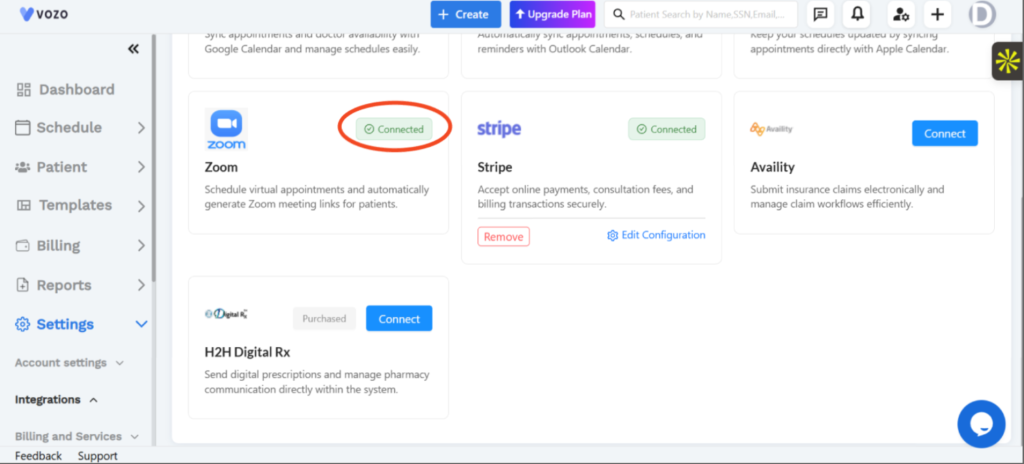
Figure 2: Integrations page showing connected and available third-party services.
3.2 Communication Integrations
The platform provides integrations for communication-related workflows, including:
- Twilio – Supports automated SMS reminders, alerts, OTPs, and patient communication.
- Email Notification – Supports appointment notifications, reports, and system alerts through email.
- RingCentral – Supports Incoming and Outgoing Fax workflows within the EHR.
3.3 Calendar Integrations
Calendar integrations allow scheduling information to be synchronized with external calendar services.
Available integrations include:
- Google Calendar – Syncs appointments and doctor availability.
- Microsoft Outlook – Syncs appointments, schedules, and reminders.
- Apple Calendar – Syncs appointments with Apple Calendar.
3.4 Video Consultation Integration
Zoom integration supports virtual appointment workflows by allowing users to schedule virtual appointments and automatically generate Zoom meeting links for patients.
3.5 Payment Integration
Stripe integration supports online payment and billing workflows.
The integration card displays the Connected status when the service is connected and provides options to:
- Remove the integration
- Edit Configuration
3.6 Claims Integration
Availity is available as a third-party integration for electronic insurance claim submission and claim workflow management.
3.7 Digital Prescription Integration
H2H Digital Rx supports digital prescription and pharmacy communication workflows within the EHR.
The integration can be connected from the Integrations page.
4. Integration Workflow
- Navigate to Settings → Account Settings → Integrations.
- Review the available third-party integrations.
- Identify the required integration.
- Select Connect.
- Complete the required integration configuration.
- Once successfully connected, the integration displays a Connected status.
- Where supported, users can use Edit Configuration to update the integration settings or Remove to disconnect the service.
5. Key Benefits
- Centralizes third-party integration management.
- Provides a single location to view available integrations.
- Supports different integration categories and business workflows.
- Clearly displays the connection status of integrations.
- Provides configuration management for connected services.
- Enables communication, scheduling, payment, claims, virtual appointment, and prescription-related integrations.
6. Impact on Existing Workflows
The new Integrations module provides an additional centralized location for managing third-party services.
Existing EHR workflows can continue to operate independently, while supported external services can be connected through Settings → Integrations.
7. Known Limitations
- Integration availability depends on the third-party services supported by the platform.
- Configuration requirements may vary depending on the selected integration.
- The available actions may differ between integrations.
RELEASE NOTES
What’s New
Product: Vozo EHR
Release Version: 2025.12
Release Date: December 2025
Release Type: New Feature
1. Overview
This release introduces the What’s New section, providing users with a centralized location to discover the latest product updates, announcements, and release information within Vozo EHR.
Users can access What’s New directly from the user profile menu and view the latest updates and release notes without leaving the application.
Where to Find This Feature
- Click the User Profile icon in the top-right corner.
- Select What’s New from the profile menu.
- The What’s New window opens with the available update information.
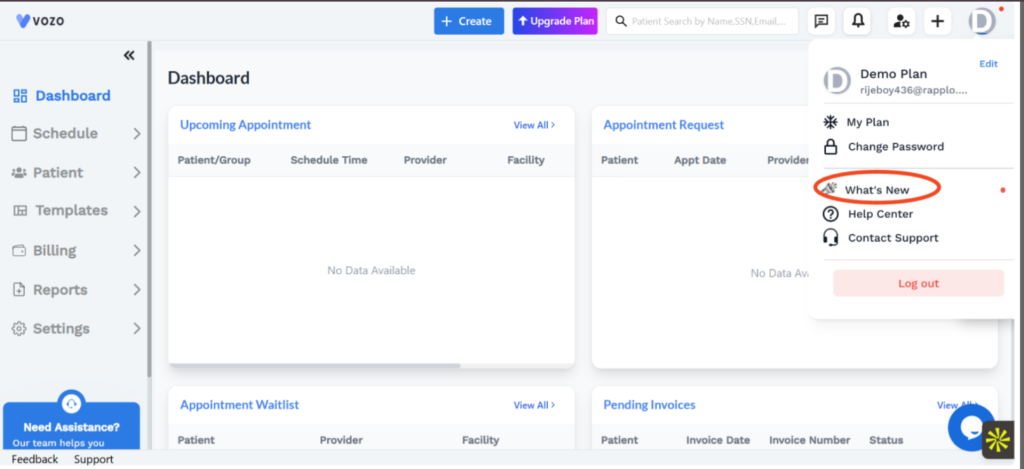
Figure 1: User Profile menu showing the What’s New option.
2. Purpose
The What’s New feature provides an in-application communication channel for keeping users informed about recent product updates and important information.
It eliminates the need for users to look for product announcements separately and makes new information accessible directly from the EHR interface.
3. What’s New
3.1 What’s New Window
Selecting What’s New opens a dedicated window containing two tabs:
- Latest Updates
- Release Notes
The Latest Updates tab displays recent announcements with their publication dates and a brief description.
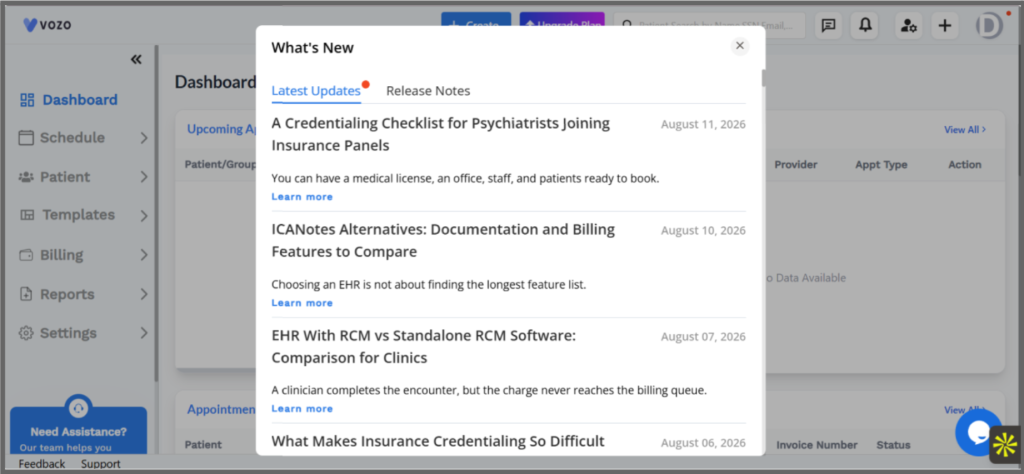
Figure 2: What’s New window showing the Latest Updates and Release Notes tabs.
3.2 Latest Updates
The Latest Updates tab provides users with recently published product and informational content.
Each update includes:
- Update title
- Publication date
- Short description
- Learn more option
Users can select Learn more to access additional information about an update.
The latest updates shown in the interface include content such as:
- A Credentialing Checklist for Psychiatrists Joining Insurance Panels
- ICANotes Alternatives: Documentation and Billing Features to Compare
- EHR With RCM vs Standalone RCM Software: Comparison for Clinics
- What Makes Insurance Credentialing So Difficult
3.3 Release Notes
The Release Notes tab provides access to product release information.
Users can switch from Latest Updates to Release Notes to view available release documentation.
3.4 Update Notification
A notification indicator is displayed when new information is available in the What’s New section.
This helps users identify that new content is available without having to manually check the section.
4. How to Access What’s New
- Log in to Vozo EHR.
- Locate the User Profile icon in the top-right corner.
- Click the profile icon to open the user menu.
- Select What’s New.
- Review the content available under Latest Updates.
- Select Release Notes to view release-related information.
- Select Learn more on an update when additional information is required.
5. Key Benefits
- Provides a centralized location for product updates and announcements.
- Makes new information accessible directly within the EHR.
- Separates general updates from release notes using dedicated tabs.
- Displays publication dates for update visibility.
- Provides direct access to additional information through Learn more.
- Uses a notification indicator to highlight new content.
6. Impact on Existing Workflows
The What’s New feature is available through the existing user profile menu and does not alter existing patient, scheduling, billing, or clinical workflows.
Users can access the feature when they want to review recent updates or release information.
7. Known Limitations
- The content displayed depends on the updates and release notes published to the What’s New section.
Additional information is available only where a Learn more option is provided.
RELEASE NOTES
Help & Support
Product: Vozo EHR
Release Version: 2025.12
Release Date: December 2025
Release Type: New Feature
Environment: Production
1. Overview
This release introduces the Help & Support feature, providing users with quick access to product assistance, support resources, and guided product information directly from the Vozo EHR dashboard.
The feature provides two primary options:
- Get Support – Schedule time with the Vozo support team for product questions, setup assistance, onboarding, and general support.
- Explore Vozo – Access a guided product tour to learn about key features and workflows within the application.
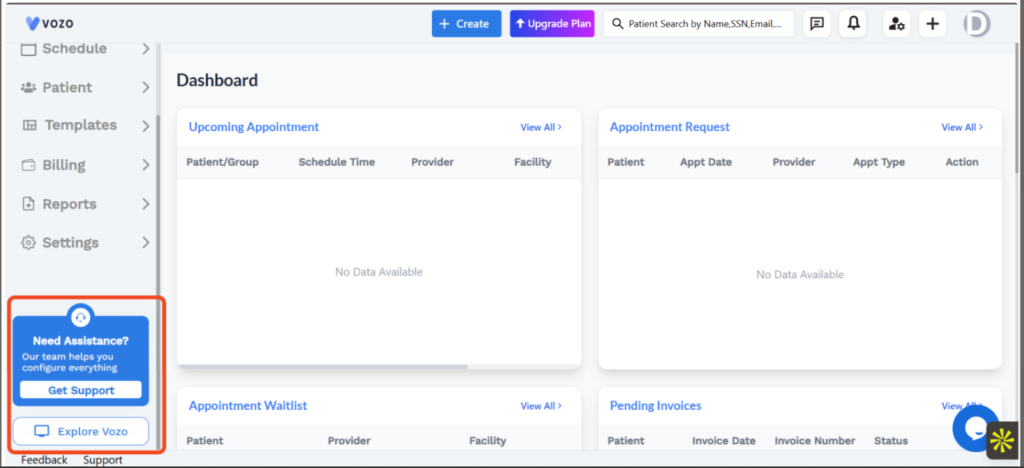
Figure 1: Help & Support panel displayed on the Vozo dashboard.
2. Purpose
The Help & Support feature is designed to make assistance easily accessible within Vozo EHR.
Users can obtain support or explore product functionality without having to navigate through separate support resources.
3. Help & Support Panel
Need Assistance? panel is available on the dashboard.
The panel provides:
- Get Support button
- Explore Vozo button
- Quick access to assistance from within the application
4. Get Support
4.1 Support Appointment
Selecting Get Support opens the Vozo Support scheduling page.
Users can schedule a 30-minute appointment with the Vozo product support team.
The support session can be used for:
- Product-related questions
- Setup assistance
- Onboarding
- General support
- Reviewing specific use cases
- Getting assistance to maximize the value of Vozo
The scheduling page displays available appointment dates and time slots based on the selected timezone.
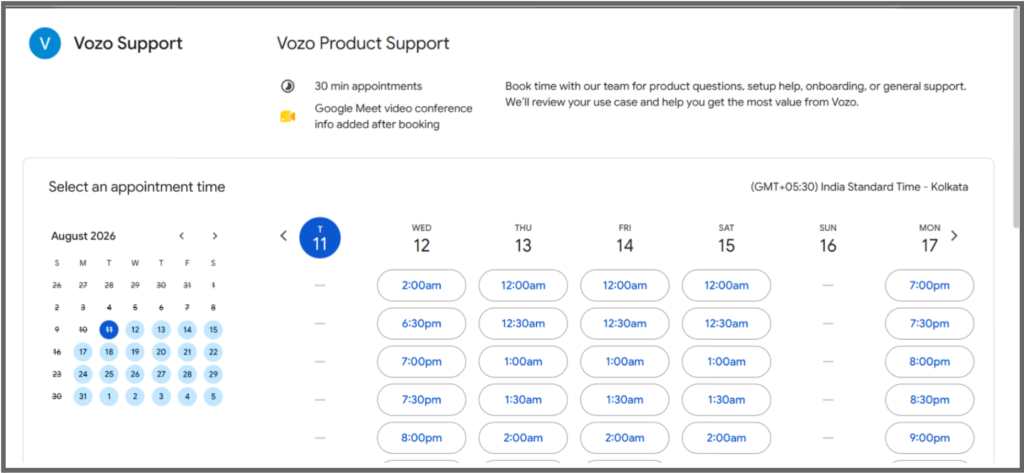
Figure 2: Vozo Product Support appointment scheduling page.
4.2 Appointment Scheduling
Users can:
- Open the Get Support option.
- Select an available date.
- Review the available time slots.
- Select a preferred appointment time.
- Schedule the support session.
The support appointment is configured as a 30-minute session.
Google Meet video conference information is added after booking.
5. Explore Vozo
5.1 Quick Product Tour
Selecting Explore Vozo opens the Get Started with a Quick Product Tour! window.
The product tour provides guided access to important setup and workflow areas within Vozo.
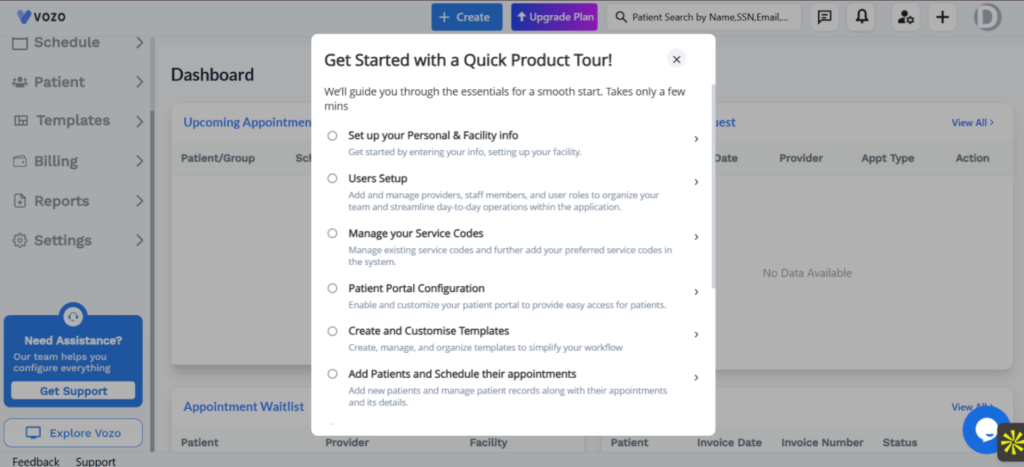
Figure 3: Quick Product Tour window showing available guided setup options.
5.2 Guided Setup Options
The product tour includes guided options such as:
- Set up your Personal & Facility info
- Enter personal information and configure facility details.
- Users Setup
- Add and manage providers, staff members, and user roles.
- Manage your Service Codes
- Manage existing service codes and add preferred service codes.
- Patient Portal Configuration
- Enable and customize the patient portal.
- Create and Customise Templates
- Create, manage, and organize templates to simplify workflows.
- Add Patients and Schedule their appointments
- Add patient records and manage appointments and related details.
6. User Flow
Get SupportDashboard → Get Support → Select Date → Select Time → Schedule Support Appointment Explore VozoDashboard → Explore Vozo → Select Guided Setup Option → Follow Product Guidance |
7. Key Benefits
- Provides quick access to Vozo support.
- Allows users to schedule support sessions directly.
- Supports product setup and onboarding assistance.
- Provides a guided introduction to key Vozo workflows.
- Helps users discover available product functionality.
- Reduces the need to navigate outside the application to find assistance.
8. Impact on Existing Workflows
The Help & Support feature does not modify existing clinical, patient, scheduling, billing, or administrative workflows.
It adds an additional assistance layer that users can access when required.
9. Availability
The Help & Support feature is accessible from the Vozo dashboard through the Need Assistance? panel.
Users can independently choose between Get Support and Explore Vozo based on their requirement.
RELEASE NOTES
Vital Graph & List View
Product: Vozo EHR
Release Version: 2026.01
Release Date: January 2026
Release Type: New Feature(Clinical Feature)
Availability: All practices
1. Overview
This release adds interactive Graph and List views for a patient’s vital history, reachable directly from the Vitals card on the Patient Dashboard. Providers can review trends, inspect exact values, edit records, and export data without leaving the patient workflow.
Where to Find This Feature
1. Open a patient’s record→ Patient Dashboard
2. In the Vitals card, select View Graph or View List
2. Purpose
Previously, the Vitals card only showed the most recent reading, and reviewing history meant exporting data manually. This release adds trend analysis directly inside the workflow, in both a visual (Graph) and tabular (List) form.
3. What’s New
3.1 Accessing Graph and List views
The Vitals card on Patient Dashboard now includes a View Graph | View List control.
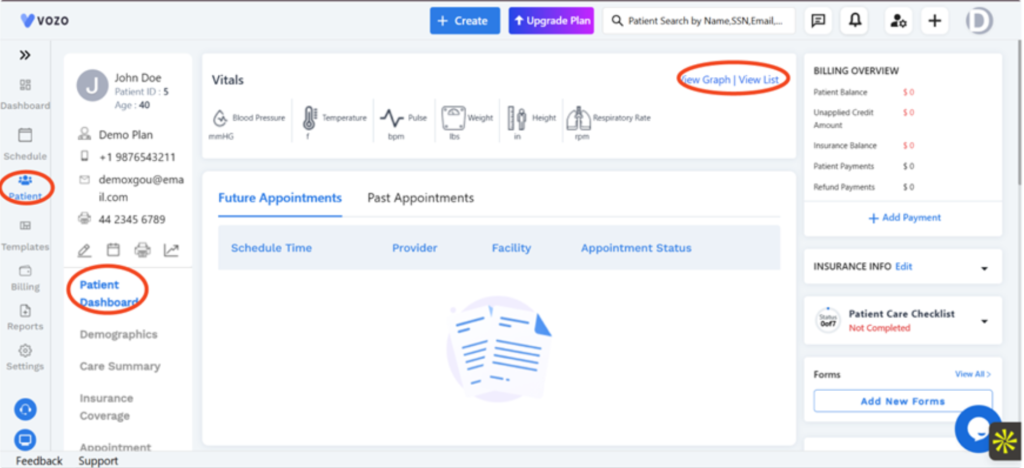
Figure 1: The Vitals card on Patient Dashboard, with View Graph | View List.
3.2 Graph View
Graph View plots one vital at a time – Blood Pressure is shown by default, with separate systolic and diastolic lines – across up to the last 30 recorded dates. Threshold lines mark the normal range, and hovering a point shows its exact value and date.
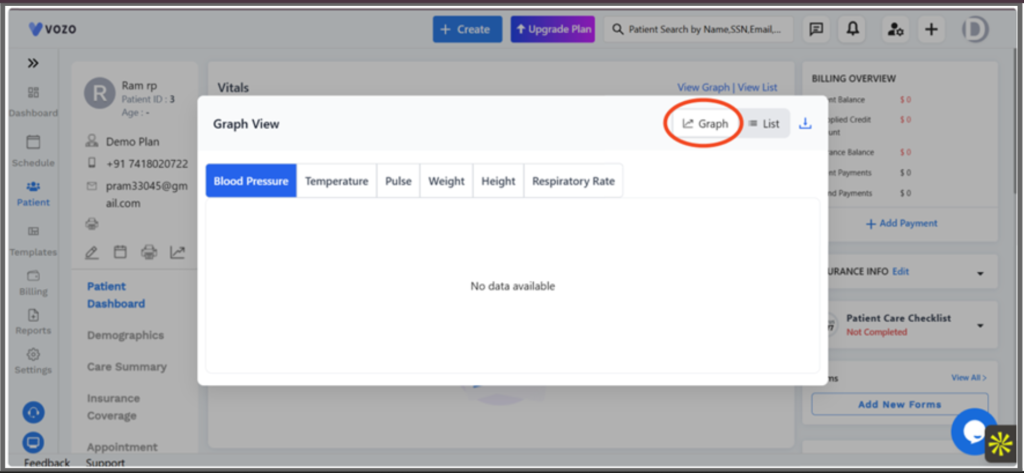
Figure 2: Graph View, with tabs to switch between Blood Pressure, Temperature, Pulse, Weight, Height, and Respiratory Rate.
- X-axis: dates with a recorded vital only
- Y-axis: the measurement scale for the selected vital
- Threshold lines: mark the normal range for that vital
3.3 List View
List View shows all six vitals together in a table, one row per date, with inline editing, printing, filtering by date range, and CSV export.
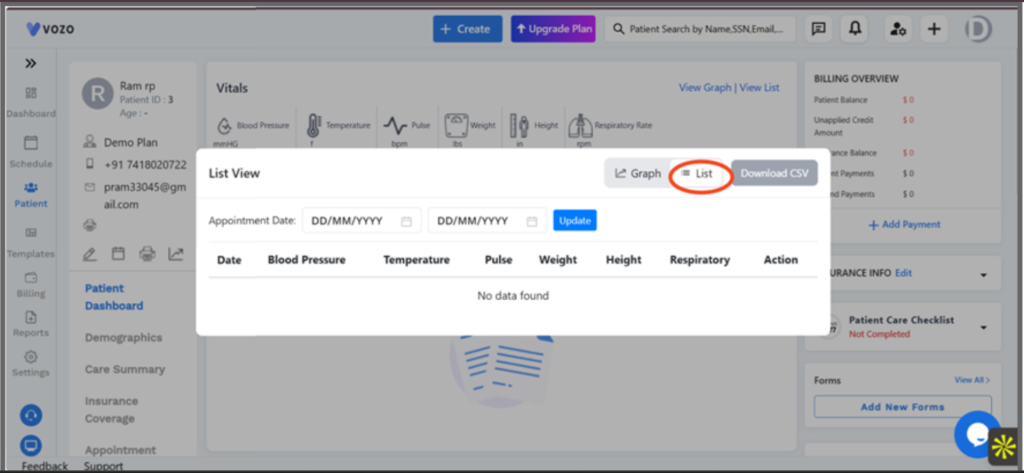
Figure 3: List View, with an Appointment Date range filter and Download CSV.
- Filtering by Start Date and End Date shows only dates that have data, and export respects the active filter
- Each row can be edited or printed individually
3.4 Editing a vital
- Select the date row for the record to change
- Choose Edit to open the record in a popup
- Update the value and save – the change is logged with a timestamp and user for audit compliance
4. Vitals Covered
- Blood Pressure – mmHg, normal range 90–120 / 60–80
- Temperature – °F, normal range 97–99
- Pulse – bpm, normal range 60–100
- Respiratory Rate – breaths/min, normal range 12–20
- Weight – kg/lbs, trend only (no normal range shown)
- Height – cm/in, trend only (no normal range shown)
5. Graph vs. List, at a Glance
- Purpose: Graph is for trend analysis; List is for record review
- Data shown: Graph shows one vital at a time; List shows all six
- Editing: not available in Graph; available in List
- Printing: not available in Graph; available per record in List
- Export: Graph exports the graph data; List exports to CSV
- Switching between the two views is instant
6. Impact on Existing Workflows
The existing Flowsheet screen, which already offered vital trend data with date filtering and CSV export, is unchanged. Graph and List View add a faster path to the same kind of review directly from the Vitals card, without navigating to Flowsheet.
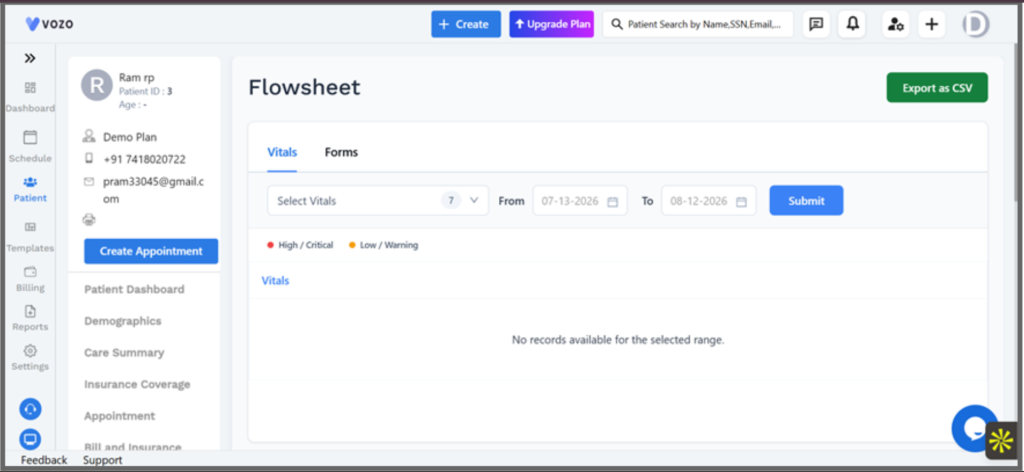
Figure 4: Flowsheet, the existing screen for reviewing and exporting vitals by date range.
7. Known Limitations
- Graph View displays a maximum of 30 recorded dates and shows one vital at a time (Blood Pressure shows two lines).
- Date-range filtering applies only in List View, not in Graph View.
8. Related Documentation
- Flowsheet
- Patient Dashboard
RELEASE NOTES
Outcome Measures
Product: Vozo EHR
Release Version: 2026.02
Release Date: February 2026
Release Type: New Feature
Availability: All practices
1. Overview
This release adds Outcome measures to the Documents tab: a clinical tracking system that uses standardized assessments to measure patient outcomes over time, calculate scores automatically, trigger alerts, and feed structured data into clinical workflows.
Where to Find This Feature 1. Open a patient’s record → Documents → Outcome Measures 2. Score Measure for the list view; Graph Measure for trends over time |
2. Purpose
Outcome measure tracks patient progress using repeated, standardized assessments. Scores are calculated automatically, trends are visualized over time, and alerts are triggered when a response crosses a risk threshold – removing manual scoring and follow-up tracking from the provider’s workload.
3. What’s New
3.1 Accessing Outcome Measures from Documents
Assessments are reached from a patient’s Documents tab, alongside existing Documents and Lab Results tabs.
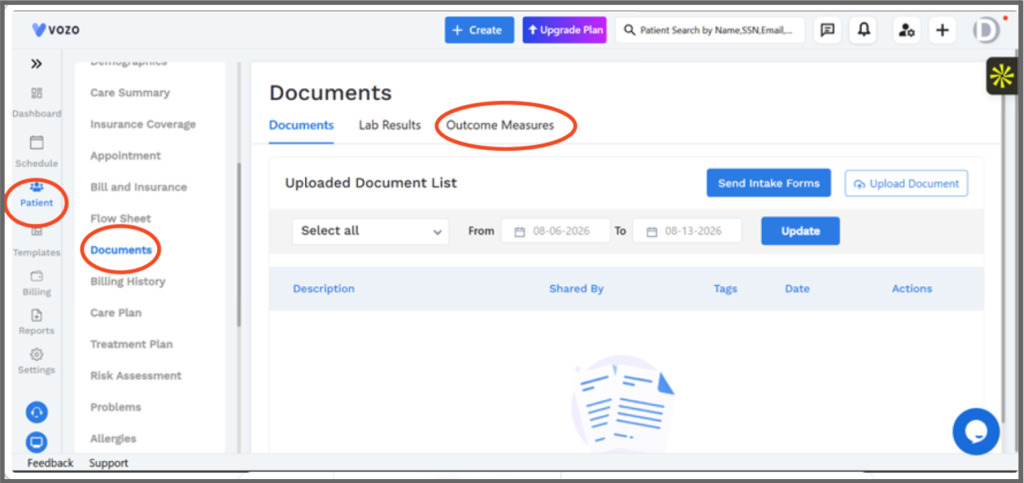
Figure 1: The Documents tab, with Outcome Measures alongside Documents and Lab Results.
3.2 Score Measure (list view)
Outcome Measures → Score Measure lists completed and due assessments, filterable by date range and status.
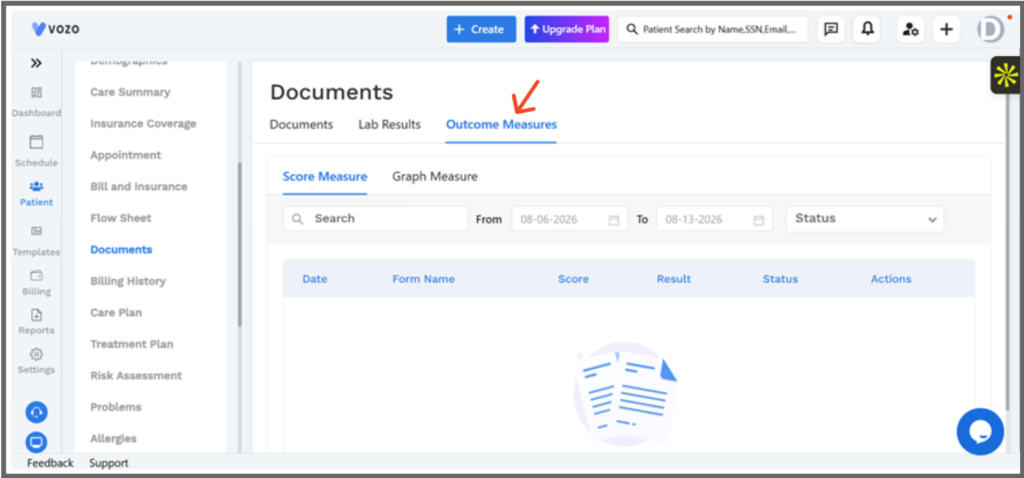
Figure 2: Score Measure: Date, Form Name, Score, Result, Status, and Actions.
- Assessment / Form Name – the tool used
- Date – completed or due date
- Score – the latest calculated score
- Status – shown as a severity flag (green / yellow / red)
- Actions – view the assessment, add notes, or link to a plan or medications
3.3 Graph Measure (trend view)
Outcome Measures → Graph Measure plots a selected form’s scores over time, with a Download option for the underlying data.
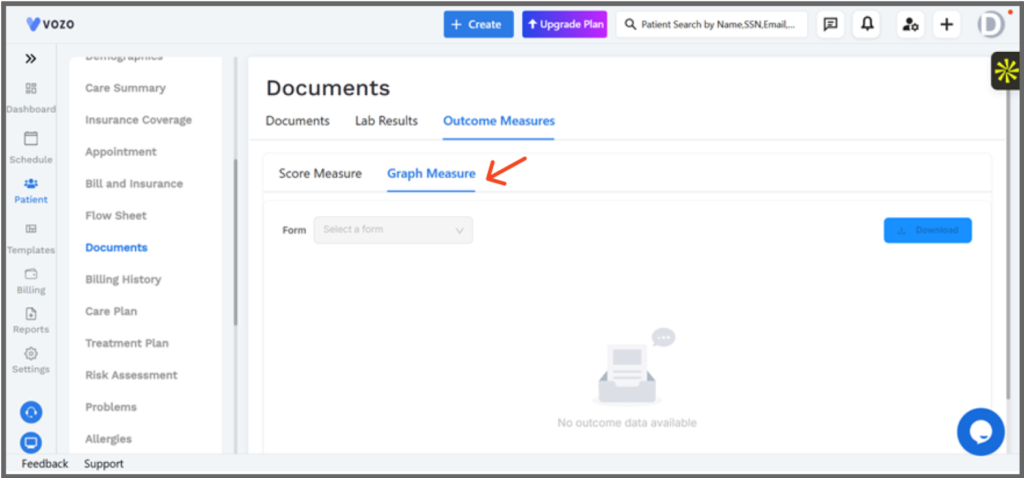
Figure 3: Graph Measure: select a form to plot its trend, with Download.
Graphs display 3 -12 records; selecting a data point shows the detailed responses behind that score.
4. Built-In Assessment Tools
- PHQ-9 – depression severity and suicide risk
- GAD-7 – anxiety tracking
- AUDIT-C – alcohol use risk screening
- C-SSRS – suicide risk / emergency detection
- Fall Risk – mobility safety
- Pain Scale – pain intensity tracking
- PROMIS – quality-of-life outcomes
- ADL / IADL – functional independence level
5. Where Patients Access Assessments
- Providers assign and review assessments from the patient’s Documents → Outcome Measures tab
- Patients complete assigned assessments from Patient Portal → Documents
6. Assignment Workflow
- Open the patient and navigate to Outcome Measures
- Assign one or more assessment tools
- The patient completes it via the portal, or staff enter it directly
- The score is calculated automatically as soon as it’s submitted
7. Alert Triggers
- PHQ-9 question 9 scored above 0 – suicide alert
- C-SSRS moderate or high – emergency alert
- AUDIT-C above threshold – alcohol risk alert
- Pain scored above 8 – severe pain alert
- Fall Risk scored high – fall alert
8. Scoring Reference
- PHQ-9 – 0–27, Minimal to Severe
- GAD-7 – 0–21, Minimal to Severe
- Pain Scale – 0–10, Mild to Severe
- PROMIS – T-score, Normal to Severe
9. Clinical Integration
- SOAP Notes – the score and severity are inserted automatically
- Treatment Plan – scores link to treatment goals
- Medications – scores support clinical decision-making
10. Key Rules
- Scoring is fully automatic
- Alerts trigger instantly on submission
- A red flag indicates clinical attention is required
- Trend graphs display 3-12 records
- Custom assessments are supported in addition to the 8 built-in tools
11. Known Limitations
- Graph Measure requires at least 3 recorded results before a trend is shown.
12. Related Documentation
- Treatment Plan overview
- SOAP Notes overview
- Patient Portal overview
RELEASE NOTES
Patient Care Checklist
Product: Vozo EHR
Release Version: 2026.03
Release Date: March 2026
Release Type: New Feature (Patient Care Checklist)
Availability: All practices
1. Overview
Patient profiles now include a dedicated Care Checklist tab. Front desk and care teams can track onboarding and care tasks – such as Intake Complete, Patient Portal Access, Insurance/Eligibility Verification, and Consent/Acknowledgement – for each patient, and see completion progress at a glance.
Where to Find This Feature Patient → select a patient → demographics Care Checklist tab |
2. Purpose
Previously, tracking a patient’s intake and onboarding progress meant relying on manual notes or checklists outside of Vozo. The Care Checklist tab gives front desk and care teams one place, on the patient’s own profile, to check off tasks, see progress instantly, and know exactly when each item was completed.
3. What’s New
3.1 Care Checklist Tab
The Care Checklist tab sits alongside Patient Info, Patient Additional Info, Membership Plan, Contact, Additional Info, and Flags on the patient record. It shows a live completion percentage, a date range filter, and a table of checklist items.
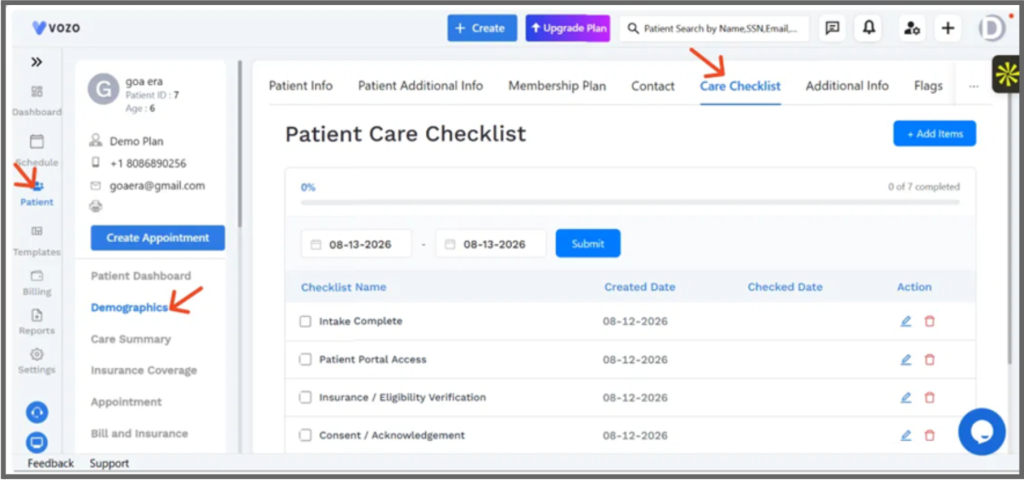
Figure 1: Patient Care Checklist tab – progress bar (0 of 7 completed), date range filter, and checklist table with Created Date, Checked Date, and Action columns.
3.2 Completing Checklist Items
Selecting the checkbox next to an item marks it complete. The item’s text switches to strikethrough, its Checked Date is stamped automatically, and the progress bar updates instantly to reflect the new completion percentage.
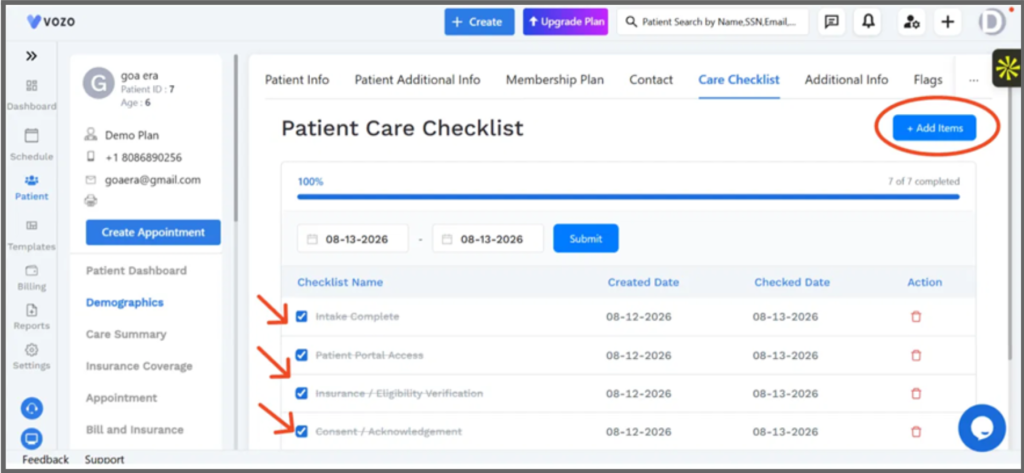
Figure 2: Checklist with all items completed – progress bar at 100% (7 of 7), each item struck through with its Checked Date filled in.
3.3 Adding Checklist Items
Selecting + Add Items opens a popup where a new checklist item can be typed and queued with + Add. Multiple items can be queued before selecting Save to add them all to the patient’s checklist.
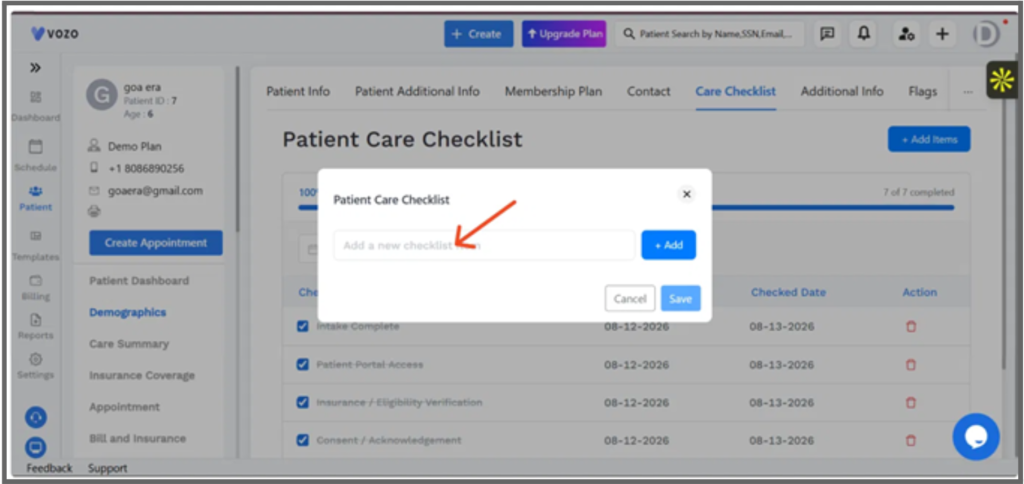
Figure 3: Patient Care Checklist popup – type an item name, select + Add to queue it, then Save to add it to the list.
3.4 Filtering by Date
The From and To date fields, together with Submit, let users narrow the checklist table to items created or checked within a specific date range.
4. Key Behaviors
- Per-patient tracking – the checklist and its progress bar are specific to each patient and are not shared across patient records.
- Automatic timestamping – Checked Date is filled in automatically the moment an item is marked complete; it isn’t entered manually.
- Live progress – the completion percentage and “X of Y completed” count update immediately as items are checked or added.
- Completed items are locked – once an item is checked off, its edit option is no longer available; it can still be deleted.
- Multiple items per save – the Add Items popup supports queuing several checklist items before saving them all at once.
5. End-to-End Usage
- Open the patient record
Go to Patient, select a patient, then open the Care Checklist tab.
- Review current progress
Check the completion percentage and existing checklist items.
- Add new items
Select + Add Items, type each item name, and select + Add to queue it, then Save.
- Check off completed tasks
Select the checkbox next to each item as it’s completed; the Checked Date and progress bar update automatically.
- Filter or clean up
Use the date range filter with Submit to narrow the list, or remove items using the delete icon.
6. Known Limitations
- Completed checklist items can no longer be edited – only deleted.
- Checklist items are tracked per patient and are not available as reusable templates across patients.
7. Related Documentation
- Patient profile overview
- Demographics and Care Summary overview
RELEASE NOTES
Billing History
Patient → Patient Profile→ Billing History
Product: Vozo EHR
Release Version: 2026.04
Release Date: April 2026
Release Type: New Feature (Patient Billing History)
Availability: All practices
1. Overview
Patient profiles now include a Billing History tab, giving front desk and billing teams a per-patient view of invoices and refunds without leaving the patient record
Where to Find This Feature 1. Patient → select a patient → Billing History tab |
2. Purpose
Previously, reviewing a patient’s billing and invoice history meant navigating to the Billing module separately from the patient’s chart. The Billing History tab surfaces that information directly on the patient profile, alongside Bill and Insurance, Care Plan, and other patient-level tabs.
3. What’s New
3.1 Billing History Tab
The Billing History tab sits on the patient profile’s left-hand tab list, below Bill and Insurance. It contains two views – Invoices and Refunds – with Invoices shown by default.
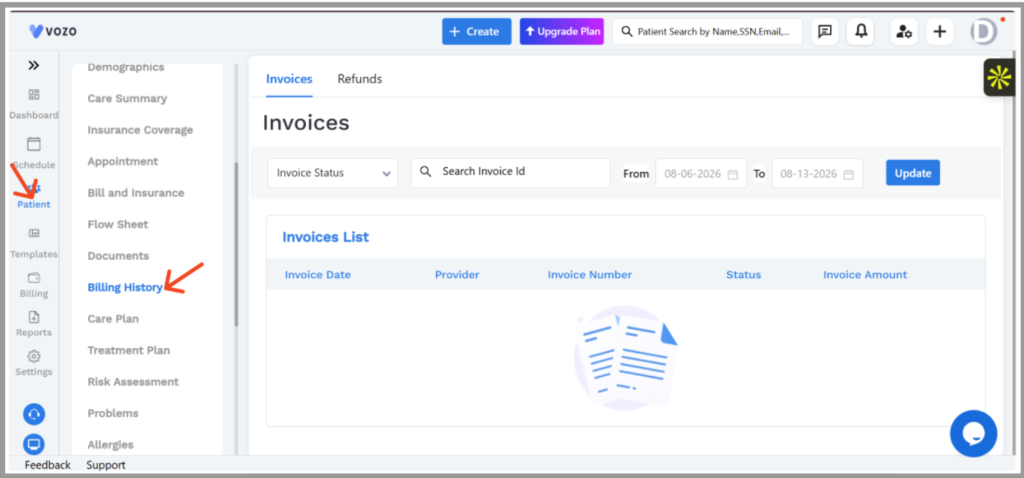
Figure 1: Patient → Billing History → Invoices. Filters for Invoice Status, Invoice ID, and date range sit above the Invoices List, which shows Invoice Date, Provider, Invoice Number, Status, and Invoice Amount.
3.2 Filtering Invoices
Invoices can be narrowed by Invoice Status, by searching a specific Invoice Id, or by setting a From/To date range. Selecting Update applies the selected filters and refreshes the Invoices List.
3.3 Invoices List Columns
Column | Description |
|---|---|
Invoice Date | Date the invoice was generated |
Provider | Provider associated with the invoice |
Invoice Number | System-generated invoice ID |
Status | Current invoice status |
Invoice Amount | Total invoice amount |
3.4 Refunds
A separate Refunds tab, alongside Invoices, shows the patient’s refund history in the same Billing History view.
4. Key Behaviors
- Patient-scoped – Billing History only shows invoices and refunds for the currently selected patient.
- Two views – Invoices and Refunds are separate tabs within Billing History; Invoices is the default view.
- Filters apply on Update – changes to Invoice Status, Invoice Id, or the date range take effect only after selecting Update.
- Empty state – when no invoices match the current filters, an empty-state illustration is shown in place of table rows.
5. End-to-End Usage
- Open the patient record
Go to Patient, select a patient, then open the Billing History tab.
- Choose a view
Stay on Invoices (default) or switch to Refunds.
- Filter as needed
Set Invoice Status, search an Invoice Id, or choose a From/To date range.
- Apply filters
Select Update to refresh the list with the selected filters.
- Review results
Check Invoice Date, Provider, Invoice Number, Status, and Invoice Amount for each record.
6. Known Limitations
- This release note covers the Invoices view in detail; the Refunds tab layout is not documented here.
7. Related Documentation
- Billing and invoices overview
- Bill and Insurance tab overview
RELEASE NOTES
Date & Time Settings
Product: Vozo EHR
Release Version: 2026.05
Release Date: May 2026
Release Type: Feature Enhancement
Availability: Production, all regions
1. Overview
This release adds a Time Zone Settings page under Account settings, letting an account set its time zone and date display format, and mark each as the default used across the account.
Where to Find This Feature 1. Settings → Account settings → Time Zone Settings |
2. Purpose
Time zone and date format previously had no dedicated, account-level setting. This page gives administrators a single place to set both and confirm them as the account default.
3. What’s New
Time Zone Settings offers two dropdowns and two checkboxes, saved together with Save information.
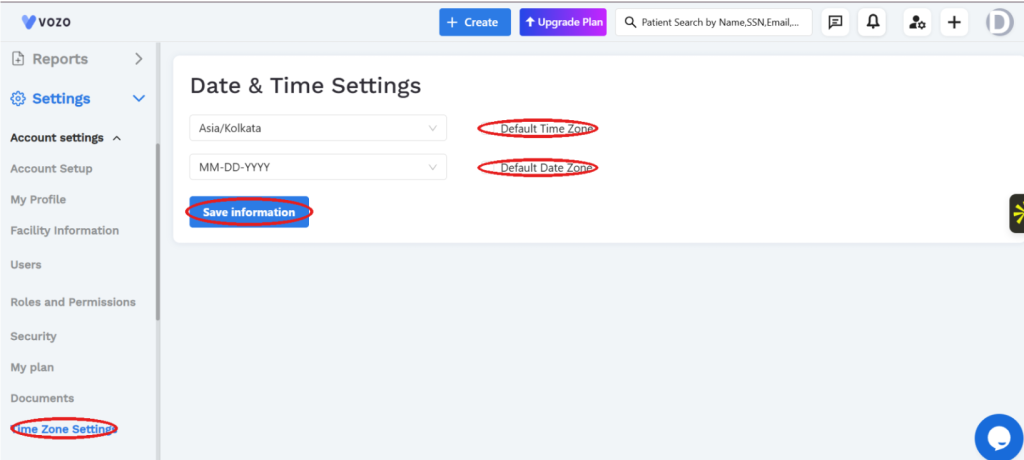
Figure 1: Time Zone Settings with Asia/Kolkata and MM-DD-YYYY selected, Default Time Zone and Default Date Zone unchecked.
- Time zone dropdown – selects the account’s time zone (for example, Asia/Kolkata or America/Adak)
- Date format dropdown – selects how dates display (for example, MM-DD-YYYY or MM/DD/YYYY)
- Default Time Zone – marks the selected time zone as the account default
- Default Date Zone — marks the selected date format as the account default
- Save information saves the selected time zone, date format, and default settings
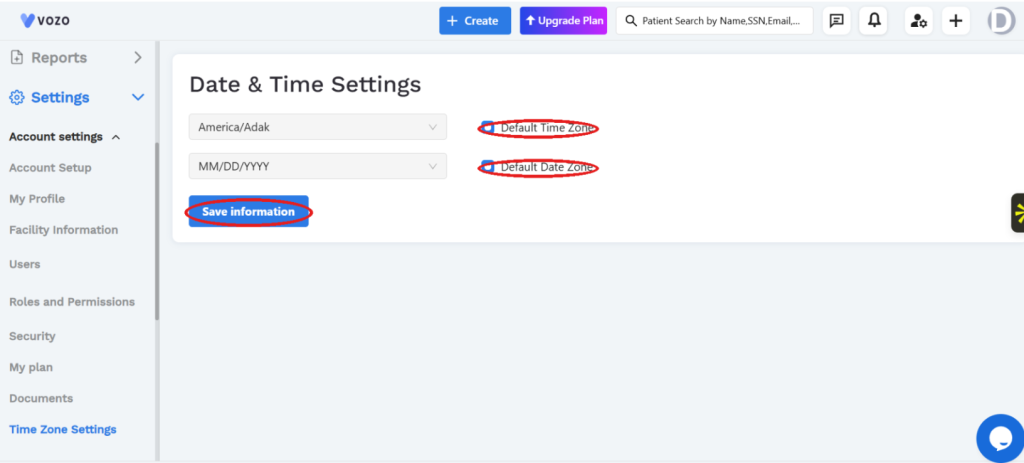
Figure 2: Time Zone Settings with America/Adak and MM/DD/YYYY selected, and both Default Time Zone and Default Date Zone checked.
4. Related Documentation
- Account settings overview
- Facility Information overview
RELEASE NOTES
Order Set
Product: Vozo EHR
Release Version: 2026.06
Release Date: June 2026
Release Type: New Feature
Availability: Production, all regions
1. Overview
This release adds Order Set under Patient: a way to bundle multiple order types – labs, medications, imaging, and more – tied to a diagnosis into a single reusable set, built through a 4-step wizard.
Where to Find This Feature 1. Patient → Order Set 2. Select Create Order Set to build a new one |
2. Purpose
Ordering several related items for a common diagnosis previously meant creating each order individually. Order Set lets a practice define the standard group of orders for a diagnosis once, and build it in a single guided flow.
3. What’s New
3.1 Order Set list
Order Set is a new item in the left navigation under Patient, listing existing sets with a Create Order Set action.
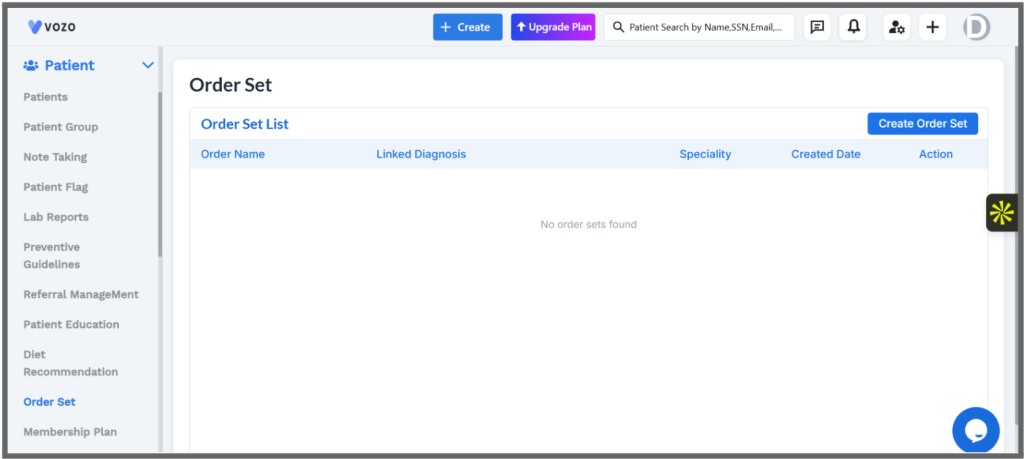
Figure 1: The Order Set list, with Order Name, Linked Diagnosis, Specialty, Created Date, and Action.
3.2 Step 1: Info
Creating a set starts with its name, specialty, and the diagnosis it’s linked to.
Figure 2: Step 1, Info: Order Set Name, Specialty, Link Diagnosis, Description, and Comments.
- Order Set Name and Link Diagnosis are required; Specialty, Description, and Comments are optional
- Comments capture the reasoning behind the set and are visible across all items in it
3.3 Step 2: Select Order Type
The next step chooses which categories of order will be part of the set. Only the categories selected here appear in the following step.
Figure 3: Step 2, Select Order Type: 13 available categories to choose from.
Figure 4: Lab selected as an order type for this set.
- Lab, Medication, E-Prescription, Allergies, Immunization, Patient Flag
- Imaging, Assessment, Template, Treatment Plan, Health Screening, Diet Recommendation, Patient Education
3.4 Step 3: Configure Orders
For each selected category, Add opens a form specific to that order type.
Figure 5: Step 3, Configure Orders: the Lab category before any items have been added.
For Lab, the form captures Ordering Provider, Order Date, Order Type (Internal or External), Internal Time Collected, Lab, Map Diagnosis, and Lab Test.
Figure 6: Adding a lab order within the set.
- Next stays disabled on this step until at least one item has been added
3.5 Step 4: Review & Save
The final step is to verify the complete order set and apply it, closing out the 4-step wizard (Info → Select Order Type → Configure Orders → Review & Save).
4. Related Documentation
- Lab Order overview
- Treatment Plan overview
- Imaging Menu overview
RELEASE NOTES
Telehealth Appointment Type
Product: Vozo EHR
Release Version: 2025.11
Release Date: November 2025
Release Type: Feature Enhancement
Availability: Production, all regions
1. Overview
Schedule Appointment now offers Telehealth as a visit type, alongside Appointment and Walk-in, so a virtual visit can be booked directly from the same scheduling flow used for in-person visits.
Where to Find This Feature 1. Schedule → Calendar → New Appointment (or the global “+ Create”) 2. In Schedule Appointment, choose Telehealth as the visit type |
2. What’s New
The New Appointment form includes a visit-type selector with three options: Appointment, Telehealth, and Walk-in.
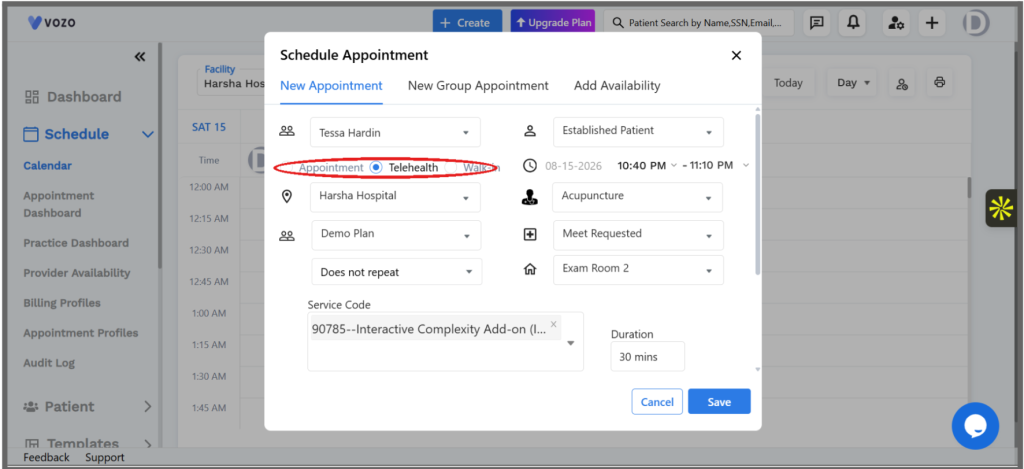
Figure 1: Schedule Appointment, with Telehealth selected as the visit type.
- Telehealth sits alongside Appointment and Walk-in as a third visit-type option
- The rest of the form is shared across all three visit types: patient, patient status, date and time, location, provider, facility group, visit reason, recurrence, room, service code, and duration
- A CPT/service code (such as 90785, Interactive Complexity Add-on) can be attached to a Telehealth visit the same way as any other appointment
3. Related Documentation
- Schedule and Calendar overview
- Appointment Profiles overview
RELEASE NOTES
Referral Management
Product: Vozo EHR
Release Version: 2026.07
Release Date: July 2026
Release Type: New Feature
Availability: Production, all regions
1. Overview
This release adds Referral Management under Patient: a dedicated module for tracking referrals sent to other providers, referrals received, and the contact details of referring and receiving providers, all in one place.
Where to Find This Feature 1. Patient → Referral Management 2. Referral Out, Referral In, or Referral Contacts, depending on what you need |
2. Purpose
Referrals previously had no dedicated tracking screen, making it hard to see the status of a referral or find a referring provider’s details quickly. Referral Management consolidates outgoing referrals, incoming referrals, and a shared contacts list into three tabs.
3. What’s New
3.1 Referral Out
Referral Out lists referrals sent to other providers, filterable by patient, referral by/to, status, and date range.
Figure 1: Referral Out: Patient, Referral By, Referral To, Referral Type, Date, Referral Status, and Action.
+ Referral Out opens a form to create one.
Figure 2: Add Referral Out: patient, referring and receiving provider, reason, requested diagnosis, date, and priority.
Figure 3: Add Referral Out, continued: notes, referrer diagnosis, insurance, and attachments.
- Patient, Referral From, Referral To, Referral Reason, Requested Diagnosis, Referral Date, Priority, Referral Notes, Referrer Diagnosis, and Insurance are required
- Referral To can be marked External or Internal
- Response Notes, Response Diagnosis, and Response Attachments capture the outcome once the receiving provider responds
- Diagnosis fields support ICD 9 or another selectable code type
3.2 Referral In
Referral In mirrors Referral Out for referrals received from other providers, with the same filters and list layout.
Figure 4: Referral In: the same list layout as Referral Out, for referrals received.
+ Referral In opens the equivalent form.
Figure 5: Add Referral In: patient, Referral By, Referral To, reason, requested diagnosis, date, and priority.
Figure 6: Add Referral In, continued: notes, referrer diagnosis, and attachments.
- Fields mirror Referral Out, with Referral By identifying who sent the referral in
- Referral From can be marked External or Internal
3.3 Referral Contacts
Referral Contacts is a shared directory of referring and receiving providers, searchable by name.
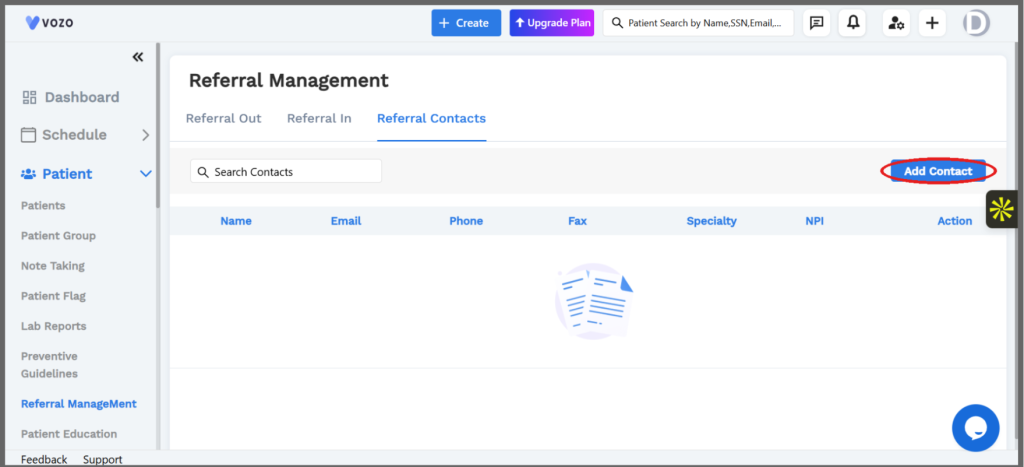
Figure 7: Referral Contacts: Name, Email, Phone, Fax, Specialty, NPI, and Action.
Add Contact opens a form to add a new provider to the directory.
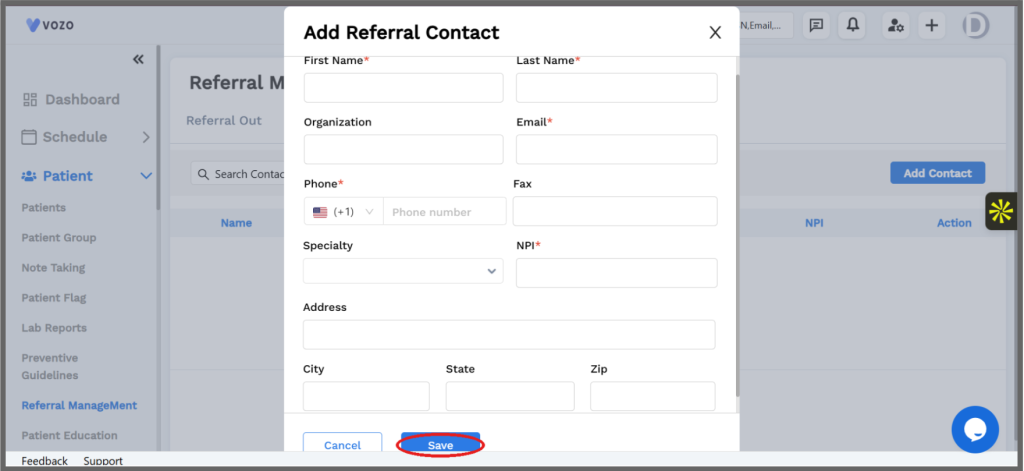
Figure 8: Add Referral Contact: name, organization, contact details, specialty, NPI, and address.
- First Name, Last Name, Email, Phone, and NPI are required
- Organization, Fax, Specialty, and address fields are optional
- Contacts saved here can be selected when creating a Referral Out or Referral In
4. Related Documentation
- Patient Dashboard overview
- Care Summary overview
RELEASE NOTES
CPT Service Code with Duration
Product: Vozo EHR
Release Version: 2026.06
Release Date: June 2026
Release Type: Feature Enhancement
Availability: Production, all regions
1. Overview
This release adds a Service Code field to the New Appointment form. Selecting a service code sets the appointment’s Duration automatically, so scheduling reflects the standard time for that procedure.
Where to Find This Feature 1. Schedule → Calendar → select an open time slot 2. New Appointment → Service Code |
2. Purpose
Appointment duration previously had to be set without reference to the procedure being scheduled. Tying duration to the selected service code keeps scheduled time consistent with the actual service, reducing manual guesswork when booking.
3. What’s New
Selecting an open slot on the Calendar opens the Schedule Appointment form.
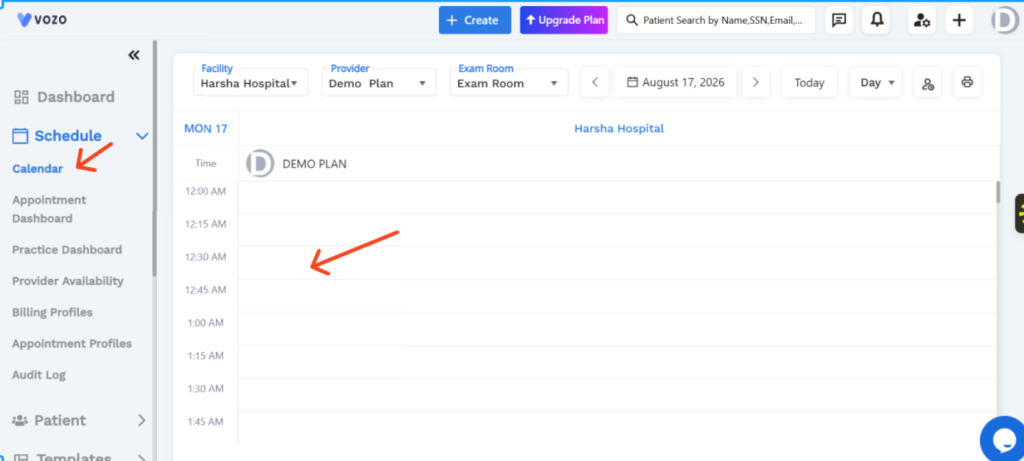
Figure 1: Schedule → Calendar: selecting an open time slot to start a new appointment.
The New Appointment form includes a Service Code field; choosing a code sets Duration for the appointment.
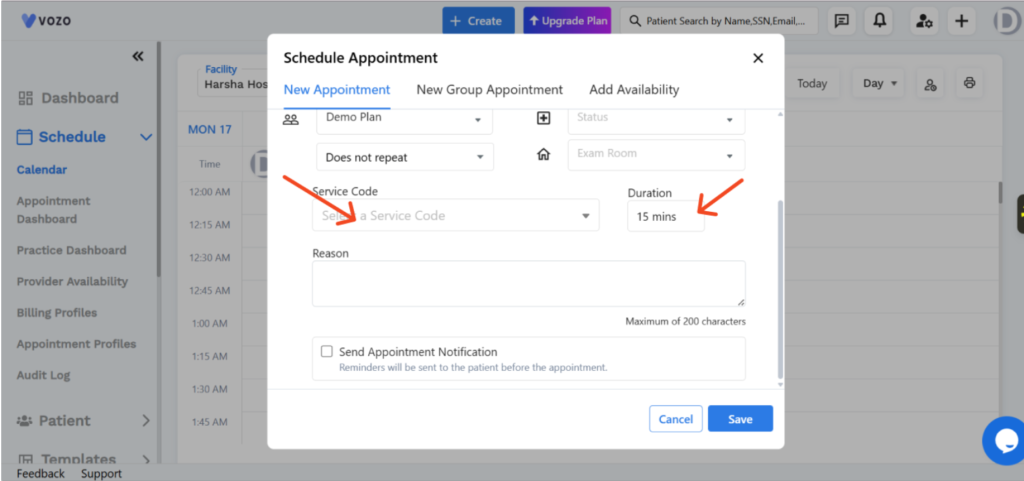
Figure 2: New Appointment: selecting a Service Code sets the Duration field (shown here as 15 mins).
- Service Code opens a searchable list of codes to choose from
- Duration updates based on the selected Service Code, and remains an editable field
- Reason accepts up to 200 characters of free text
- Send Appointment Notification, when checked, sends the patient a reminder before the appointment
4. Related Documentation
- Schedule and Calendar overview
RELEASE NOTES
Lifestyle & Diet Recommendations
Patient → Lifestyle & Diet Recommendation
Product: Vozo EHR
Release Version: 2026.05
Release Date: May 2026
Release Type: New Feature (Lifestyle & Diet Recommendations)
Availability: All practices
1. Overview
Lifestyle & Diet Recommendations let providers assign structured lifestyle and diet guidance to a patient directly from the patient profile – either from a curated library of pre-built protocols or as a custom recommendation – and control which lifestyle categories the patient can see.
Where to Find This Feature 1. Patient → Patient Profile → Lifestyle & Diet Recommendation |
2. Purpose
Previously, lifestyle and diet guidance had to be communicated to patients outside the patient record, with no structured way to track what was recommended or when. Lifestyle & Diet Recommendation centralizes this into the patient profile, so providers can quickly assign proven protocols or custom guidance, see a dated history of recommendations, and choose which lifestyle categories are visible to the patient.
3. What’s New
3.1 Lifestyle & Diet Recommendation Tab
Patient → [Patient] → Lifestyle & Diet Recommendation shows a calendar alongside an Add Diet Recommendation button and a Lifestyle Configuration button in the top right.
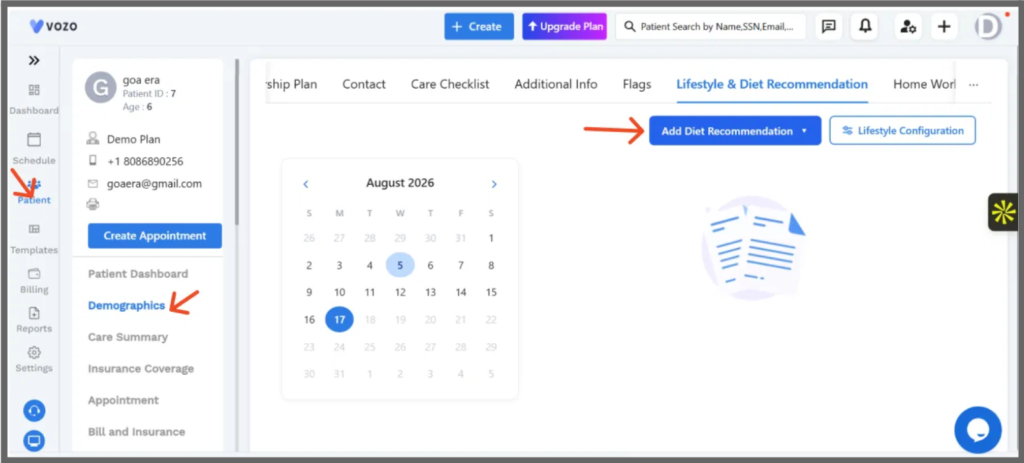
Figure 1: Lifestyle & Diet Recommendation tab – Add Diet Recommendation and Lifestyle Configuration buttons, with a date picker for reviewing recommendations by day.
3.2 Adding a Diet Recommendation
Selecting + Add Diet Recommendation opens a dropdown with two options: Select from Curated Library and Create Custom Recommendation.
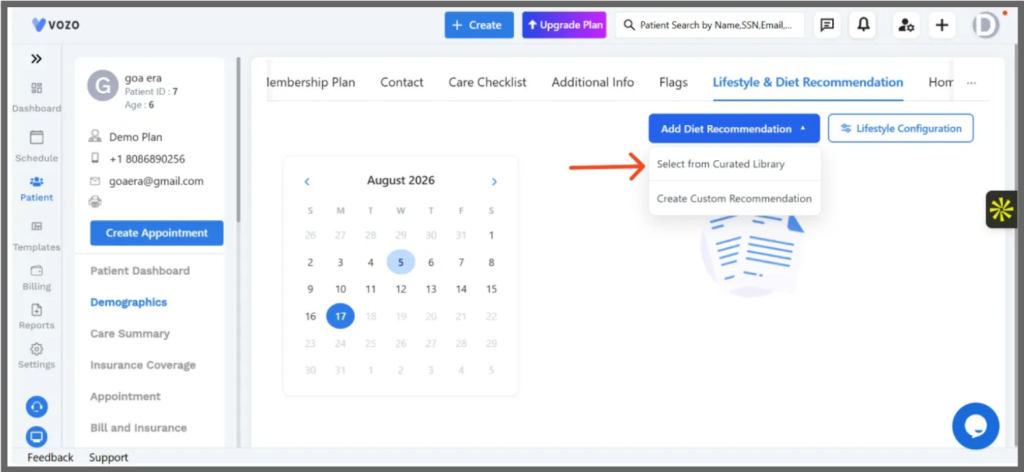
Figure 2: Add Diet Recommendation dropdown – Select from Curated Library and Create Custom Recommendation.
3.2.1 Select from Curated Library
Opens the Curated Recommendation Library popup, listing pre-built protocols – including Mood Tracking Protocol, Stress-Reducing Activity Plan, Daily Mindfulness Practice, Evening Wind-Down Routine, Sleep Hygiene Protocol, Regular Exercise Routine, Daily Hydration Goal, Balanced Nutrition Plan, and Elimination Diet. Each entry has Recommend to Patient and View actions.
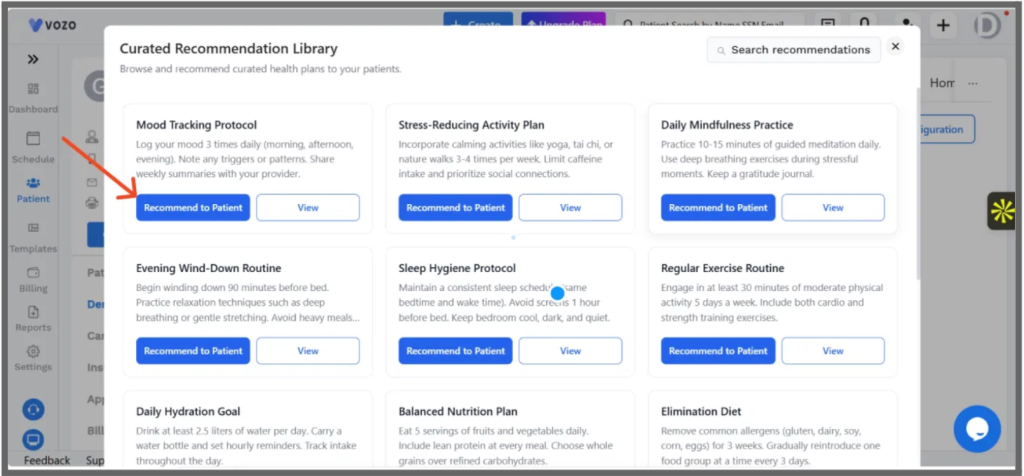
Figure 3: Curated Recommendation Library – browse and recommend curated health plans to patients.
Once a curated protocol is recommended, it appears in the patient’s timeline with the time it was added, its title, and its full description.
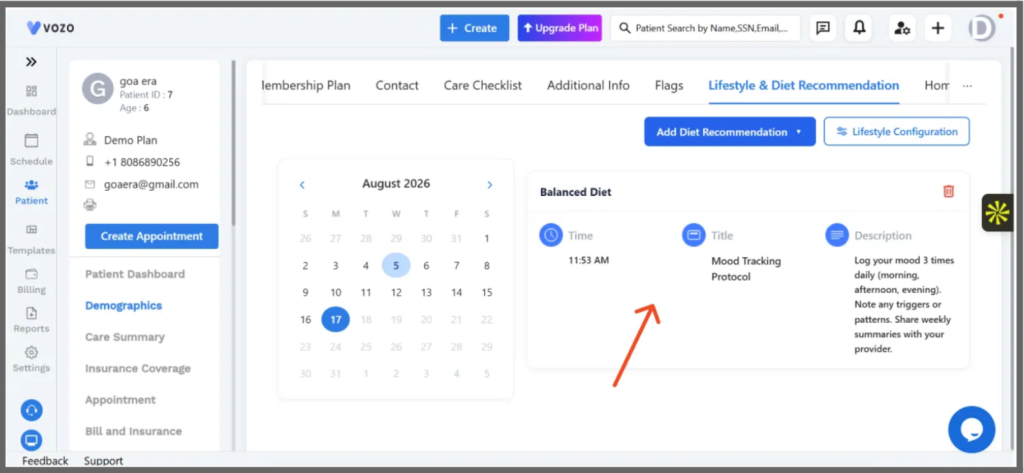
Figure 4: Assigned recommendation – Mood Tracking Protocol shown with time added, title, and description.
3.2.2 Create Custom Recommendation
Opens the Create Custom Recommendation popup, where a provider enters a Title and Description for guidance not covered by the curated library.
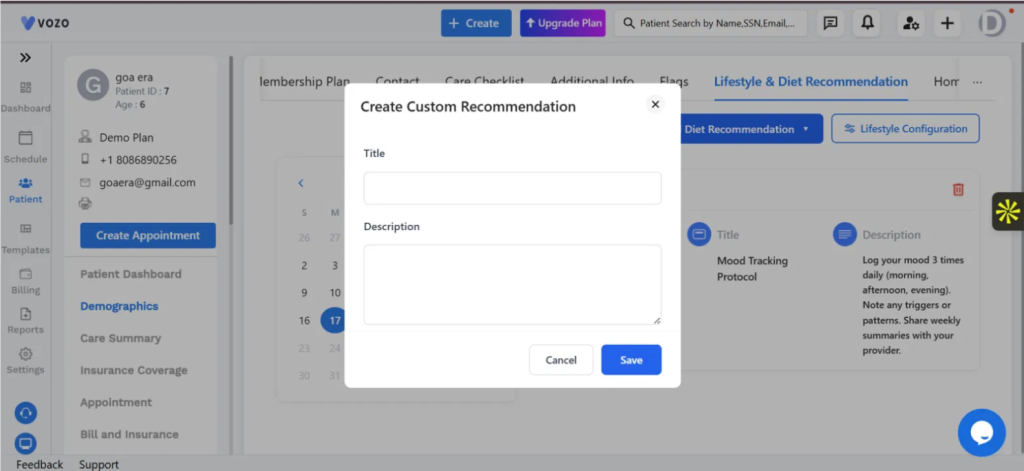
Figure 5: Create Custom Recommendation popup – Title and Description fields.
3.3 Recommendation Fields
Field | Description |
Title | Name of the recommendation (required) |
Description | Guidance shown to the patient for this recommendation |
Time | Timestamp automatically recorded when the recommendation is added |
3.4 Lifestyle Configuration
Selecting Lifestyle Configuration opens a popup to control which lifestyle categories are visible to the patient: Food, Activity, Mood, Measurement, Sleep, Water, and Bowel Movement.
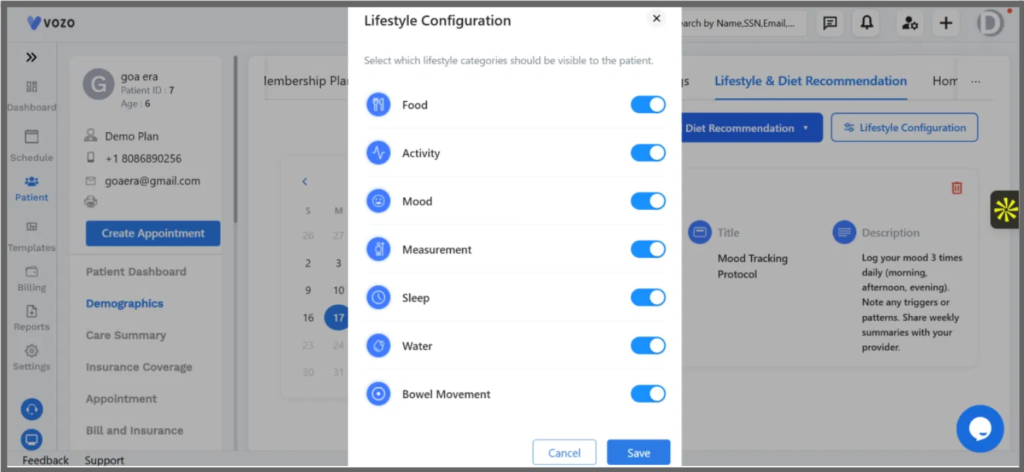
Figure 6: Lifestyle Configuration popup – toggles for Food, Activity, Mood, Measurement, Sleep, Water, and Bowel Movement.
4. Key Behaviors
- Two ways to add a recommendation – choose a pre-built protocol from the curated library or write a custom recommendation with its own title and description.
- Dated recommendation history – each recommendation assigned to a patient is timestamped and stored in that patient’s Lifestyle & Diet Recommendation tab.
- Curated library preview – the View action lets providers review a protocol’s full description before recommending it to the patient.
- Configurable patient visibility – the Lifestyle Configuration popup independently toggles seven lifestyle categories on or off for the patient view.
5. End-to-End Usage
- Open Lifestyle & Diet Recommendation
Go to Patient → [Patient] → Lifestyle & Diet Recommendation.
- Start a new recommendation
Select + Add Diet Recommendation.
- Pick a source
Choose Select from Curated Library or Create Custom Recommendation.
- Assign the recommendation
For a curated protocol, select Recommend to Patient. For a custom recommendation, enter a Title and Description, then Save.
- Configure visibility (optional)
Select Lifestyle Configuration to toggle which lifestyle categories the patient can see, then Save.
6. Known Limitations
- Scope of this release note – this release note covers adding a recommendation and configuring lifestyle visibility; editing or deleting an existing recommendation is not detailed here.
7. Related Documentation
- Patient Profile overview – how patient tabs and records are organized
- Care Checklist overview – tracking care tasks alongside lifestyle recommendations
RELEASE NOTES
Care Summary
Patient → Care Summary
Product: Vozo EHR
Release Version: 2026.03
Release Date: March 2026
Release Type: New Feature (Care Summary)
Availability: All practices
1. Overview
Care Summary gives providers a single, at-a-glance clinical overview of a patient – active problems, allergies, medications, recent appointments, health screenings, vitals, immunizations, procedures, lab results, and more – with control over which categories are shown and the ability to export the summary.
Where to Find This Feature 1. Patient → [Patient Profile] → Care Summary |
2. Purpose
Previously, getting a full clinical picture of a patient meant navigating across several separate tabs. Care Summary consolidates the most relevant clinical categories into one configurable dashboard, so providers can review a patient’s status at a glance and export it when needed, without hunting through the chart.
3. What’s New
3.1 Care Summary Dashboard
Patient → [Patient] → Care Summary displays the patient’s clinical information as a grid of cards – including Active Problems, Allergies, Current Medications, Recent Appointments, Health Screening, and Vital Signs – with Download and Configure Summary actions in the top right.
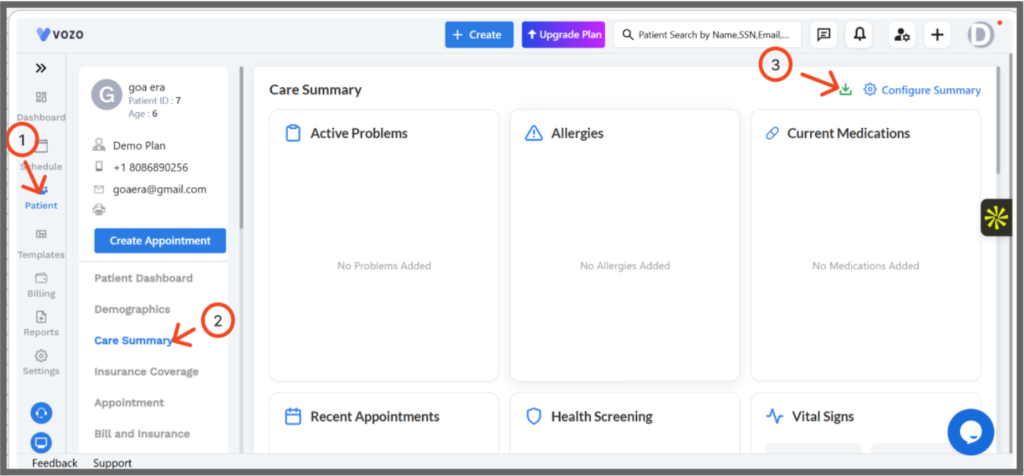
Figure 1: Care Summary dashboard – clinical categories shown as cards, with Download and Configure Summary actions in the top right.
3.2 Configuring the Summary
Selecting Configure Summary opens the Summary Configuration popup, where each clinical category can be toggled on or off. Categories include Problems, Allergies, Medications, Recent Appointments, Health Screening, Vitals, Immunizations, Procedure & Surgeries, Lab Results, Social History, Family History, Alerts & Clinical Warnings, Treatment Plan, Care Plan, and Care Team.
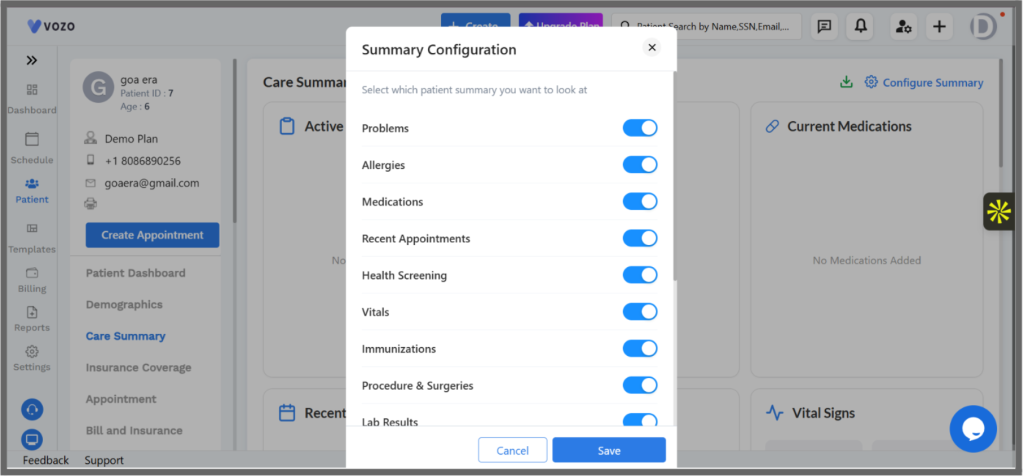
Figure 2: Summary Configuration popup – toggle which patient summary categories appear on the Care Summary dashboard.
3.3 Summary Categories
Category | Description |
Active Problems | Patient’s current active problem list |
Allergies | Recorded allergies and reactions |
Current Medications | Medications the patient is currently prescribed |
Recent Appointments | Most recent scheduled or completed visits |
Health Screening | Completed and due health screenings |
Vital Signs | Most recently recorded vitals |
Immunizations | Immunization history |
Procedure & Surgeries | Past procedures and surgical history |
Lab Results | Recent lab result values |
Social History | Lifestyle and social history relevant to care |
Family History | Relevant family medical history |
Alerts & Clinical Warnings | Active clinical alerts and warnings for the patient |
Treatment Plan | Current treatment plan details |
Care Plan | Active care plan details |
Care Team | Providers and staff on the patient’s care team |
4. Key Behaviors
- Configurable categories – each of the 15 summary categories can be shown or hidden independently from the Summary Configuration popup.
- Empty states – categories with no recorded data show a clear placeholder, e.g. “No Problems Added,” instead of an empty card.
- Exportable summary – the Download action lets providers export the current Care Summary.
- Card-based layout – each category is presented as its own card for quick scanning.
5. End-to-End Usage
- Open Care Summary
Go to Patient → [Patient] → Care Summary.
- Review the summary
Scan the category cards for the patient’s clinical status.
- Configure categories (optional)
Select Configure Summary to open Summary Configuration.
- Toggle categories
Turn individual categories on or off, then Save.
- Export (optional)
Select the download icon to export the Care Summary.
6. Known Limitations
- Scope of this release note – this release note covers viewing and configuring the Care Summary dashboard; adding or editing data within individual categories is not detailed here.
7. Related Documentation
- Patient Profile overview – how patient tabs and records are organized
- Demographics overview – core patient identity and contact information
RELEASE NOTES
Client Portal Access at Patient Registration
Product: Vozo EHR
Release Version: 2025.11
Release Date: November 2026
Release Type: Feature Enhancement
Availability: All practices, all regions
- Overview
This release adds client portal access to the patient registration workflow. Front-desk staff can now enable a new patient’s portal directly from the Create Patient form, removing the need to complete a separate activation step after the
Where to Find This Feature
|
- Purpose
Portal access previously had to be enabled from a separate screen, after the patient’s record already existed. If this step was missed, forms assigned to the patient would not reach them, and the omission was often not discovered until the patient’s appointment. This release integrates portal access into registration, so the two steps cannot be separated.
- What’s New
3.1 “Enable Client Portal Access” toggle
The Create Patient form includes a new toggle, off by default, that enables the patient’s portal access as part of creating the record. An inline note explains that enabling it allows forms and templates to be sent to the patient.
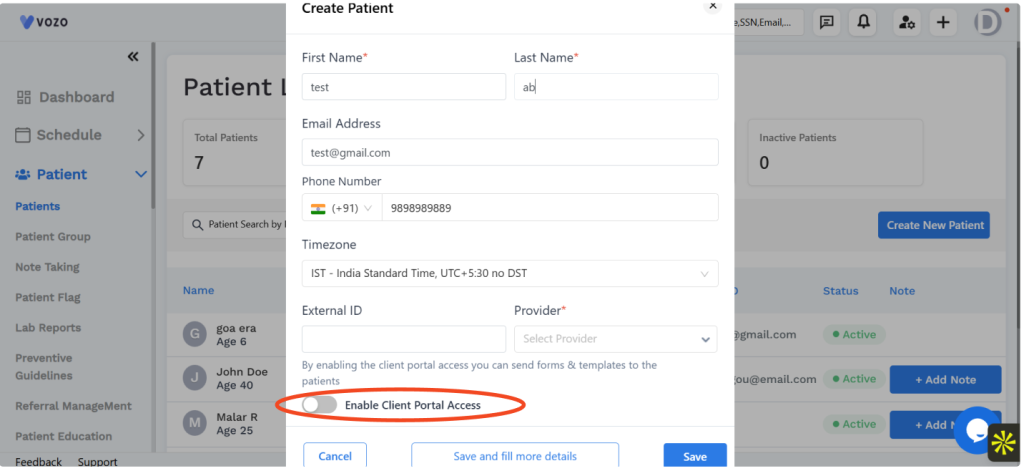
Figure 1 : The Create Patient form, with the new “Enable Client Portal Access” toggle.
3.2 Field requirements
Two existing fields are now flagged in relation to portal access:
- Email Address — flagged “Required for Patient Portal.” Needed for portal invitations and form delivery.
- Phone Number — flagged “Required for Patient Communication.”
Neither field is mandatory to create a patient record. The flags indicate what is needed for the related feature to function, not a hard validation requirement on the form.
3.3 Save options
Two completion actions are available on the form:
- Save — creates the patient record with the details entered.
- Save and fill out more details — create the patient record and contiue into the full patient profile.
- Access Points
The Create Patient form is unchanged in how it is reached. It is available from:
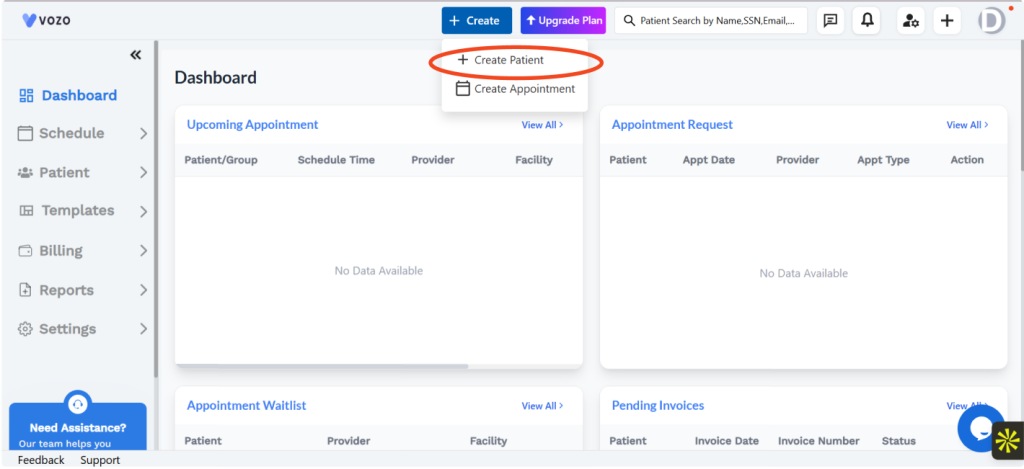
Figure 2 : The “+ Create” button in the top navigation
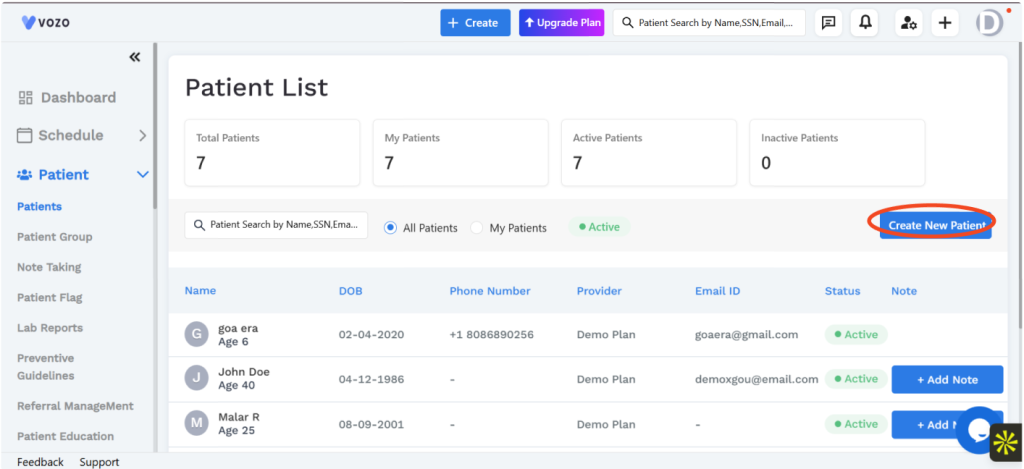
Figure 3 : “Create New Patient” on the Patient List
- Impact on Existing Workflows
This release adds a new entry point; it does not change or remove existing functionality. The following workflows continue to operate as before:
- Portal activation from an existing patient’s profile.
- Manual form sending from a patient’s Documents menu.
- Known Limitations
- An email address is required for portal invitations and forms to be delivered, even though the field is not mandatory on the form itself.
RELEASE NOTES
Multiple Document Upload
Product: Vozo EHR
Release Version: 2026.05
Release Date: May 2026
Release Type: Feature Enhancement
Availability: Production, all regions
1. Overview
This release enhances the Patient Documents module by introducing the ability to upload multiple documents in a single operation.
Users can select multiple supported files, review the selected documents, remove individual files if required, and upload the remaining documents together. This reduces repetitive upload actions and improves the efficiency of patient document management.
Where to Find This Feature
|
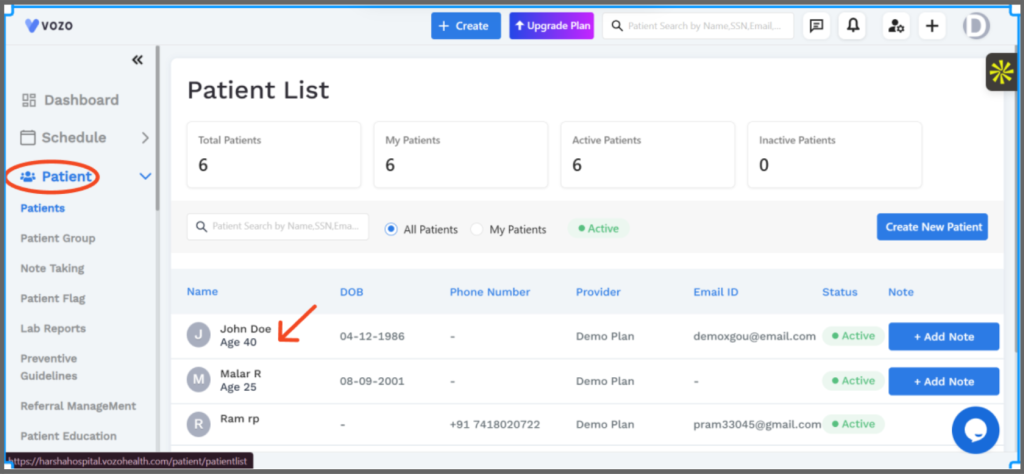 Figure 1: Patient List with the Patient menu and patient record highlighted.
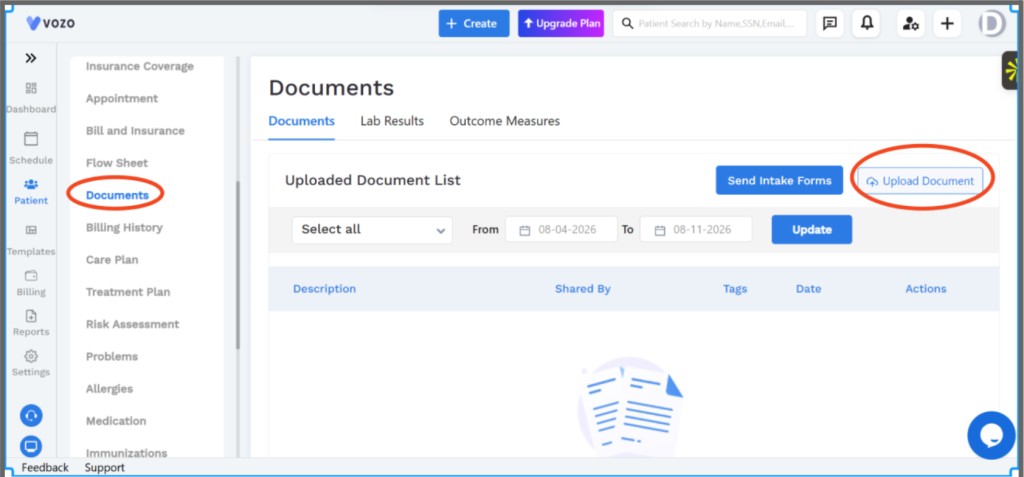
Figure 2: Patient Documents page with the Upload Document option highlighted.
2. Purpose
Previously, users had to upload documents individually. When multiple documents needed to be added to a patient’s record, the same upload process had to be repeated for each file.
The Multiple Document Upload enhancement allows users to select and submit multiple documents together, providing a faster and more convenient document management workflow.
3. What’s New
3.1 Multiple Document Upload
The Upload Document functionality now supports multiple files within a single upload session.
Users can:
- Select multiple documents using Choose File.
- Add documents through Drag & Drop.
- Review all selected documents before uploading.
- Remove individual documents using the X icon.
- Upload all selected documents using a single Upload action.
Figure 3: Upload Documents window showing the Drag & Drop area and Choose File option.
3.2 File Upload Limits
The upload interface supports the following file restrictions:
- Maximum 5 files per upload.
- Maximum 10 MB total upload size.
- Supported file formats:
- JPG
- PNG
The upload interface displays these restrictions to users before they select their files.
3.3 Selected Document List
After files are selected, the system displays each document in the upload window.
The selected file list allows users to:
- Review the documents selected for upload.
- Identify individual files before submission.
- Remove unwanted files using the X icon.
- Continue with the remaining files without restarting the upload process.
Figure 4: Upload Documents window displaying multiple selected documents with individual remove options.
3.4 Upload Documents
After reviewing the selected documents, the user can click Upload to submit the files.
The system processes the selected documents as part of the upload operation.
Figure 5: Upload Documents window showing the Upload button after multiple files have been selected.
4. How to Upload Multiple Documents
Step 1: Open Patient List
Navigate to Patient from the left navigation menu and select the required patient from the Patient List.
Step 2: Open Documents
From the selected patient’s record, navigate to Documents.
Step 3: Select Upload Document
Click the Upload Document button available on the Documents page.
Step 4: Select Documents
The Upload Documents window opens.
Select Choose File to browse for documents or use the Drag & Drop area to add files.
Step 5: Select Multiple Files
Select the required documents.
A maximum of 5 JPG, PNG, or PDF files can be uploaded, with a 10 MB total size limit.
Step 6: Review and Remove Files
Review the selected document list. If any document is not required, click the X icon next to that document to remove it.
Step 7: Upload
After confirming the selected documents, click Upload.
Step 8: Verify Uploaded Documents
After the upload is completed, the documents can be accessed from the patient’s Uploaded Document List.
5. Key Benefits
- Enables multiple documents to be uploaded in a single operation.
- Reduces repetitive upload activities.
- Supports both Choose File and Drag & Drop.
- Allows users to review selected files before submission.
- Allows individual files to be removed before uploading.
- Provides clear file-format and upload-size restrictions.
- Improves efficiency when adding multiple documents to a patient’s record.
6. Impact on Existing Workflows
This enhancement extends the existing Patient Documents upload functionality.
The existing Documents section remains available, and users can continue to access and manage patient documents through the existing workflow. The enhancement provides an additional option to upload multiple documents together.
7. Known Limitations
- A maximum of 5 files can be selected in a single upload operation.
- The combined file size cannot exceed 10 MB.
- Only JPG, PNG, and PDF file formats are supported.
- Documents must be selected through the Choose File or Drag & Drop functionality before they can be uploaded.
RELEASE NOTES
Appointment Profiles
Product: Vozo EHR
Release Version: 2026.05
Release Date: May 2026
Release Type: Enhancement (Appointment Profiles)
Availability: All practices
1. Overview
Appointment Profiles let practices configure reusable visit types – such as Telepsychiatry, Therapy Session, or Consultation – with a defined duration, color, payment profile, and linked billing template that is automatically applied during scheduling.
Where to Find This Feature 1. Schedule → Appointment Profiles |
2. Purpose
Previously, visit-type details like duration, payment type, and billing codes had to be set manually for each appointment. Appointment Profiles centralize that configuration into a reusable visit type, so scheduling automatically applies the right duration, color coding, payment type, and billing codes every time.
3. What’s New
3.1 Appointment Profile List
Schedule → Appointment Profiles shows every configured visit type as a card, with a grid/list view toggle and an Add New Profile button in the top right.
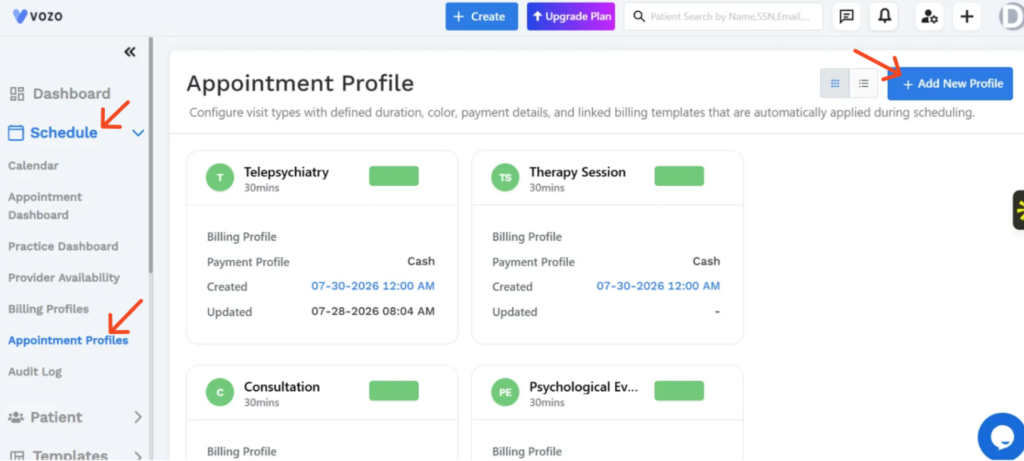
Figure 1: Appointment Profile list – each card shows the profile name, duration, an active status indicator, Billing Profile, Payment Profile, and Created/Updated dates.
3.2 Creating an Appointment Profile
Selecting + Add New Profile opens the Create New Appointment Profile popup, where the visit type’s name, reason, color, duration, payment type, and billing template are configured.
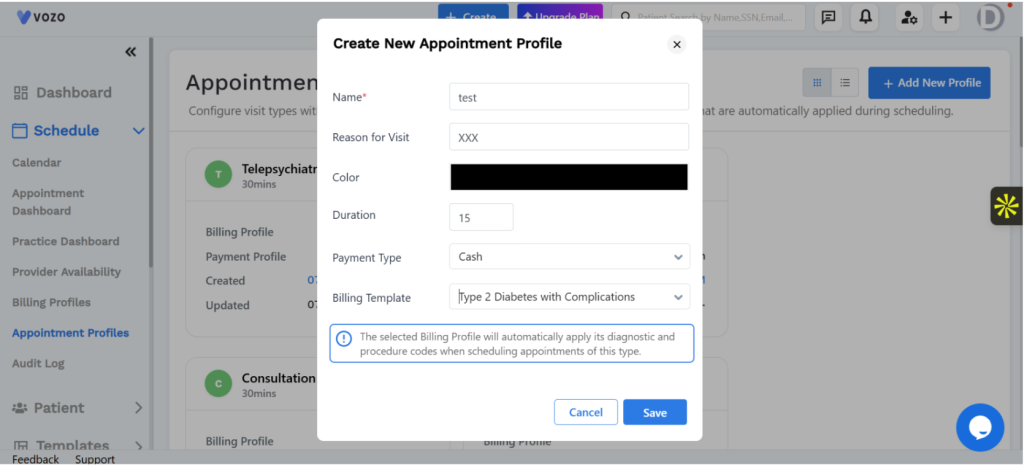
Figure 2: Create New Appointment Profile popup – Name, Reason for Visit, Color, Duration, Payment Type, and Billing Template, with a note that the billing template’s diagnostic and procedure codes apply automatically.
3.3 Profile Fields
Field | Description |
|---|---|
Name | Visit type name (required) |
Reason for Visit | Default reason shown when scheduling this visit type |
Color | Color used to identify this visit type on the schedule |
Duration | Default appointment length, in minutes |
Payment Type | Default payment method, e.g. Cash |
Billing Template | Billing profile whose diagnostic and procedure codes apply automatically |
4. Key Behaviors
- Billing codes apply automatically – selecting a Billing Template auto-applies its diagnostic and procedure codes whenever this visit type is scheduled.
- Only Name is required – Reason for Visit, Color, Duration, Payment Type, and Billing Template can be left at their defaults.
- Visual identification – each profile’s color is used to distinguish visit types on the schedule and calendar.
- Automatic timestamps – Created and Updated dates are tracked automatically for every profile.
- Grid or list view – the Appointment Profile list can be toggled between a card grid and a list layout.
5. End-to-End Usage
- Open Appointment Profiles
Go to Schedule → Appointment Profiles.
- Review existing profiles
Browse configured visit types in grid or list view.
- Add a new profile
Select + Add New Profile to open the creation popup.
- Configure the visit type
Enter Name, Reason for Visit, Color, Duration, Payment Type, and Billing Template.
- Save
The profile becomes available for scheduling appointments of this type.
6. Known Limitations
- This release note covers creating a new Appointment Profile; editing or deleting an existing profile is not detailed here.
7. Related Documentation
- Billing Profiles overview
- Scheduling appointments overview
RELEASE NOTES
Superbill Reporting and Document Settings
Product: Vozo EHR
Release Version: 2026.08
Release Date: August 2026
Release Type: New Feature
Availability: Production, all regions
1. Overview
This release adds a dedicated Superbill Report for searching and reviewing generated superbills, along with a new Superbills section under document settings for controlling how superbills are branded and emailed – bringing superbills in line with the existing Invoice and Statement document controls.
Where to find this Feature
|
2. Purpose
Superbills previously had no dedicated report, making it hard to locate a specific superbill or review what had been issued over a date range without opening individual patient records. Superbills also had no document settings of their own, unlike invoices and statements, so practices could not customize the logo, footer, or default email text used when a superbill is sent. This release addresses both gaps.
3. What’s New
3.1 Superbill Report
A new Superbill Report is available under Reports. It lists superbills for a selected date range and can be filtered by patient, provider, facility, or a specific Superbill ID.
Figure 1: The Superbill Report, with patient, provider, facility, and Superbill ID filters, plus a date range and Update control.
The results list shows Patient, Date of Service, Provider, Facility, Superbill Date, Superbill ID, Billed Amount, and an Action column. The default date range on load is the past seven days; use From, To, and Update to change it.
3.2 Superbill document settings
A new Superbills section has been added under Settings → Documents, alongside the existing Invoices and Statements sections. It follows the same pattern already used for those document types.
Figure 2: The new Superbills section under Settings → Documents, with logo, footer, and default email controls.
- Include Logo – toggles whether the practice logo (set under Practice Logo, above) appears on generated superbills
- Footer Information – free-text footer printed on the superbill, defaulting to “powered by vozo”
- Default Superbill Email – the From address, Subject, and Message used when a superbill is emailed to a patient, editable via the Edit link
4. Impact on Existing Workflows
This release adds new functionality; it does not change how invoices or statements are generated, reported, or configured. Their settings sections remain unchanged.
5. Known Limitations
- The Superbill Report displays an empty state when no superbills match the selected filters or date range.
RELEASE NOTES
Batch Eligibility Verification
Product: Vozo EHR
Release Version: 2026.08
Release Date: August 2026
Release Type: New Feature
Availability: Production, all regions
1. Overview
This release adds Batch Eligibility under Patient, letting staff request insurance eligibility verification for multiple patients at once instead of checking each one individually, and track the status of those requests from a single screen.
Where to Find This Feature
|
2. Purpose
Eligibility verification was previously a per-patient action, which meant confirming coverage for a full day’s schedule required opening each patient’s record in turn. This release adds a way to select a group of appointments by facility, provider, and date range, and submit them together to a clearinghouse in one transmission, with a dedicated screen to track the outcome of each request.
3. What’s New
3.1 Prepare Batch
The Prepare Batch tab searches for appointments to include in a batch, using Patient, Provider, Facility, Appt From/To date range, Insurance Type, and X12 Partner (the clearinghouse the request will be transmitted through).
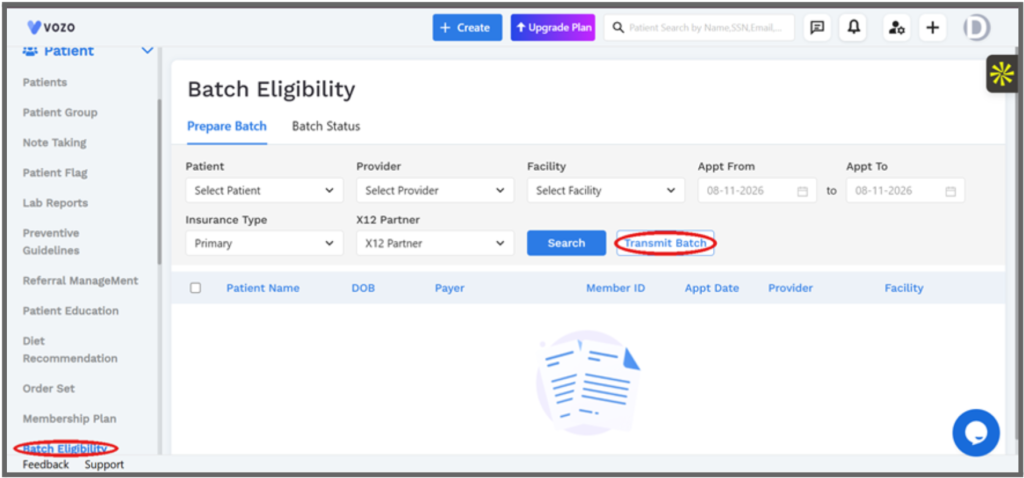
Figure 1: The Prepare Batch tab, with search filters and the Transmit Batch action.
Search results list each matching patient with DOB, Payer, Member ID, Appointment Date, Provider, and Facility. Rows can be selected individually or all at once, and Transmit Batch sends an eligibility check request for the selected patients to the chosen X12 Partner.
- Insurance Type narrows the search to a specific coverage on file (for example, Primary), so a batch can target one type of coverage at a time.
- X12 Partner selects which clearinghouse connection is used to transmit the request; it must be chosen before Transmit Batch can be used.
- The checkbox column supports selecting individual rows or all results at once before transmitting.
3.2 Batch Status
The Batch Status tab tracks eligibility requests that have already been submitted. It can be filtered by Patient, Payer, Sent From/To date range, and Eligibility Status.
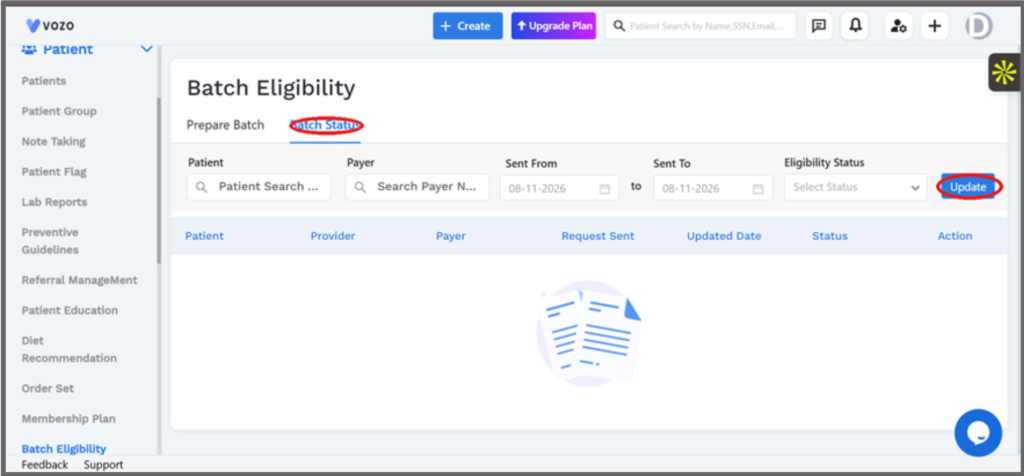
Figure 2: The Batch Status tab, showing the Batch Status view and Update control.
Results show Patient, Provider, Payer, Request Sent date, Updated Date, Status, and an Action column for reviewing an individual result.
- Sent From/To filters by when the request was transmitted, independent of the appointment date used in Prepare Batch.
- Eligibility Status filters results down to requests in a particular outcome state, making it easier to find the ones still awaiting a response.
- Update refreshes the list against the current filters, which is useful after transmitting a new batch or when checking for status changes on pending requests.
3.3 How to run a batch eligibility check
- Go to Patient → Batch Eligibility → Prepare Batch.
- Set Facility, Provider, and the Appt From/To date range to define the appointments to check.
- Optionally narrow further with Patient or Insurance Type.
- Choose an X12 Partner to transmit through, then select Search to list matching patients.
- Select the patients to include, then choose Transmit Batch to send the request.
- Switch to Batch Status to monitor the request; use Sent From/To and Eligibility Status to locate it, and Update to refresh the results.
4. Key Benefits
- Checks eligibility for a full day’s or week’s appointments in one transmission instead of one patient at a time
- Centralizes tracking of submitted requests and their outcomes in Batch Status
- Reduces the risk of an appointment going unverified before the visit
- Keeps individual, per-patient eligibility verification available for one-off checks
5. Impact on Existing Workflows
This release adds a new, additional way to verify eligibility. The existing per-patient Eligibility Verification tab on a patient’s Insurance Coverage screen is unchanged and continues to work as before.
6. Known Limitations
- Prepare Batch only returns appointments within the selected Appt From-Appt To range; broaden the range if an expected patient does not appear.
7. Related Documentation
- Eligibility Verification (individual patient)
- Insurance Coverage overview
RELEASE NOTES
Good Faith Estimate
Product: Vozo EHR
Release Version: 2026.08
Release Date: August 2026
Release Type: New Feature
Availability: Production, all regions
1. Overview
This release adds a Good Faith Estimate tab to the patient’s Insurance Coverage section, letting staff build and save an itemized cost estimate for a patient’s treatment directly from their record.
Where to find this feature
|
2. Purpose
Under the No Surprises Act, practitioners are required to provide uninsured and self-pay patients with a good faith estimate of expected charges before treatment. This release gives staff a structured way to produce that estimate – covering facility, provider, service dates, and itemized codes – without leaving the patient’s record or assembling the estimate manually.
3. What’s New
3.1 Good Faith Estimate tab
A new “Good Faith Estimate” tab appears under a patient’s Insurance Coverage section, alongside Insurance Info, Eligibility Verification, and Prior Authorization.
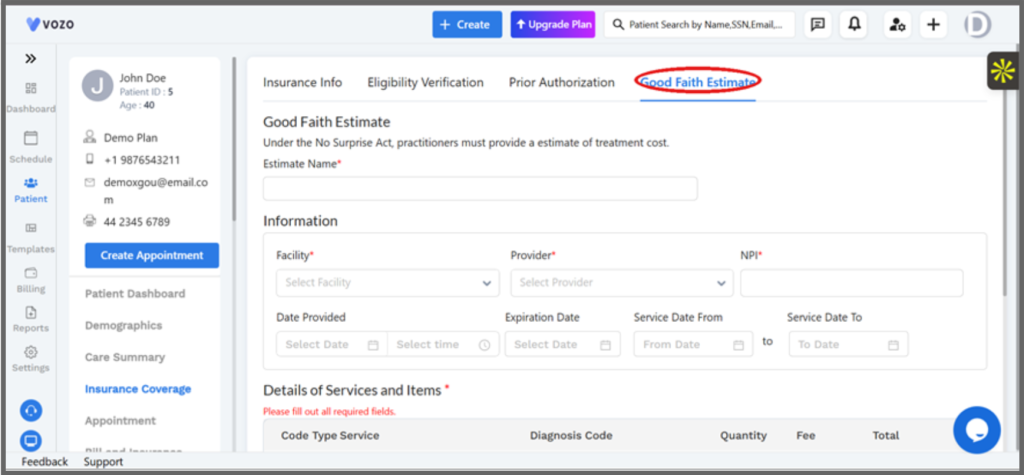
Figure 1: The new Good Faith Estimate tab under a patient’s Insurance Coverage section.
The form opens with an Estimate Name field, followed by an Information section covering:
- Facility and Provider (both required), plus NPI
- Date Provided (date and time)
- Expiration Date
- Service Date From / To, defining the estimate’s coverage window
3.2 Details of Services and Items
Estimates are built line by line in a required Details of Services and Items table. Each line captures a code type and service, a diagnosis code, quantity, and fee, with the line total calculated automatically.
Figure 2: Adding a line item: searching HCPCS codes and using “+ Add Items” for additional lines.
- The Find HCPCS Codes search looks up the procedure or service code for a line
- A matching diagnosis code can be searched and attached to the same line
- “+ Add Items” adds further line items to the estimate
- Total Estimate Cost sums all line totals automatically as items are added
An Additional Notes field is available for any context to include with the estimate. Save creates the estimate; Cancel discards the form.
4. Impact on Existing Workflows
This is a new tab within the existing Insurance Coverage section. Insurance Info, Eligibility Verification, and Prior Authorization are unchanged.
5. Known Limitations
- Details of Services and Items is a required section – an estimate cannot be saved without at least one line item.
RELEASE NOTES
Flow Sheet
Product: Vozo EHR
Release Version: 2026.06
Release Date: June 2026
Release Type: New Feature
Availability: Production, all regions
1. Overview
This release introduces the Flow Sheet feature within the patient record. The Flow Sheet provides a centralized view for reviewing patient Vitals and Forms based on a selected date range.
Users can select the required vitals, specify a date range, submit the selection, review available records, and export the data as a CSV file.
Where to Find This Feature
|
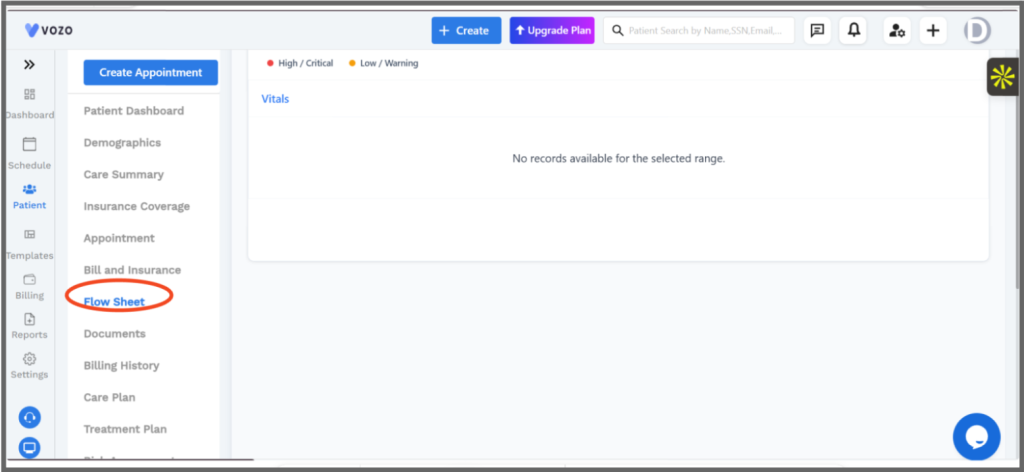
Figure 1: Patient List and patient record navigation showing the Flow Sheet option.
2. Purpose
The Flow Sheet provides a dedicated interface for reviewing patient clinical information in a structured format. It allows users to review selected vital information based on a specific date range without navigating through multiple sections of the patient record.
3. What’s New
3.1 Flow Sheet
A new Flow Sheet page is available within the patient record.
The Flow Sheet includes:
- Vitals tab
- Forms tab
- Select Vitals dropdown
- From and To date fields
- Submit button
- Export as CSV option
- High / Critical and Low / Warning indicators
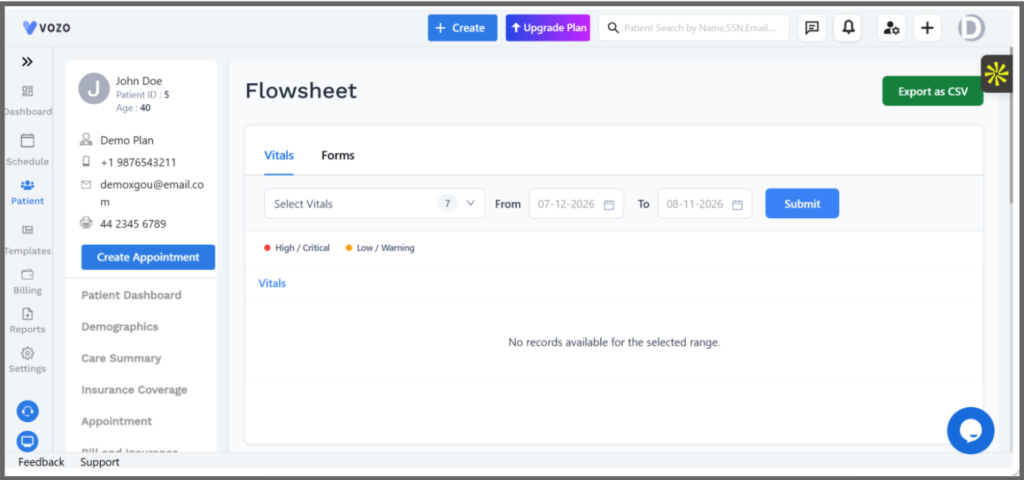
Figure 2: Flow Sheet page showing the Vitals and Forms tabs, vital selection, date filters, Submit button, and Export as CSV option.
3.2 Vitals Selection
Users can select the required vital measurements from the Select Vitals dropdown to define which information should be displayed in the Flow Sheet.
3.3 Date Range
Users can specify a From and To date to retrieve records for the selected period. Selecting Submit applies the selected filters.
3.4 Status Indicators
The Flow Sheet provides visual indicators for:
- High / Critical
- Low / Warning
These indicators help users identify the status of displayed vital information.
3.5 No Records State
If no records are available for the selected vitals and date range, the Flow Sheet displays:
“No records available for the selected range.”
3.6 CSV Export
The Export as CSV option allows users to export the available Flow Sheet information in CSV format.
4. How to Use the Flow Sheet
- Go to Patient from the left navigation.
- Select the required patient.
- Select Flow Sheet from the patient navigation.
- Open the Vitals tab.
- Select the required vitals from Select Vitals.
- Select the required From and To dates.
- Click Submit to retrieve the records.
- Review the displayed information.
- Click Export as CSV when a CSV copy of the data is required.
5. Key Benefits
- Provides a centralized view of patient Flow Sheet information.
- Allows users to select specific vitals for review.
- Supports date-range-based record retrieval.
- Provides visual indicators for High / Critical and Low / Warning values.
- Displays a clear no-records state when applicable.
- Allows Flow Sheet information to be exported as CSV.
- Provides access to Vitals and Forms from a single interface.
6. Impact on Existing Workflows
The Flow Sheet is introduced as an additional option within the patient record. Existing patient navigation and clinical information sections remain available and unchanged.
7. Known Limitations
- Records are displayed based on the selected vitals and date range.
- If no records are available for the selected range, the system displays the no-records message.
- The Flow Sheet currently provides Vitals and Forms tabs.
8. Related Documentation
- Patient Record
- Patient Vitals
- Patient Forms
- CSV Export
RELEASE NOTES
Care Plan Management
Product: Vozo EHR
Release Version: 2026.08
Release Date: August 2026
Release Type: New Feature
Availability: Production, all regions
1. Overview
This release introduces Care Plan Management within the patient record, providing a centralized workflow to create and manage patient care plans and associated monitoring activities.
Users can create care plans, define conditions and care goals, assign care team members and providers, configure monitoring activities, and schedule recurring monitoring times.
Where to Find This Feature
|
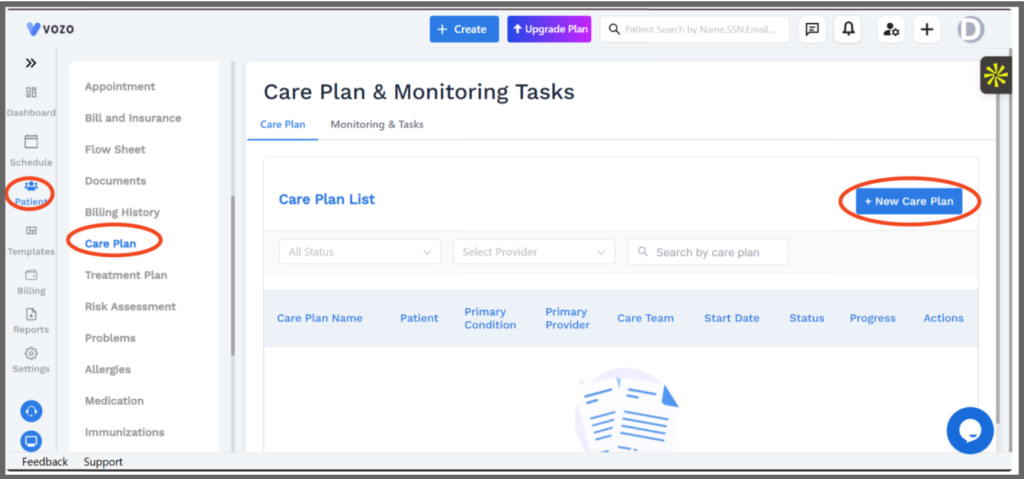
Figure 1: Patient Care Plan page showing the Care Plan and Monitoring & Tasks sections.
2. Purpose
Care Plan Management provides a structured way to define and manage patient-specific care plans and monitoring activities.
It enables healthcare teams to organize care plans around the patient’s conditions, assign responsible providers and care team members, define measurable goals, and establish monitoring activities with defined frequencies and schedules.
3. What’s New
3.1 Care Plan List
The Care Plan section provides a centralized list of care plans associated with the patient.
Users can:
- View existing care plans.
- Filter care plans by Status.
- Filter by Provider.
- Search for a care plan by name.
- Create a new care plan using + New Care Plan.
The list provides information such as:
- Care Plan Name
- Patient
- Primary Condition
- Primary Provider
- Care Team
- Start Date
- Status
- Progress
- Actions
3.2 Create New Care Plan
Users can create a new care plan by selecting + New Care Plan.
The care plan form includes:
- Patient
- Care Plan Name
- ICD Codes
- Start Date
- End Date
- Status
- Care Team
Users can also add ICD codes and define the care team associated with the care plan.
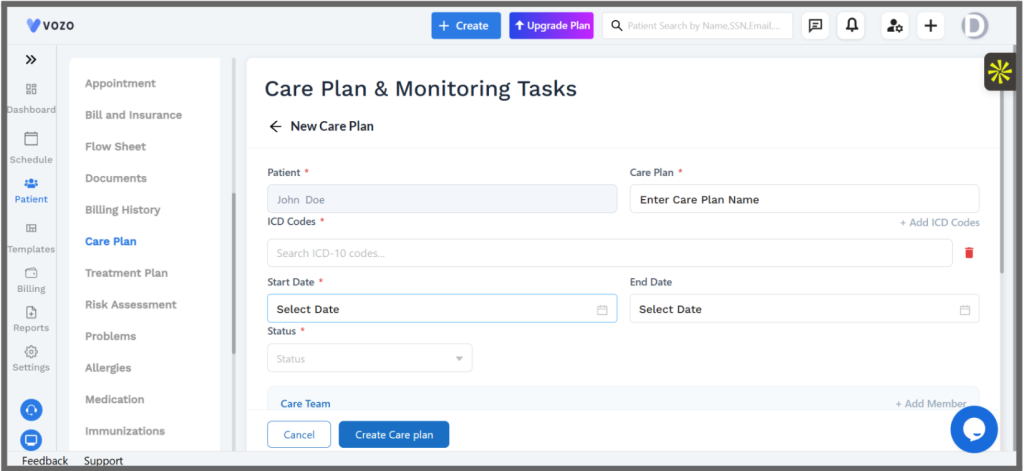
Figure 2: New Care Plan form showing patient, care plan, ICD code, date, status, and care team fields.
3.3 Care Team Management
Care team members can be associated with a care plan through the Care Team section.
Users can:
- Select care team members.
- Add additional members.
- Designate a member as the Primary Provider.
3.4 Care Goals
Care plans support the definition of specific Care Goals.
Users can add goals and provide information such as:
- Goal Description
- Target Outcome
- Target Date
- Assigned Provider
Multiple goals can be associated with a single care plan.
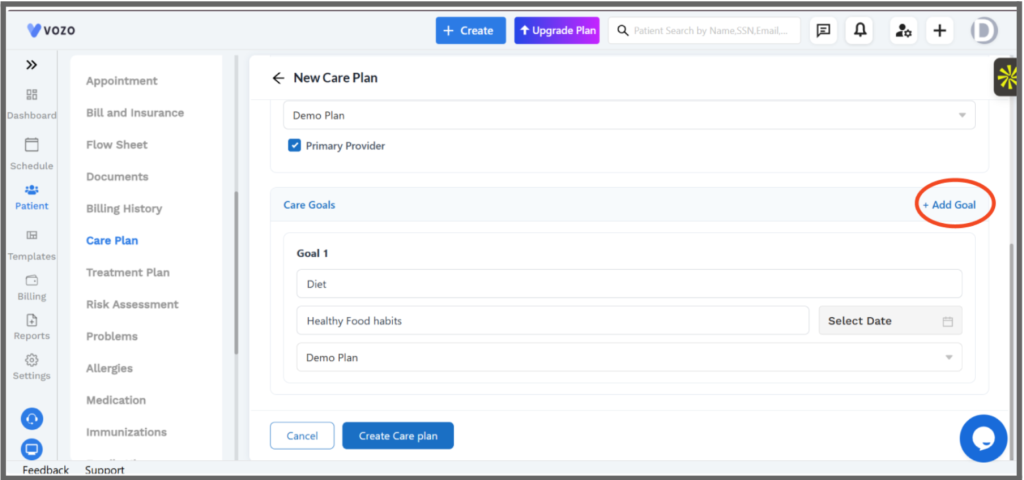
Figure 3: Care Goals section showing goal configuration fields and the Add Goal option.
3.5 Monitoring & Tasks
The Monitoring & Tasks section provides a centralized list of monitoring activities associated with patient care plans.
Users can:
- View monitoring activities.
- Filter activities by provider.
- Search activities by name.
- Create a new monitoring activity using + New Activity.
The monitoring list displays:
- Activity
- Description
- Care Plan
- Frequency
- Provider
- Tasks
- Progress
- Action
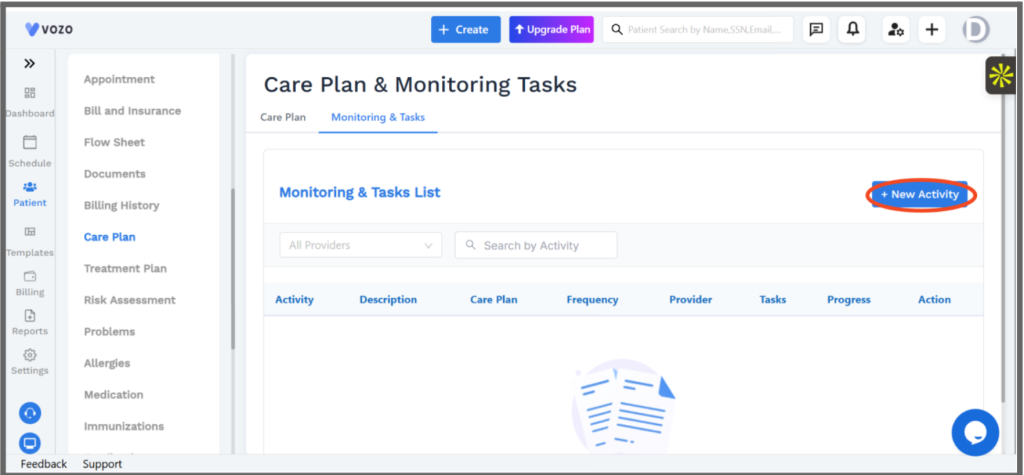
Figure 4: Monitoring & Tasks list showing filters, activity search, and New Activity option.
3.6 Create Monitoring Activity
Users can create a monitoring activity by selecting + New Activity.
The activity form includes:
- Patient
- Care Plan
- Monitoring Name
- Assigned Provider
- Frequency
- Start Date
- End Date
- Description
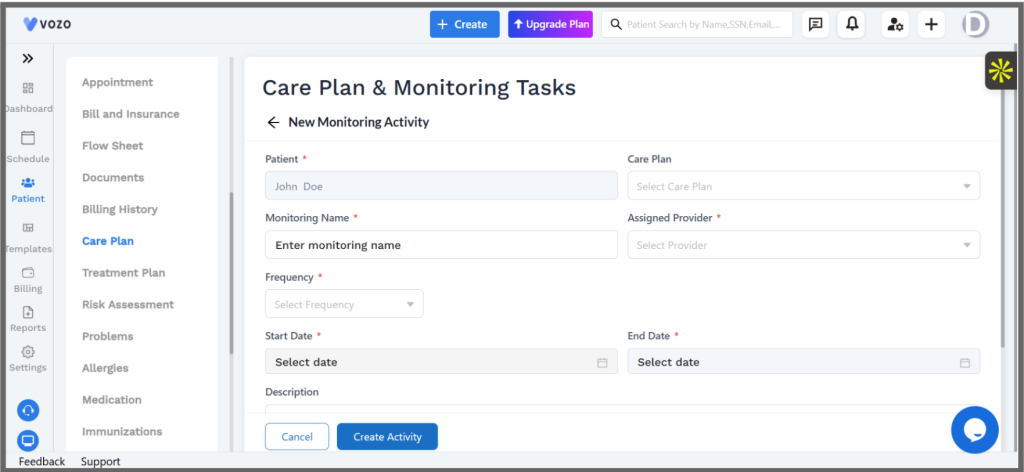
Figure 5: New Monitoring Activity form showing the activity configuration fields.
3.7 Monitoring Schedule
Monitoring activities can include scheduled times for recurring monitoring.
Users can add one or more schedule times using + Add Time. The configured times apply to the monitoring activity within the defined date range.
4. How to Manage a Care Plan
- Go to Patient from the left navigation.
- Select the required patient.
- Open Care Plan.
- Select + New Care Plan to create a care plan.
- Enter the required care plan information.
- Add ICD codes, dates, status, and care team members.
- Add care goals and define their target outcomes.
- Create the care plan.
- Open Monitoring & Tasks to configure monitoring activities.
- Select + New Activity.
- Enter the monitoring activity details.
- Select the care plan, provider, frequency, and date range.
- Add monitoring schedule times when required.
- Select Create Activity to save the monitoring activity.
5. Key Benefits
- Provides centralized Care Plan Management within the patient record.
- Supports structured creation and management of patient care plans.
- Allows ICD codes to be associated with care plans.
- Supports care team and primary provider assignment.
- Enables definition and tracking of care goals.
- Supports monitoring activities linked to care plans.
- Allows monitoring frequency and date ranges to be configured.
- Supports recurring monitoring schedules.
- Provides filtering and search capabilities for care plans and monitoring activities.
6. Impact on Existing Workflows
Care Plan Management is introduced as an additional patient-level workflow.
The feature provides a dedicated location for managing care plans, care goals, care team members, and monitoring activities without changing the existing patient record navigation.
7. Known Limitations
- Monitoring activities require the relevant activity details, provider, frequency, and date information to be configured.
- Monitoring schedules are configured within the monitoring activity and apply to the defined date range.
- Care plan and monitoring information is managed within the selected patient’s record.
RELEASE NOTES
Treatment Plan
Product: Vozo EHR
Release Version: 2026.05
Release Date: May 2025
Release Type: New Feature (New Main Menu Module)
Availability: All practices
Where to Find This Feature 1. Open a patient record → Patient → Treatment Plan 2. Select Create Treatment Plan, choose a template, and build out Goals, Objectives, and Interventions |
1. Overview
This release adds Treatment Plan as a new module under Patient: a structured clinical document for defining patient problems, goals, objectives, and interventions, with progress tracking, reminders, provider comments, signatures, and PDF export for compliance and care coordination.
2. Purpose
Tracking goals, objectives, and interventions for ongoing care – particularly chronic care and mental health – previously had no dedicated, structured record within a patient’s chart. Treatment Plan provides a single module for building that structure, following progress over time, and producing a signed, exportable record.
3. What’s New
3.1 Creating a Treatment Plan
Treatment Plan is a new item under a patient’s record, alongside Insurance Coverage, Appointment, and other existing tabs.
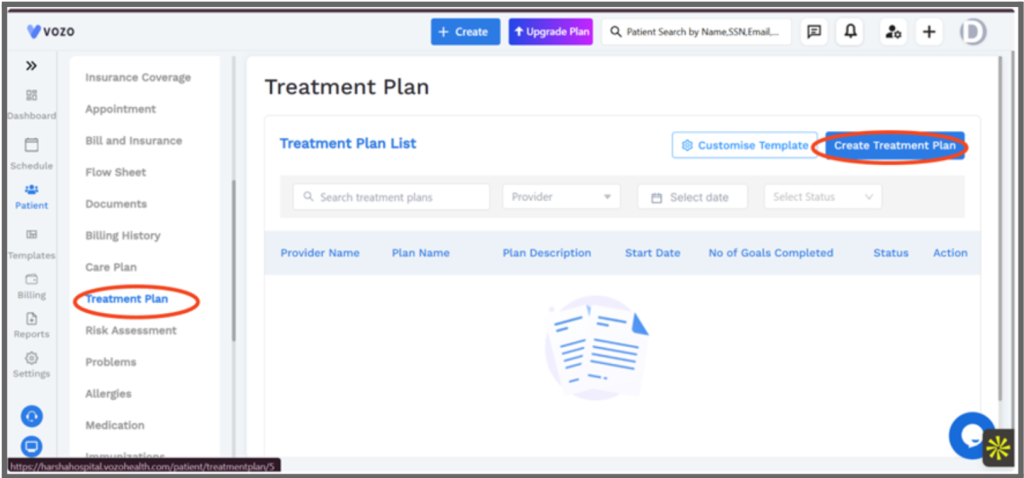
Figure 1: The Treatment Plan tab, with the Create Treatment Plan action.
Selecting Create Treatment Plan opens a choice of starting templates.
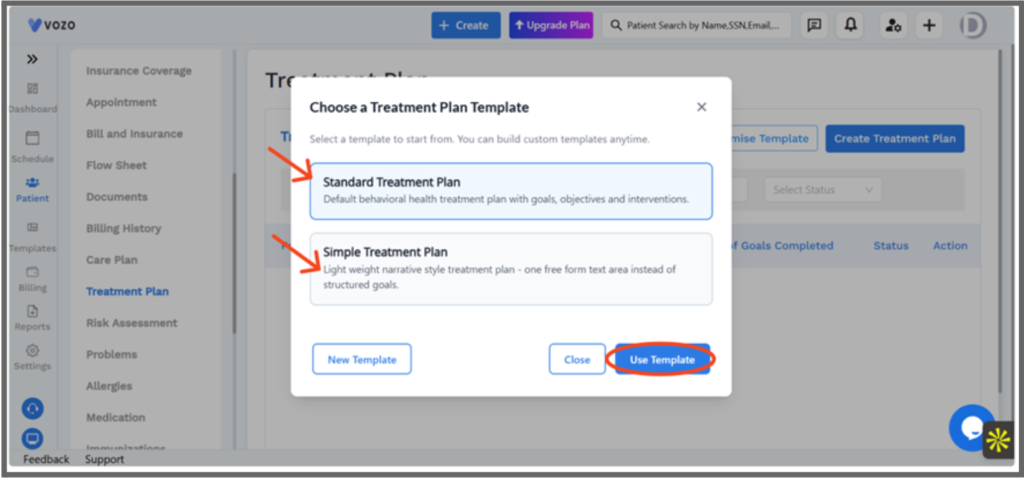
Figure 2: Choosing a template: Standard Treatment Plan or Simple Treatment Plan.
3.2 Two form types
- Standard Treatment Plan – structured Goal → Objective → Intervention format with goal tracking (shown as completed X of Y); best suited to chronic care and mental health.
- Simple Treatment Plan – a lightweight, free-form text area instead of structured goals; best suited to quick notes.
- The form type cannot be changed once a plan is saved.
3.3 Goals, Objectives, and Interventions
A Standard plan is built from a hierarchy: a Goal is the outcome, an Objective is a step toward it, and an Intervention is the action taken. Each goal captures a start date and status, and Add New Goal adds further goals to the same plan.
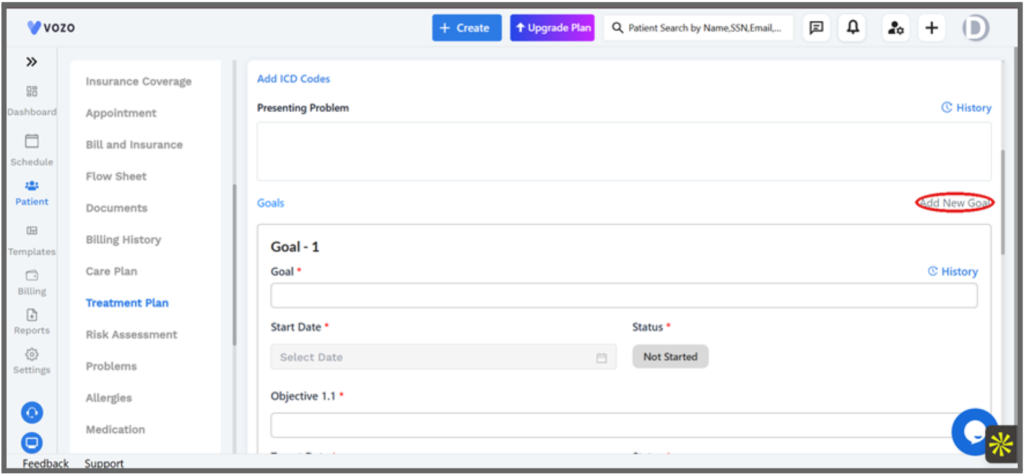
Figure 3: Defining a goal: Goal, Start Date, Status, and its first objective.
Each objective adds a target date, status, and one or more interventions, and Add SMART Objective / Add Intervention extends the structure further within a goal.
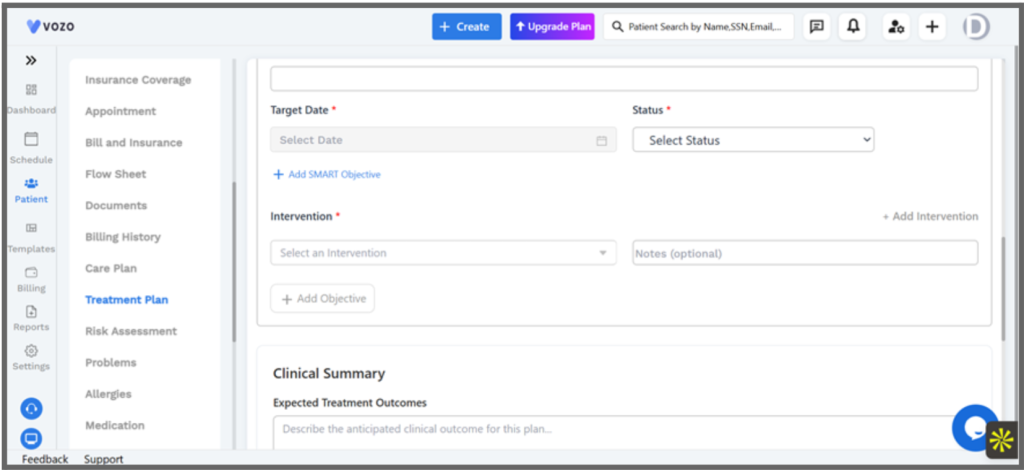
Figure 4: Adding an intervention to an objective, and starting the plan’s Clinical Summary.
- A Standard plan cannot be saved without at least one complete Goal → Objective → Intervention structure.
- Deleting a Goal permanently removes all of its nested Objectives and Interventions.
3.4 Clinical Summary and Provider Comments
Below the goal structure, a Clinical Summary captures the expected treatment outcome, any additional clinical context, and provider comments, along with a treatment frequency and an optional reminder date.
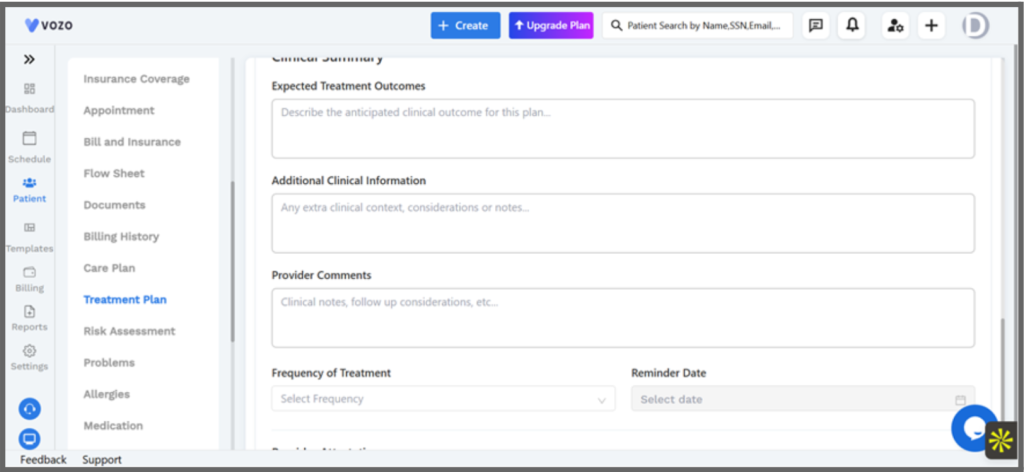
Figure 5: The Clinical Summary section: expected outcomes, additional context, provider comments, frequency, and reminder date.
- Comments are timestamped, editable, and kept as a chronological history.
- A reminder set here triggers a notification at 12 AM on the chosen date and shows as an icon in the plan list; it can be cancelled at any time.
3.5 Provider attestation and completing a plan
Finishing a plan requires the provider to confirm two attestation statements – medical necessity and accuracy of the information – before signing.
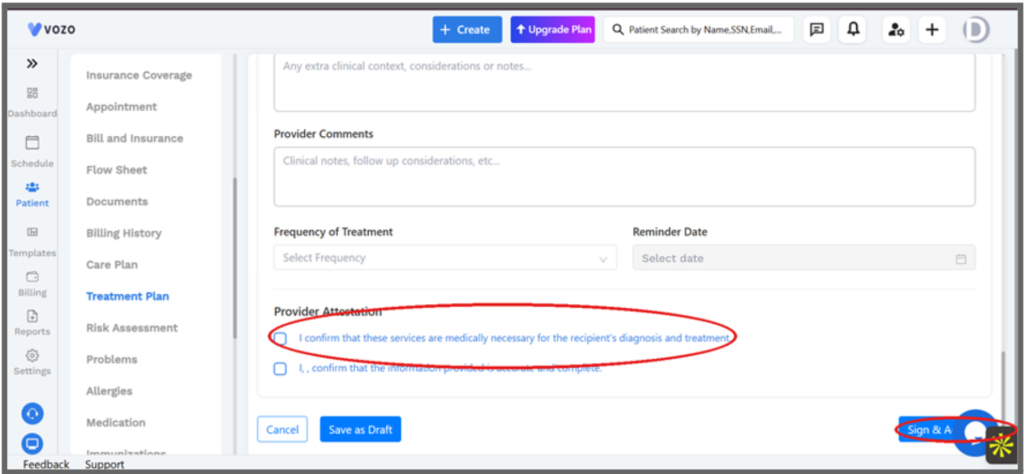
Figure 6: Provider Attestation checkboxes and the Sign & Attest action, alongside Save as Draft and Cancel.
- Save as Draft keeps the plan editable without attestation or a signature.
- Sign & Attest records the provider’s name and date, which then appears on the plan’s PDF export.
- The signature remains editable even after the plan is marked Completed.
4. Plan and Goal Status
Goal status is tracked independently of plan status:
- Goal status: In Progress, Completed, or Cancelled. Completing every goal does not automatically complete the plan.
- Plan status: In Progress is fully editable; Completed locks the plan except for the signature; Cancelled locks it entirely.
- Any change needed after a plan is Completed requires creating a new plan; the end date is auto-calculated, and each plan has a single owning provider.
5. Known Limitations
- Form type (Standard or Simple) cannot be changed after a plan is saved.
- Deleting a Goal also deletes its Objectives and Interventions, with no separate confirmation per item.
RELEASE NOTES
Intake Form Sending
Product: Vozo EHR
Release Version: 2026.04
Release Date: April 2026
Release Type: Patient Management Feature
Availability: All practices
1. Overview
This release adds automated and manual delivery of intake forms through the Documents tab: forms send automatically the first time a new patient’s portal is activated, and staff can send forms manually to any patient at any time.
Where to Find This Feature 1. Patient → open a patient’s record → Documents 2. Select Send Intake Forms to send manually at any time 3. Settings → Template Library to configure which forms send automatically |
2. Purpose
Intake forms were previously handled on paper, as email attachments, or missed altogether. This feature automates form delivery, tracking, and storage, so completed forms flow directly into the patient’s chart without manual data entry.
3. What Are Intake Forms
- Patient demographics
- Medical history
- Insurance details
- Consent forms
- Custom practice-specific forms
- SOAP notes
4. What’s New
4.1 Sending forms from a patient’s Documents tab
The Documents tab now includes a Send Intake Forms action alongside Upload Document.
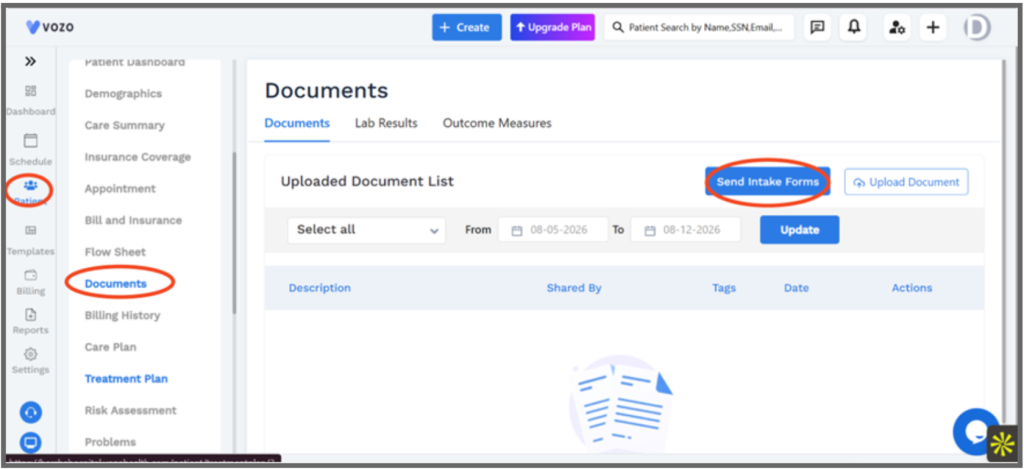
Figure 1: The Documents tab, with Send Intake Forms.
Selecting it opens a template selector for that patient.
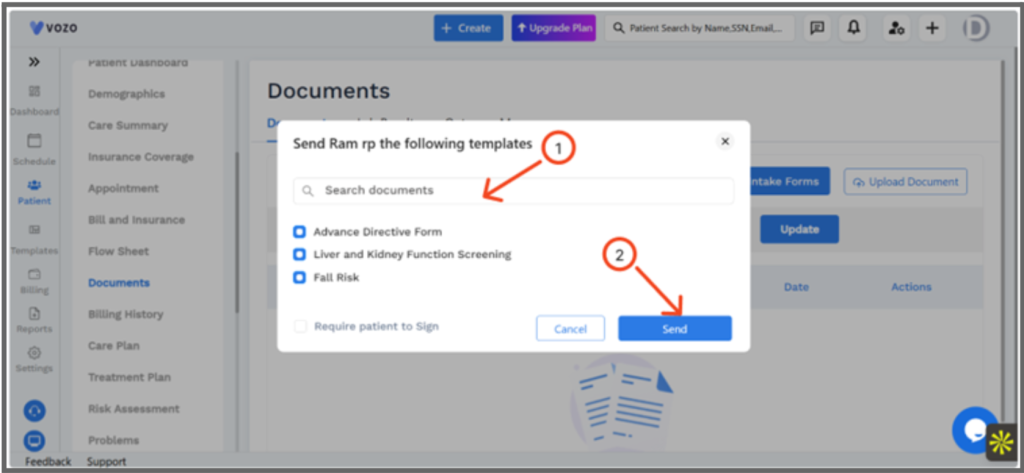
Figure 2: The send dialog: (1) search to add further templates, (2) Send to deliver the selected forms.
- The dialog pre-selects the practice’s configured templates, and Search documents adds any other form from the library
- Require patient to Sign makes a signature mandatory on the selected forms before the patient can submit them
- Send delivers the forms immediately; Cancel closes without sending
4.2 Automated sending for new patients
Forms send automatically the first time a new patient’s portal is activated, using the practice’s configured template set.
- Create the patient, entering a valid email and other details
- Enable portal access, which triggers the automated send
- The patient receives forms by email and a portal notification
- The patient completes and submits the forms digitally
- Automation triggers only once – the first time the portal is activated for that patient
4.3 Manual sending for any patient
- Open the patient’s profile and go to the Documents menu
- Select Send Intake Forms to open the form selector
- Choose the default templates, additional forms, or both
- Send delivers the forms to the patient instantly
Manual sending works for any patient at any time, including re-sends or forms the automated send didn’t cover.
4.4 Template configuration
Administrators define which forms are sent automatically to all new patients.
- Configured under Settings → Template Library
- The configured set applies to all patients going forward
- Templates can be edited but not deleted
- Changes to the configuration only affect future sends, not forms already delivered
5. Patient and Staff Experience
5.1 What the patient sees
- An email containing the portal login link
- A login step to access the assigned forms
- Mobile-friendly forms to fill out
- A confirmation message after submitting
5.2 Staff review workflow
- A notification alerts staff when a submission comes in
- Staff review the submitted forms for completeness
- Accepting the submission finalizes it
- Accepted data is automatically saved to the patient’s chart
6. Known Limitations
- Sending forms, automated or manual, requires the patient’s portal to be active.
- The automated send fires only once, on first portal activation – later needs go through the manual workflow.
RELEASE NOTES
Growth Chart
Product: Vozo EHR
Release Version: 2026. 05
Release Date: May 2026
Release Type: Pediatric Feature
Availability: All practices
1. Overview
This release adds Growth Chart to the patient record for children aged 0 – 5 years. Every recorded measurement is plotted automatically against WHO percentile curves, giving an instant visual read on a child’s growth without manual calculation.
Where to Find This Feature 1. Open the record of a patient aged 0–5 → Patient 2. Left navigation → Growth Chart |
2. Purpose
Pediatric growth tracking requires comparing measurements against WHO standards. Without an integrated chart, providers previously relied on external tools or manual calculation, adding workload and risk of oversight. Growth Chart plots each measurement automatically as soon as it’s recorded.
3. What It Does
- Automatically plots a child’s recorded measurements
- Displays WHO percentile curves for reference
- Shows growth trends over time
- Includes a measurement history table alongside each chart
4. What’s New
4.1 Accessing Growth Chart
Growth Chart is a new item in the left navigation on a patient’s record.
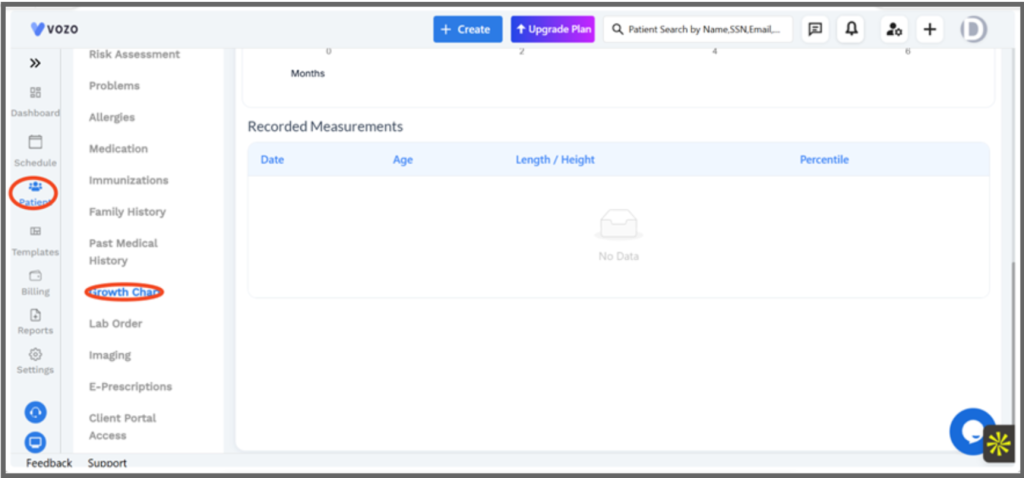
Figure 1: Growth Chart in the left navigation, with the Recorded Measurements table below the chart.
4.2 Chart tabs
The chart loads automatically for the patient’s gender, with four tabs covering different measurements:
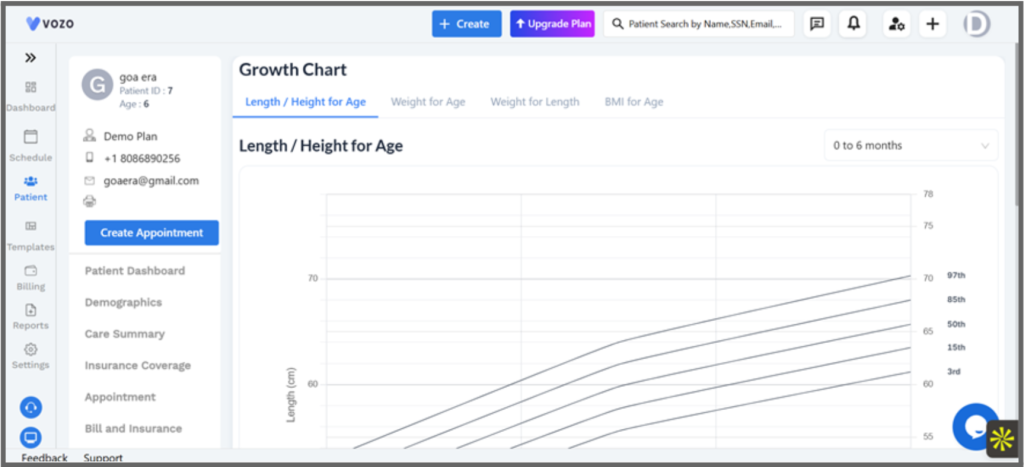
Figure 2: The Growth Chart for a patient, showing the Length / Height for Age tab with WHO percentile curves.
- Length / Height for Age – height vs. age; the baseline growth trend
- Weight for Age – weight vs. age; for detecting under- or overweight
- Weight for Length – weight vs. height; for body proportion assessment
- BMI for Age – BMI vs. age; for obesity and nutrition tracking
4.3 Reading the chart
- WHO curves are the standard growth reference lines
- The 50th percentile line represents average growth
- The 25th – 75th percentile range is considered normal
- Below the 3rd percentile may indicate a possible growth delay
- Above the 97th percentile may indicate possible accelerated growth
- The patient’s actual measurements are plotted as a blue dotted line
4.4 Age range filters
- 0 – 6 months
- 6 months – 2 years
- 0 – 2 years
- 2 – 5 years
- 0 – 5 years (full view)
4.5 Measurement table
Each chart includes a table of exact measurement values and percentile ranges for every recorded visit, shown below the chart.
5. Key Rules
- Weight is always displayed in pounds (lbs); WHO data in kilograms is converted automatically using lbs = kg × 2.20462.
- Charts auto-adjust to the patient’s gender.
- Growth Chart applies only to patients aged 0 – 5.
- No manual data entry is needed for plotting – measurements are plotted in real time and percentiles calculated automatically.
6. Known Limitations
- Growth Chart is not available for patients outside the 0 – 5 age range.
RELEASE NOTES
Imaging Menu
Product: Vozo EHR
Release Version: 2026.08
Release Date: August 2026
Release Type: New Feature
Availability: All practices
1. Overview
This release adds Imaging as a new item on the patient record, covering the full imaging lifecycle – order creation, result import, and physician sign-off – in one place, with full traceability back to the patient chart.
Where to Find This Feature 1. Open a patient’s record → Patient → Imaging 2. Imaging Orders to create and track orders; Imaging Results to review and sign off; Imaging Test to configure the catalogue |
2. Purpose
Imaging workflows were previously fragmented across paper orders, external systems, and disconnected files, with no clear status tracking or linkage to the patient record. Imaging brings ordering, results, and sign-off into a single, tracked workflow.
3. What’s New
3.1 Accessing Imaging
Imaging is a new item in the left navigation on a patient’s record, with three tabs: Imaging Orders, Imaging Results, and Imaging Test.
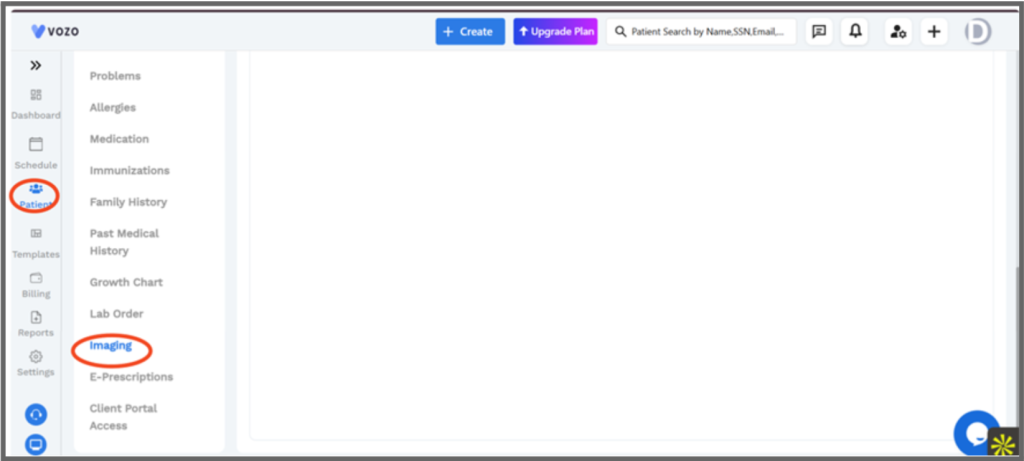
Figure 1: Imaging in the left navigation, under Patient.
- Imaging Orders – create and track orders, monitor status, import results
- Imaging Results – review results and complete the sign-off workflow
- Imaging Test – configure imaging types and the tests catalogue; required before ordering
3.2 Creating an imaging order
Imaging Orders lists existing orders with filters for test, status, provider, and priority, and an Add Image Order action.
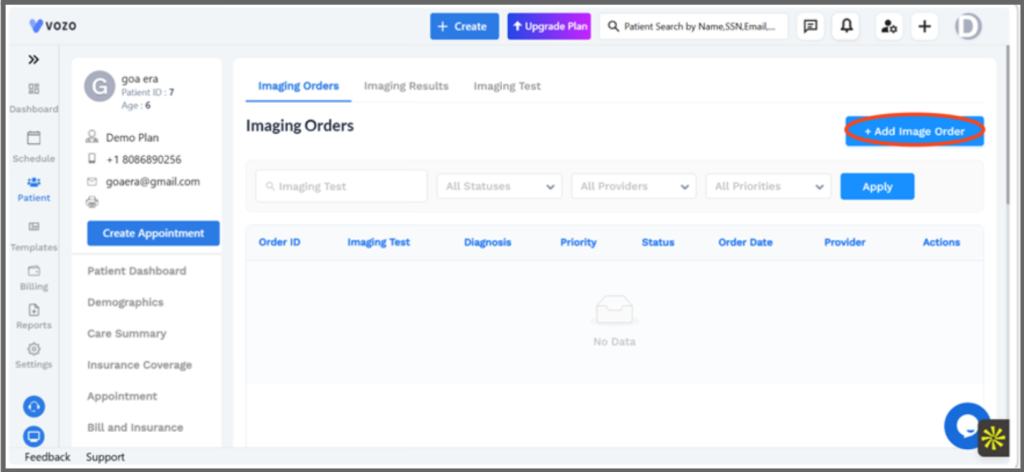
Figure 2: The Imaging Orders tab, with Add Image Order.
Add Image Order captures the provider, facility, one or more tests (each with an image type), a diagnosis, priority, order date, and notes.
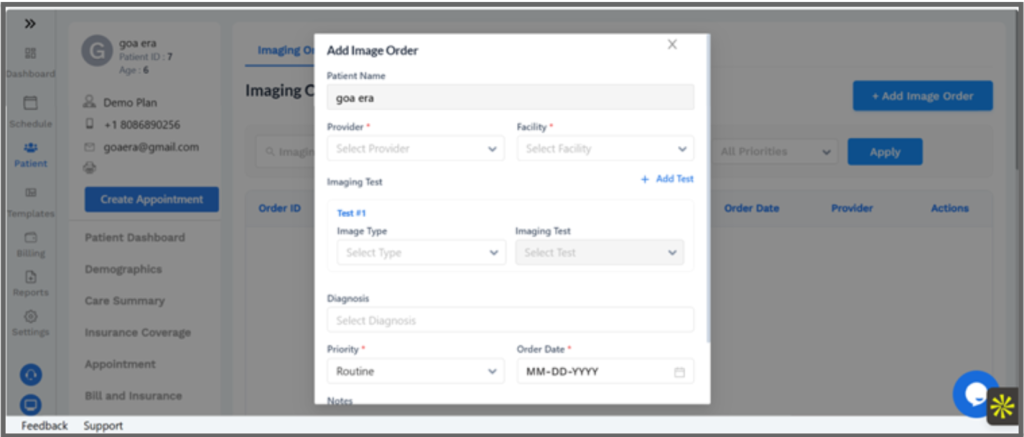
Figure 3: The Add Image Order form, with Add Test for including more than one test in the order.
- Add order – select the imaging type
- Select tests – one or more tests within that type
- Add diagnosis – attach ICD codes
- Set priority – Routine, Stat, or Urgent
- Save – the order is created with status Pending
3.3 Order status
- Pending – no results uploaded yet
- Partial – some, but not all, results uploaded
- An order only moves to Imaging Results once every test in the order has a result uploaded
3.4 Importing results
Results are imported against a specific test within an order: select the test, enter the radiologist’s name, upload the file, and save.
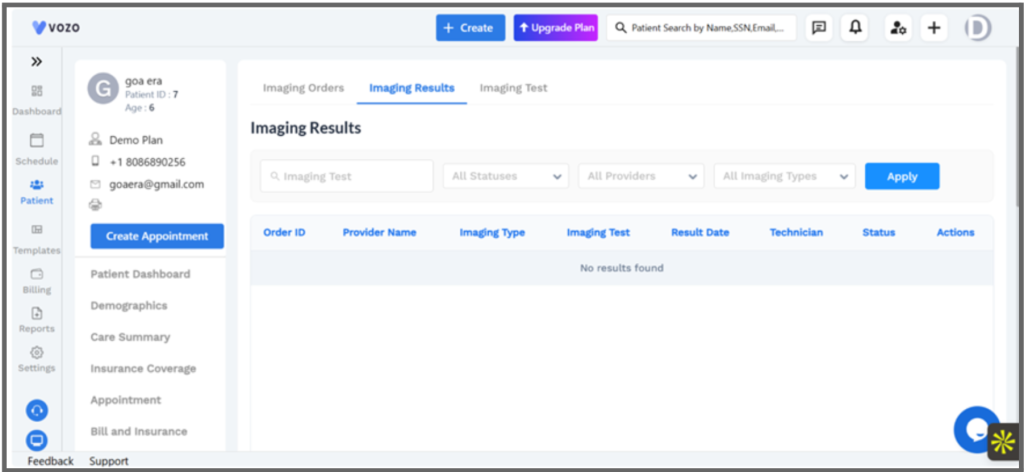
Figure 4: The Imaging Results tab, with test, status, provider, and imaging type filters.
- JPEG / PNG – images
- PDF – reports
- DCM – DICOM medical imaging, which opens automatically in the built-in DICOM Viewer with no external software required
3.5 Reviewing and signing a result
- Open the result – status starts as Not Signed
- Review the image or report
- Sign – add findings and save; status becomes Signed
A result must be signed to be considered finalized.
3.6 Imaging catalogue setup
Before providers can place orders, an administrator sets up the imaging catalogue: imaging types (such as Radiology or MRI) and the tests available under each.
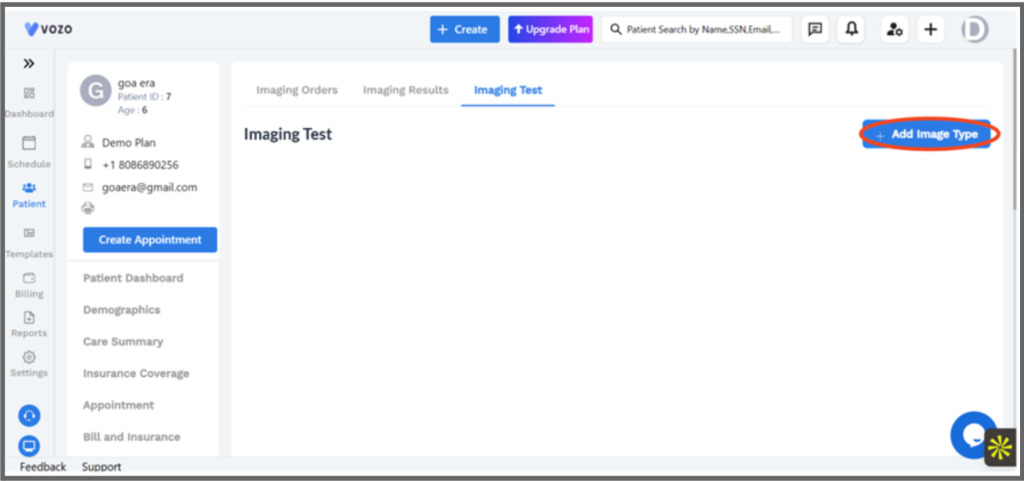
Figure 5: The Imaging Test tab, with Add Image Type.
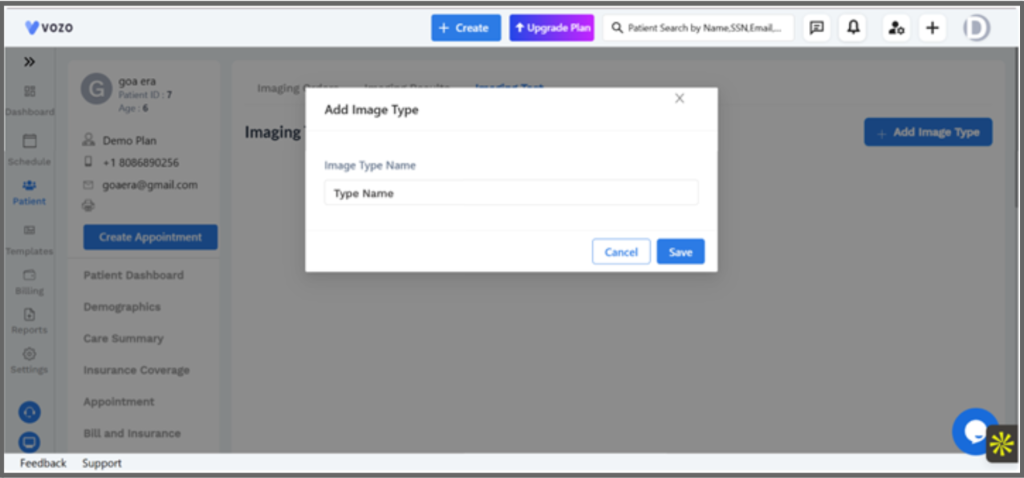
Figure 6: Adding a new image type by name.
- Radiology → Chest X-Ray, Spine X-Ray
- MRI → Brain MRI, Knee MRI
- Ultrasound → Abdominal, Pelvic
4. End-to-End Workflow
- Admin sets up the imaging catalogue
- Provider creates an order
- Staff upload results against the order’s tests
- The system tracks status automatically
- Provider reviews and signs the result
- The final report is stored in the patient record
5. Key Rules
- One order covers one imaging type; multiple tests are allowed within that type only
- Orders move forward only – there is no rollback to an earlier status
- An order stays Partial until every test result is uploaded
- Results must be signed to be finalized
- DICOM files are handled internally, with no external viewer needed
6. Known Limitations
- Imaging types and tests must be configured in Imaging Test before providers can place an order.
RELEASE NOTES
Dedicated Provider Dashboard
Product: Vozo EHR
Release Version: 2026.08
Release Date: August 2026
Release Type: New Feature (New Menu)
Availability: All practices
1. Overview
This release adds a unified Dashboard that brings appointments, notes, forms, patient activity, and billing into a single screen, so providers and coordinators can see their day at a glance without opening separate modules.
Where to Find This Feature 1. Left sidebar → Dashboard (top icon, above Schedule) |
2. Purpose
Previously, understanding a day’s workload meant opening Schedule, Notes, Forms, and Billing separately. Dashboard consolidates that information into one view, with direct navigation into each underlying module.
3. What’s New
3.1 Dashboard layout
Dashboard contains 8 cards arranged in a two-column grid. Each card shows its 3 most recent records and a View All link through to the full module.
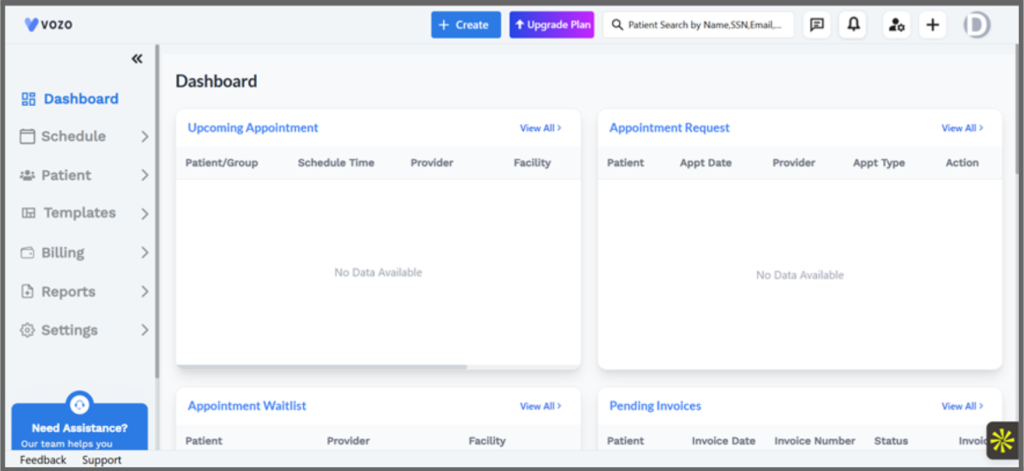
Figure 1: Upcoming Appointments and Appointment Requests, at the top of the Dashboard.
- Left column: Upcoming Appointments, Appointment Waitlist, Forms, Recent Patients
- Right column: Appointment Requests, Unsigned Notes, Patient Portal Activity, Pending Invoices
3.2 Card reference
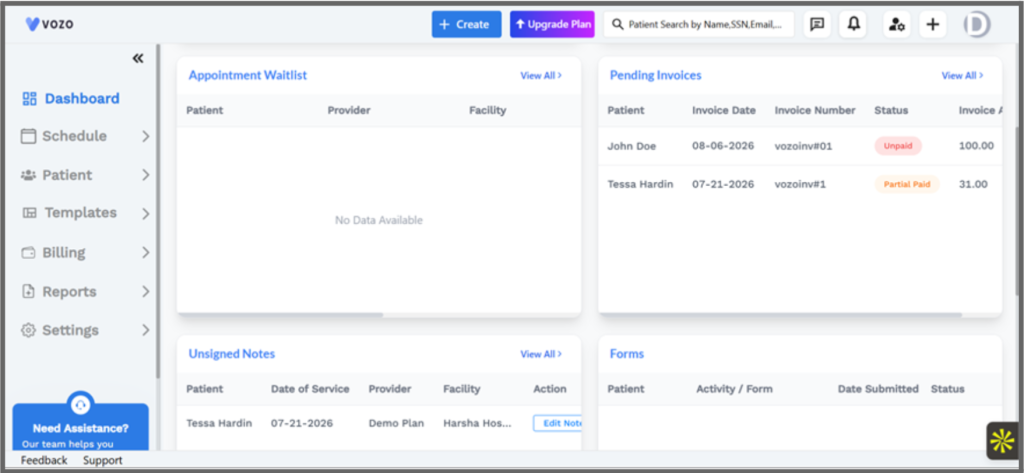
Figure 2: Appointment Waitlist and Pending Invoices, further down the Dashboard.
- Upcoming Appointments – Patient, Time, Provider, Status; View All goes to Schedule → Calendar
- Appointment Requests – Patient, Date, Type; View All opens the Requests popup
- Waitlist – Patient, Preferred Time; View All goes to Schedule → Waitlist
- Unsigned Notes – Patient, Date, Provider; View All goes to Note Taking
- Forms – Patient, Form, Status; View All goes to the Forms module
- Portal Activity – Patient actions; View All goes to Settings → Activities
- Recent Patients – Name, Created Date; View All goes to the Patients list
- Pending Invoices – Invoice, Amount; View All goes to Reports → Invoices
Figure 3: Patient Portal Activity and Recent Patients, at the bottom of the Dashboard.
3.3 Interactive actions
- Appointment Requests – Accept, Modify, or Decline directly from the card
- Waitlist – Edit, Delete, or Schedule directly from the card
- Unsigned Notes – Edit and sign a note instantly from the card
Each card shows 3 recent records with column headers matching the full module; Select View All for the complete list.
4. Key Behaviors
- Personalization – Dashboard shows data for the logged-in provider
- Record count – 3 preview rows per card
- Navigation – direct links into each module via View All
- Refresh – reload the page to see the latest data
- Permissions – what’s visible varies by user role
5. End-to-End Usage
- Open Dashboard from the sidebar
- Scan the cards to review appointments, notes, and alerts
- Take action directly on a card, or open the full module
- Use View All to navigate deeper into a specific workflow
6. Known Limitations
- Dashboard data is live as of page load; reload the page to see newer records.
- Visible cards and data can vary by user role and permissions.
RELEASE NOTES
External Calendar One-Way Appointment Sync
Product: Vozo EHR
Release Version: 2025.11
Release Date: November 2025
Release Type: New Feature (Calendar Sync)
Availability: All practices
1. Overview
Providers can now connect their Google Calendar, Outlook Calendar, or Apple Calendar to Vozo EHR. Every appointment created, updated, rescheduled, or cancelled in Vozo automatically appears in the connected calendar, so providers can see their full schedule in one place without opening the EHR.
Where to Find This Feature 1. Settings → Integrations → Calendar Connections |
2. Purpose
Previously, providers had to check Vozo separately from their personal calendars to know their full schedule for the day. This release adds a one-way sync from Vozo to external calendars, so appointments created or changed in Vozo show up automatically wherever the provider already looks – without any manual re-entry.
3. What’s New
3.1 Supported Calendars
Vozo can sync appointments to three external calendar providers:
- Google Calendar – connected via Sign in with Google
- Outlook Calendar – connected via Sign in with Outlook
- Apple Calendar – connected via a subscription link, since Apple does not support direct account sign-in
3.2 Connecting a Calendar
Calendar connections are managed from Settings → Integrations, alongside other third-party integrations such as Twilio, Email Notification, and RingCentral.
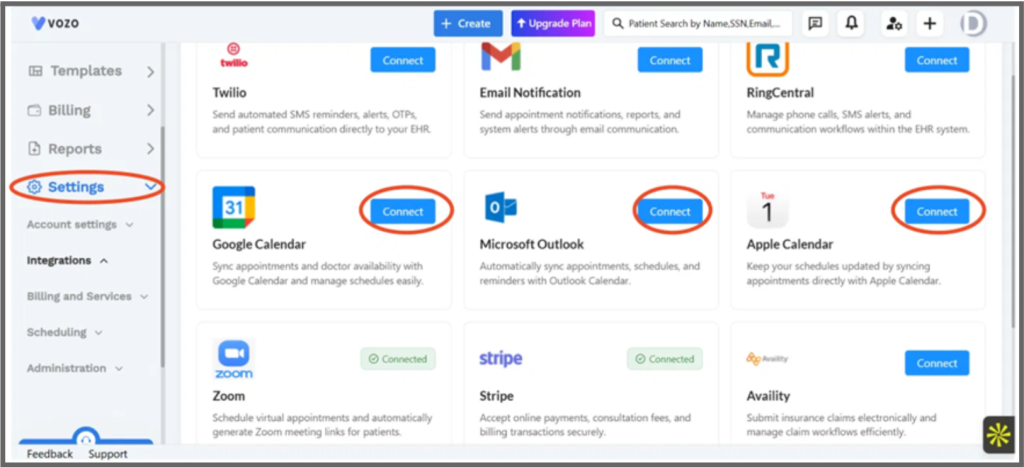
Figure 1: Settings → Integrations page. Google Calendar, Microsoft Outlook, and Apple Calendar each have their own Connect button.
Selecting Connect on Google Calendar or Outlook Calendar opens a sync options popup:
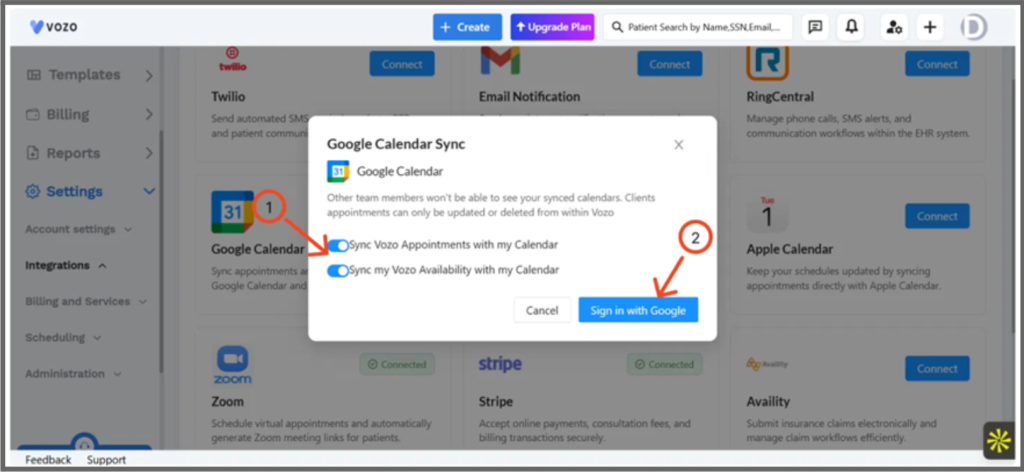
Figure 2: Google Calendar Sync popup – toggle appointment and availability sync, then Sign in with Google.
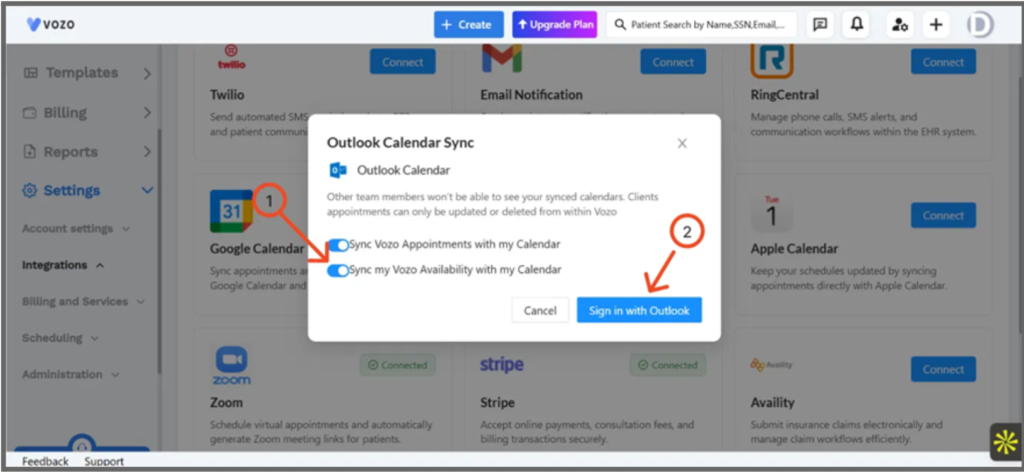
Figure 3: Outlook Calendar Sync popup – same toggles, authorized with Sign in with Outlook.
Apple Calendar does not use a sign-in popup. Instead, Connect opens a subscription link that the provider copies into Apple Calendar’s New Calendar Subscription dialog:
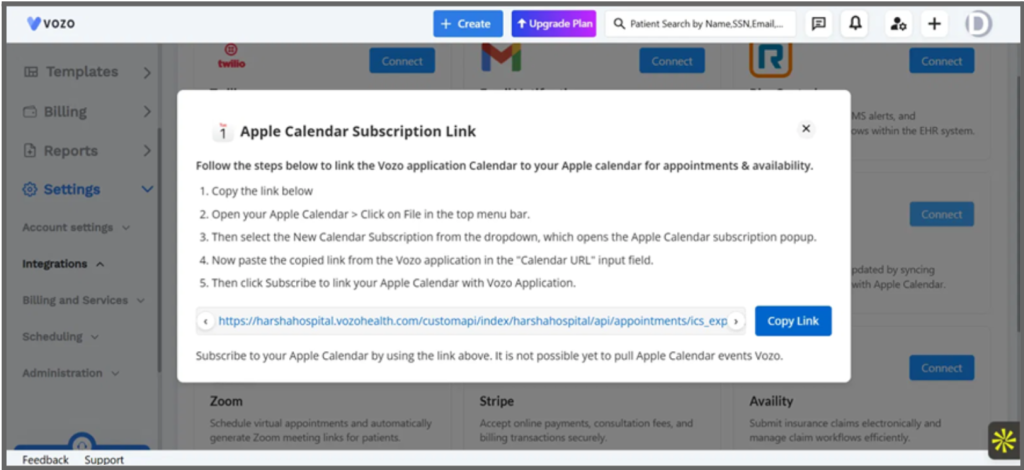
Figure 4: Apple Calendar Subscription Link popup, with step-by-step instructions and a Copy Link button.
3.3 Appointment Actions and Calendar Sync
Once a calendar is connected, the following Vozo actions sync automatically:
Vozo Action | What Happens in External Calendar |
New appointment created | A matching event is added automatically to all connected calendars within moments of saving. |
Appointment updated (time, date, location) | The corresponding event is updated in all connected calendars to match the latest details. |
Appointment rescheduled | The event date/time is updated – the old slot is replaced, not duplicated. |
Appointment cancelled / deleted | The event is removed from all connected calendars. |
3.4 What the Calendar Event Shows
Syncs
- Appointment date
- Start and end time
- Provider name
- Location
- Appointment title
Does Not Sync
- Clinical notes
- Diagnosis
- Billing data
- Patient contact details
Privacy settings in Vozo control how much appointment detail appears in external calendars.
4. Key Behaviors
- Sync direction – one-way only, Vozo EHR → external calendar. Vozo is always the master.
- External edits are ignored – changes made directly in Google Calendar, Outlook Calendar, or Apple Calendar are not read back into Vozo. Always make schedule changes in Vozo.
- One account per calendar type – a provider can connect one Google account, one Outlook account, and one Apple subscription at a time.
- Disconnecting – stops future sync only; it does not delete already-synced events or make the external calendar the source of truth.
- Apple Calendar is subscription-based- it is not yet possible to pull Apple Calendar events into Vozo.
5. End-to-End Usage
- Go to Settings → Integrations
- Choose a calendar tile – Google Calendar, Outlook Calendar, or Apple Calendar
- Check whether it is currently Connected or Not Connected
- Select Connect and authorise the account (Google/Outlook), or copy the subscription link and add it in Apple Calendar
- Continue creating, updating, and cancelling appointments in Vozo as usual – connected calendars stay in sync automatically
6. Known Limitations
- One-way sync only – edits or deletions made in an external calendar do not sync back to Vozo.
- Only one account can be connected per calendar type.
- Apple Calendar sync relies on a manual subscription link; Vozo cannot yet pull events from Apple Calendar.
- Clinical notes, diagnosis, billing data, and patient contact details never appear in synced calendar events.